> ## Documentation Index
> Fetch the complete documentation index at: https://docs.tiro.ooo/llms.txt
> Use this file to discover all available pages before exploring further.
# Live Recording
> Text appears on screen as you speak. Set different languages for the conversation and the recording, and you also see real-time translation alongside it.
export const PlanBadge = ({plan, lang = "ko"}) =>
{({
pro: {
ko: "Pro+",
en: "Pro+",
ja: "Pro+"
},
team: {
ko: "팀 플랜",
en: "Team Plan",
ja: "チームプラン"
},
enterprise: {
ko: "엔터프라이즈",
en: "Enterprise",
ja: "エンタープライズ"
}
})[plan][lang]}
;
## When should you use live recording?
Use this mode when you want to watch the text appear on screen as it's captured. It fits situations like these:
* You want to check something you missed during a meeting, right then and there
* You want to follow a foreign-language conversation through real-time translation
If you're on the move, on an unstable network, or recording something long where you don't need to watch the screen, [offline recording](/en/guide/recording/offline) is more reliable. Already have a recording? Use [audio file upload](/en/guide/recording/upload). To show captions on a venue screen or your audience's phones, use [Conference mode](/en/guide/recording/conference).
## How to start live recording
Where you start depends on your platform.
* **Web and desktop app**: On the note list screen, click **\[Start realtime recording]**. A new note opens, ready to record.
* **Mobile app**: On the new note screen, select the **\[Real-time]** mode and tap **\[Start realtime recording]**. Offline recording is selected by default.
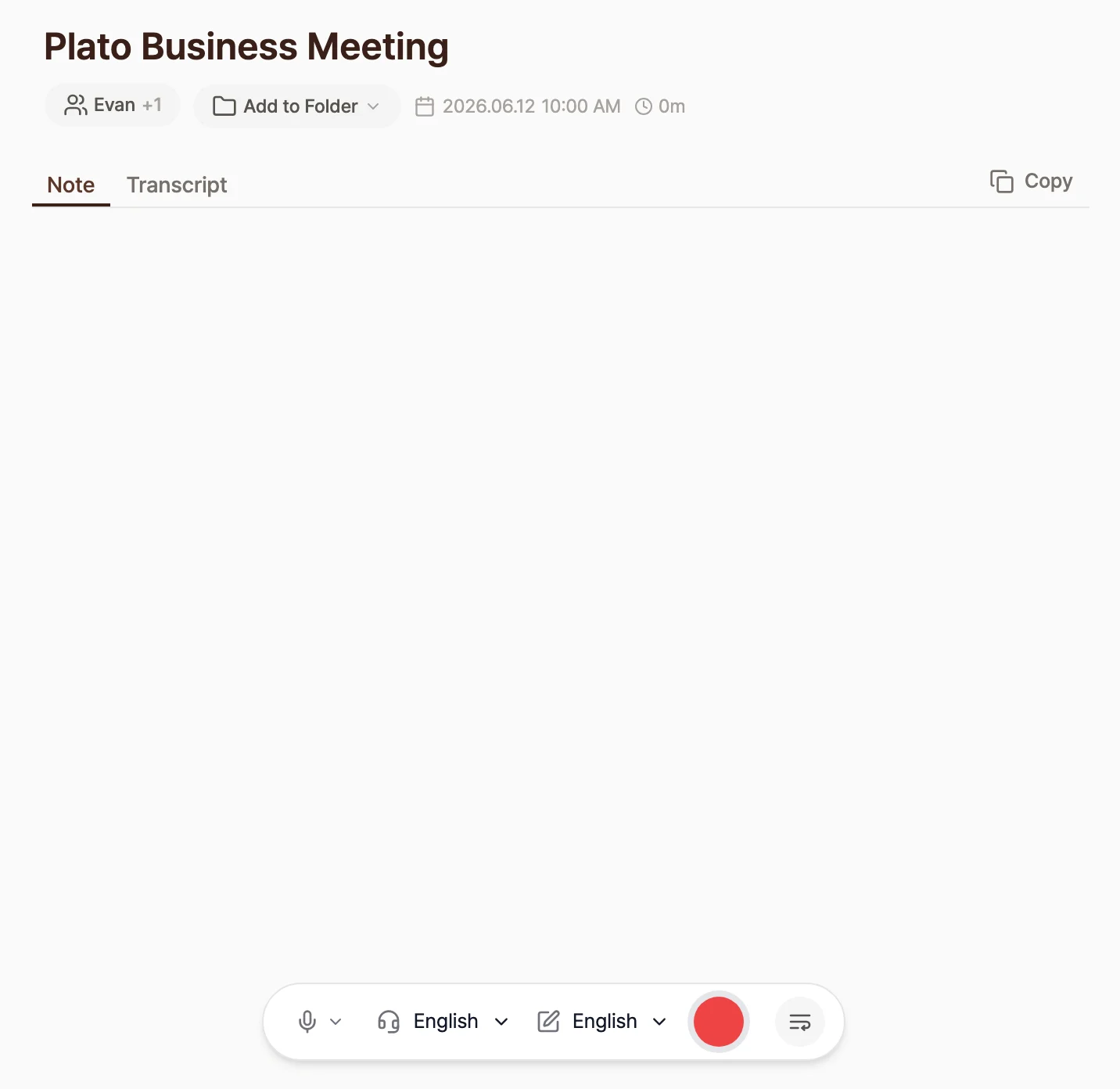
Before you start, you can set the following on the note screen.
If you don't set a title yourself, Tiro listens to the conversation and creates one that fits the topic. Add the names and emails of the people with you in the **\[Participants]** field. This helps Tiro recognize their names more reliably, and makes it easier to invite them to the note or search by participant once recording is done. See [Conversation participants](/en/guide/recording/participants) for details.
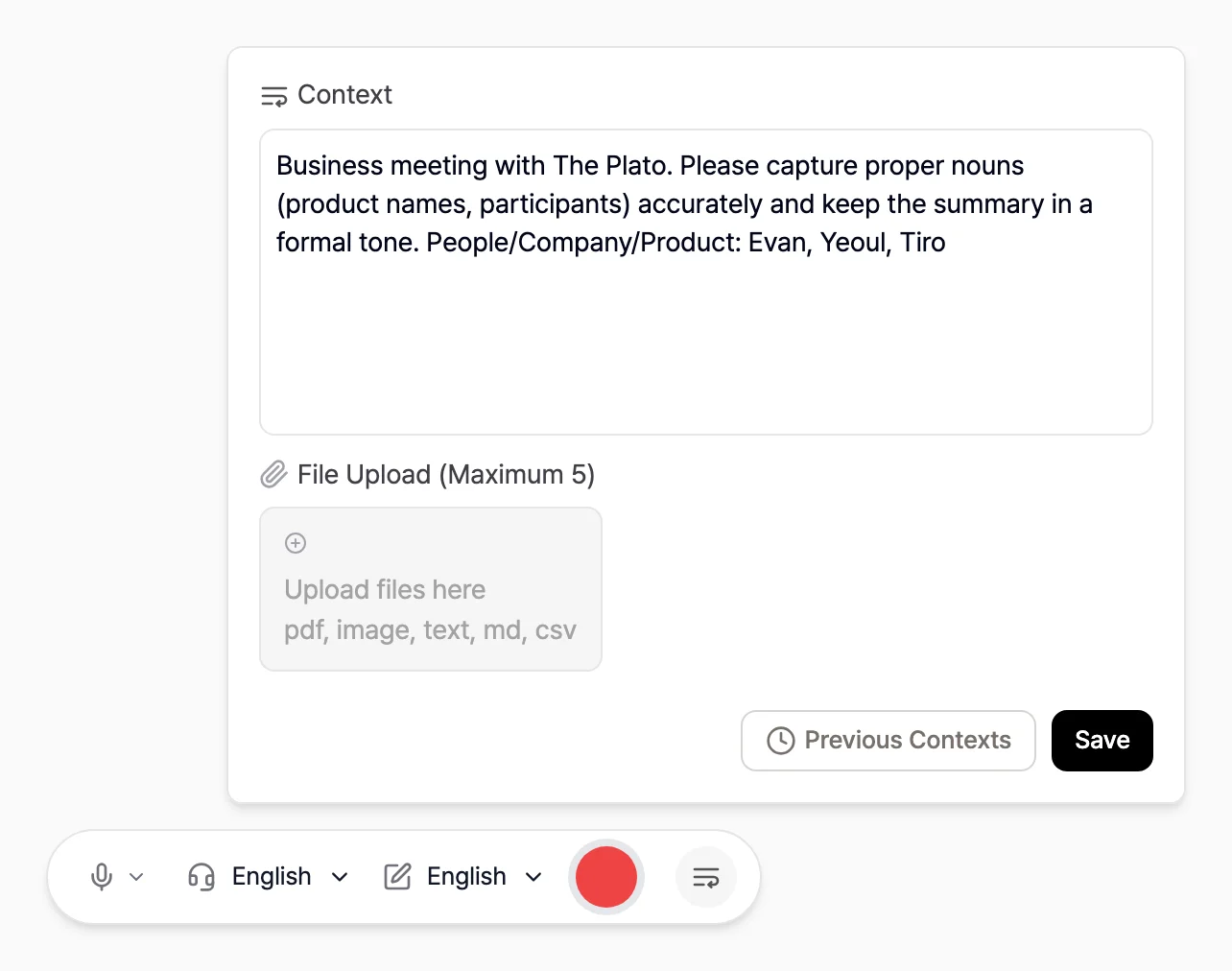
 Context is a hint that helps Tiro capture speech more reliably. Tell it about the setting, proper nouns, and people's names ahead of time in the **\[Context]** field, and both the transcript and the summary improve noticeably.
> e.g. A business meeting with \[The Plato]. Capture proper nouns like product names and attendees accurately, and write the summary in a formal tone. People / companies / products: \[John Doe], \[Tiro]
The [Context](/en/guide/recording/context) page covers how to write good context in more depth.
Context is a hint that helps Tiro capture speech more reliably. Tell it about the setting, proper nouns, and people's names ahead of time in the **\[Context]** field, and both the transcript and the summary improve noticeably.
> e.g. A business meeting with \[The Plato]. Capture proper nouns like product names and attendees accurately, and write the summary in a formal tone. People / companies / products: \[John Doe], \[Tiro]
The [Context](/en/guide/recording/context) page covers how to write good context in more depth.
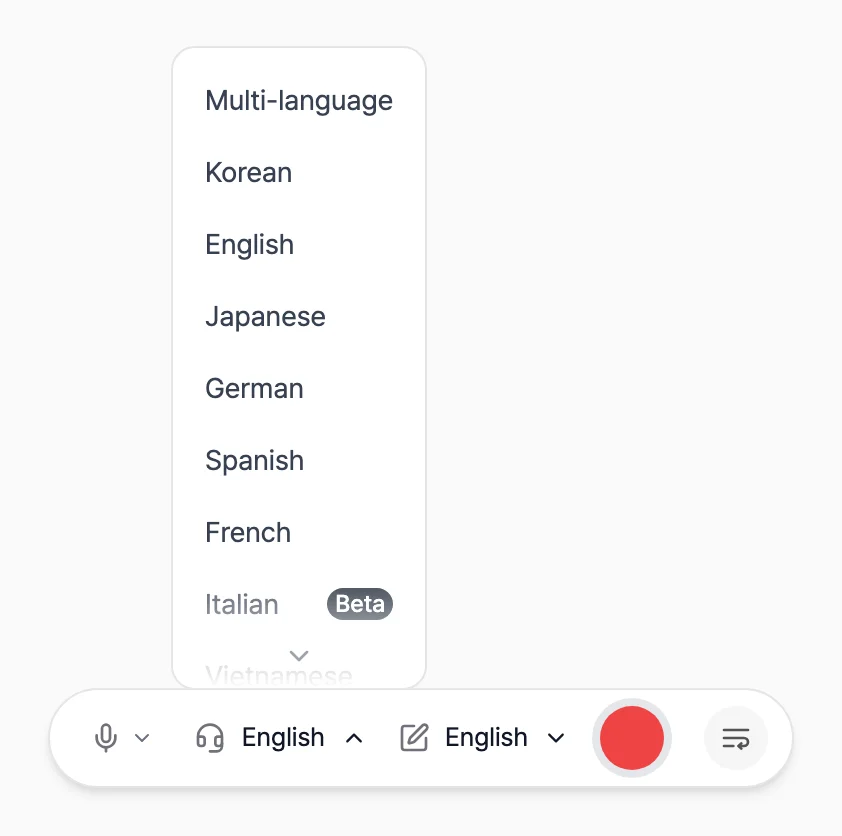
 You can choose two languages separately.
* **\[Listen In]**: the language actually spoken in the conversation. This is what speech recognition listens for.
* **\[Write In]**: the language your transcript and summary are written in.
Tiro supports 15 languages, including Korean, English, and Japanese. If you don't know which language will come up, or several will be mixed, choose the **\[Multilingual]** option.
You can choose two languages separately.
* **\[Listen In]**: the language actually spoken in the conversation. This is what speech recognition listens for.
* **\[Write In]**: the language your transcript and summary are written in.
Tiro supports 15 languages, including Korean, English, and Japanese. If you don't know which language will come up, or several will be mixed, choose the **\[Multilingual]** option.
 Set the two languages differently and real-time translation begins. See the [Using real-time translation](#using-real-time-translation) section below.
Press the start button and the red record button turns into an audio waveform as recording begins.
## What you can do while recording
* **Pause and resume**: Press the waveform button to pause; press it again to keep recording.
* **Add or edit context**: You can enter or change context mid-recording, and it takes effect from the next moment on. Drop in proper nouns or key terms as they come up in the conversation.
* **Check and fix the original**: Open the raw text with **\[View script]** and click any misrecognized part to fix it on the spot.
For context to shape your Note and transcript, enter it before or during recording. Context you add after recording ends takes effect the next time you regenerate the one-page document.
## Make recording easier on the desktop app
The desktop app has two conveniences that help you never miss a recording. Turn each on or off under **\[Settings]** → **\[Preferences]**; both work on the desktop app only.
* **Auto-detected meetings**: when a conversation is detected, Tiro shows a prompt so you can start recording right away. Even if a meeting started and you forgot to hit record, you can start it in one tap from the prompt. Unlike calendar notifications, which alert you ahead of time based on your schedule, this triggers when actual sound is detected.
* **Live indicator**: Tiro keeps a recording status on the right side of your screen so you never forget a recording is in progress.
## Using real-time translation
Set the **\[Listen In]** and **\[Write In]** languages differently to use real-time translation. For example, set Listen In to English and Write In to Korean, and English speech is translated into Korean. How the translation shows up depends on your device and your Listen In setting.
### Turning on the translation toggle
When the **\[Listen In]** and **\[Write In]** languages are different (including when Listen In is set to **\[Multilingual]**), a **\[Translation]** toggle appears on the recording screen. On web and desktop it's in the recording controls; on mobile it's inside the language settings. The toggle controls the live, sentence-by-sentence translation shown while you speak, and it's off by default. It starts off again with every new note.
If **\[Listen In]** and **\[Write In]** are the same, the **\[Translation]** toggle doesn't appear. Set the two languages differently first, then look for the toggle.
Even with the toggle off, each paragraph is still translated when it's finalized, as long as the two languages differ. The toggle only controls the live display while you speak.
### Seeing the translation during and after recording
With the toggle on, each paragraph's original and translated text appear side by side while you record. After you finish, the translation stays with the note. In the finished note's transcript view you can switch between showing the original only or the original alongside its translation (on mobile, the **\[Show translation]** switch).
## After you finish recording
When you end a recording, Tiro creates three things.
* **One-page document**: A summary that structures the whole conversation by key topic, organized by theme rather than in plain time order.
* **Note**: The chronological summary generated live as you speak.
* **Transcript**: A verbatim record of the whole conversation. Filler like "um" and "uh" and small grammar slips are smoothed out while the meaning stays intact.
Need a document shaped for a specific purpose, like meeting minutes or an interview write-up? Build a custom one with [templates](/en/guide/notes/templates).
## When another recording mode works better
* **Conversations that mix languages**: Live recognition has to detect the language and transcribe it at the same time, in a split second, so accuracy can drop when a conversation moves between two or more languages. [Offline recording](/en/guide/recording/offline) or [audio file upload](/en/guide/recording/upload) works better here.
* **Unstable network**: Live recording depends on your internet connection. Where the connection might drop, offline recording is the safer choice.
## Frequently asked questions
### Is live recording less accurate than offline recording?
No. In a typical single-language conversation, both use the same speech recognition engine, so they're equally accurate. The real difference is stability, not accuracy. Live recording depends on your network, so if you don't need to watch the screen as you go, offline recording is the better pick.
### How long can a single note record?
Paid plans record up to 5 hours per note. During the free trial you can record up to 2 hours, but anything past 50 minutes shows as locked and unlocks once you start a paid plan. Without a subscription, you can record up to 60 minutes per note.
### Can Tiro separate speakers?
Yes, speaker separation is available on Pro and above. During live recording, speakers aren't split apart in real time, but when you end the recording Tiro re-analyzes the full audio automatically and tags speakers in the transcript. See [Speaker diarization](/en/guide/recording/diarization) for how it works.
### The waveform isn't moving while we're talking
The waveform moves in proportion to how loud the incoming sound is. If it's frozen, check that the right microphone input is selected. On the desktop app, to also record system audio (the sound playing from your device), the **\[System Sound]** input in the recording controls needs to be set above 0%. See [Recording system audio](/en/guide/recording/system-audio) for details.
### How many languages does recording support?
Tiro supports 15 languages plus the **\[Multilingual]** option: Korean, English, Japanese, Chinese, Spanish, French, German, Italian, Russian, Vietnamese, Indonesian, Thai, Malay, Swedish, and Hindi. You can mix and match the Listen In and Write In languages freely.
### Can I record my own input if I'm deaf or hard of hearing and can't speak aloud?
Yes, with a web tool called **Voicepad**. You type a sentence, your browser's speech synthesis plays it through the speaker, and Tiro picks that sound up as system audio and writes it into the note. Your input lands in the same record as everyone else's voice, without you speaking a word. Use it when you want to take part in a meeting or conversation in writing and keep what you say in the record, whether you're deaf, hard of hearing, or unable to speak aloud at the moment.
* In a Tiro note, set the microphone's **\[System Sound]** input above 0%, and the sentences you play from Voicepad get recorded into the note. They stay in the record even if you mute your desktop speaker.
* Open it in Chrome or Edge, which support speech synthesis, and change the output voice language from the gear icon in Voicepad settings.
Voicepad's link is shared individually with people who need accessibility support. To request access, reach out through the **Support** button in the Tiro app or on the website.
***
**Related pages**: [Offline recording](/en/guide/recording/offline) · [Context](/en/guide/recording/context) · [Recording system audio](/en/guide/recording/system-audio)
Set the two languages differently and real-time translation begins. See the [Using real-time translation](#using-real-time-translation) section below.
Press the start button and the red record button turns into an audio waveform as recording begins.
## What you can do while recording
* **Pause and resume**: Press the waveform button to pause; press it again to keep recording.
* **Add or edit context**: You can enter or change context mid-recording, and it takes effect from the next moment on. Drop in proper nouns or key terms as they come up in the conversation.
* **Check and fix the original**: Open the raw text with **\[View script]** and click any misrecognized part to fix it on the spot.
For context to shape your Note and transcript, enter it before or during recording. Context you add after recording ends takes effect the next time you regenerate the one-page document.
## Make recording easier on the desktop app
The desktop app has two conveniences that help you never miss a recording. Turn each on or off under **\[Settings]** → **\[Preferences]**; both work on the desktop app only.
* **Auto-detected meetings**: when a conversation is detected, Tiro shows a prompt so you can start recording right away. Even if a meeting started and you forgot to hit record, you can start it in one tap from the prompt. Unlike calendar notifications, which alert you ahead of time based on your schedule, this triggers when actual sound is detected.
* **Live indicator**: Tiro keeps a recording status on the right side of your screen so you never forget a recording is in progress.
## Using real-time translation
Set the **\[Listen In]** and **\[Write In]** languages differently to use real-time translation. For example, set Listen In to English and Write In to Korean, and English speech is translated into Korean. How the translation shows up depends on your device and your Listen In setting.
### Turning on the translation toggle
When the **\[Listen In]** and **\[Write In]** languages are different (including when Listen In is set to **\[Multilingual]**), a **\[Translation]** toggle appears on the recording screen. On web and desktop it's in the recording controls; on mobile it's inside the language settings. The toggle controls the live, sentence-by-sentence translation shown while you speak, and it's off by default. It starts off again with every new note.
If **\[Listen In]** and **\[Write In]** are the same, the **\[Translation]** toggle doesn't appear. Set the two languages differently first, then look for the toggle.
Even with the toggle off, each paragraph is still translated when it's finalized, as long as the two languages differ. The toggle only controls the live display while you speak.
### Seeing the translation during and after recording
With the toggle on, each paragraph's original and translated text appear side by side while you record. After you finish, the translation stays with the note. In the finished note's transcript view you can switch between showing the original only or the original alongside its translation (on mobile, the **\[Show translation]** switch).
## After you finish recording
When you end a recording, Tiro creates three things.
* **One-page document**: A summary that structures the whole conversation by key topic, organized by theme rather than in plain time order.
* **Note**: The chronological summary generated live as you speak.
* **Transcript**: A verbatim record of the whole conversation. Filler like "um" and "uh" and small grammar slips are smoothed out while the meaning stays intact.
Need a document shaped for a specific purpose, like meeting minutes or an interview write-up? Build a custom one with [templates](/en/guide/notes/templates).
## When another recording mode works better
* **Conversations that mix languages**: Live recognition has to detect the language and transcribe it at the same time, in a split second, so accuracy can drop when a conversation moves between two or more languages. [Offline recording](/en/guide/recording/offline) or [audio file upload](/en/guide/recording/upload) works better here.
* **Unstable network**: Live recording depends on your internet connection. Where the connection might drop, offline recording is the safer choice.
## Frequently asked questions
### Is live recording less accurate than offline recording?
No. In a typical single-language conversation, both use the same speech recognition engine, so they're equally accurate. The real difference is stability, not accuracy. Live recording depends on your network, so if you don't need to watch the screen as you go, offline recording is the better pick.
### How long can a single note record?
Paid plans record up to 5 hours per note. During the free trial you can record up to 2 hours, but anything past 50 minutes shows as locked and unlocks once you start a paid plan. Without a subscription, you can record up to 60 minutes per note.
### Can Tiro separate speakers?
Yes, speaker separation is available on Pro and above. During live recording, speakers aren't split apart in real time, but when you end the recording Tiro re-analyzes the full audio automatically and tags speakers in the transcript. See [Speaker diarization](/en/guide/recording/diarization) for how it works.
### The waveform isn't moving while we're talking
The waveform moves in proportion to how loud the incoming sound is. If it's frozen, check that the right microphone input is selected. On the desktop app, to also record system audio (the sound playing from your device), the **\[System Sound]** input in the recording controls needs to be set above 0%. See [Recording system audio](/en/guide/recording/system-audio) for details.
### How many languages does recording support?
Tiro supports 15 languages plus the **\[Multilingual]** option: Korean, English, Japanese, Chinese, Spanish, French, German, Italian, Russian, Vietnamese, Indonesian, Thai, Malay, Swedish, and Hindi. You can mix and match the Listen In and Write In languages freely.
### Can I record my own input if I'm deaf or hard of hearing and can't speak aloud?
Yes, with a web tool called **Voicepad**. You type a sentence, your browser's speech synthesis plays it through the speaker, and Tiro picks that sound up as system audio and writes it into the note. Your input lands in the same record as everyone else's voice, without you speaking a word. Use it when you want to take part in a meeting or conversation in writing and keep what you say in the record, whether you're deaf, hard of hearing, or unable to speak aloud at the moment.
* In a Tiro note, set the microphone's **\[System Sound]** input above 0%, and the sentences you play from Voicepad get recorded into the note. They stay in the record even if you mute your desktop speaker.
* Open it in Chrome or Edge, which support speech synthesis, and change the output voice language from the gear icon in Voicepad settings.
Voicepad's link is shared individually with people who need accessibility support. To request access, reach out through the **Support** button in the Tiro app or on the website.
***
**Related pages**: [Offline recording](/en/guide/recording/offline) · [Context](/en/guide/recording/context) · [Recording system audio](/en/guide/recording/system-audio)