> ## Documentation Index
> Fetch the complete documentation index at: https://docs.tiro.ooo/llms.txt
> Use this file to discover all available pages before exploring further.
# Audio File Upload
> Upload an audio or video file you already have, and Tiro turns it into a clean text note. Each file can be up to 1GB and 5 hours long.
export const PlanBadge = ({plan, lang = "ko"}) =>
{({
pro: {
ko: "Pro+",
en: "Pro+",
ja: "Pro+"
},
team: {
ko: "팀 플랜",
en: "Team Plan",
ja: "チームプラン"
},
enterprise: {
ko: "엔터프라이즈",
en: "Enterprise",
ja: "エンタープライズ"
}
})[plan][lang]}
;
## Turn a file into a note
Where you start depends on your platform.
* **Web and desktop app**: In a new note, choose the **\[File Upload]** menu.
* **Mobile app**: On the new note screen, choose the **\[Audio File]** mode.
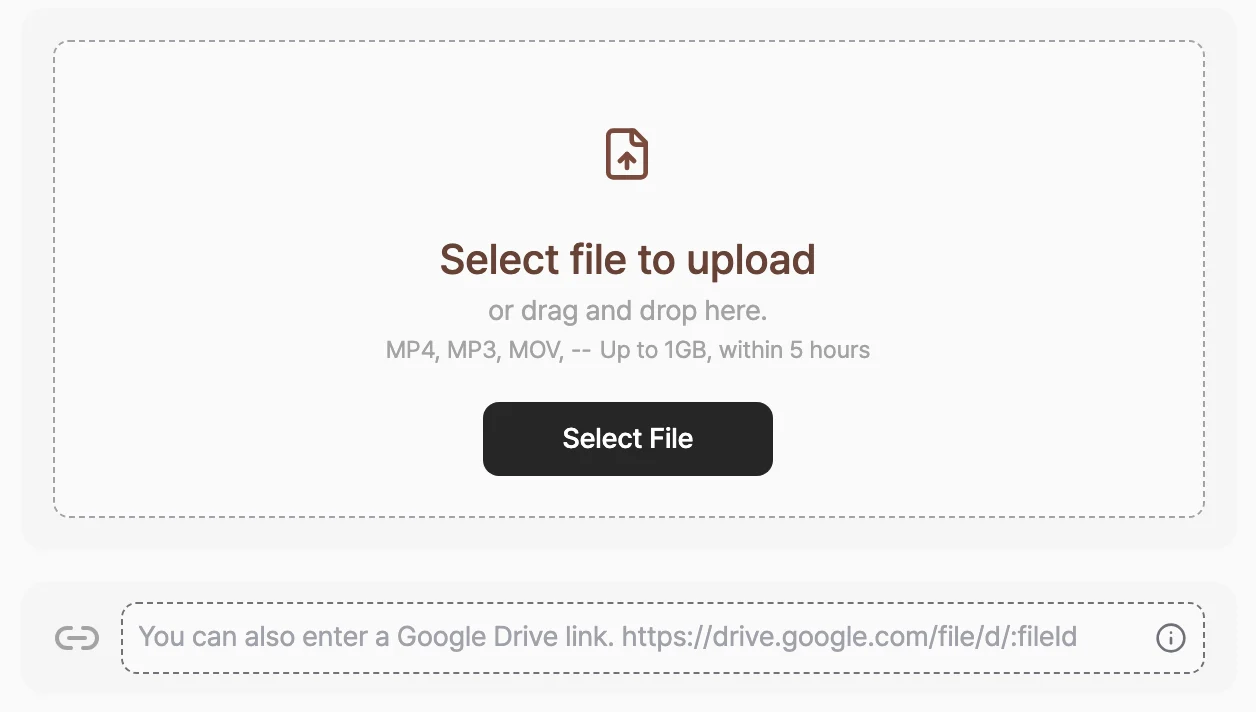
Click **\[Select File]** to pick a file, or drag one into the upload area. You can also paste a Google Drive link to upload. See [Upload from a Google Drive link](#upload-from-a-google-drive-link) below.
 * **\[Recording Language]**: The language your transcript and summary are written in. Tiro detects the spoken language automatically.
* **\[Number of Speakers]**: Enter the number of people in the conversation if you know it, or leave it on auto-detect.
* **Context**: Tell Tiro about the situation and any proper nouns to improve conversion accuracy.
* **\[Recording Language]**: The language your transcript and summary are written in. Tiro detects the spoken language automatically.
* **\[Number of Speakers]**: Enter the number of people in the conversation if you know it, or leave it on auto-detect.
* **Context**: Tell Tiro about the situation and any proper nouns to improve conversion accuracy.
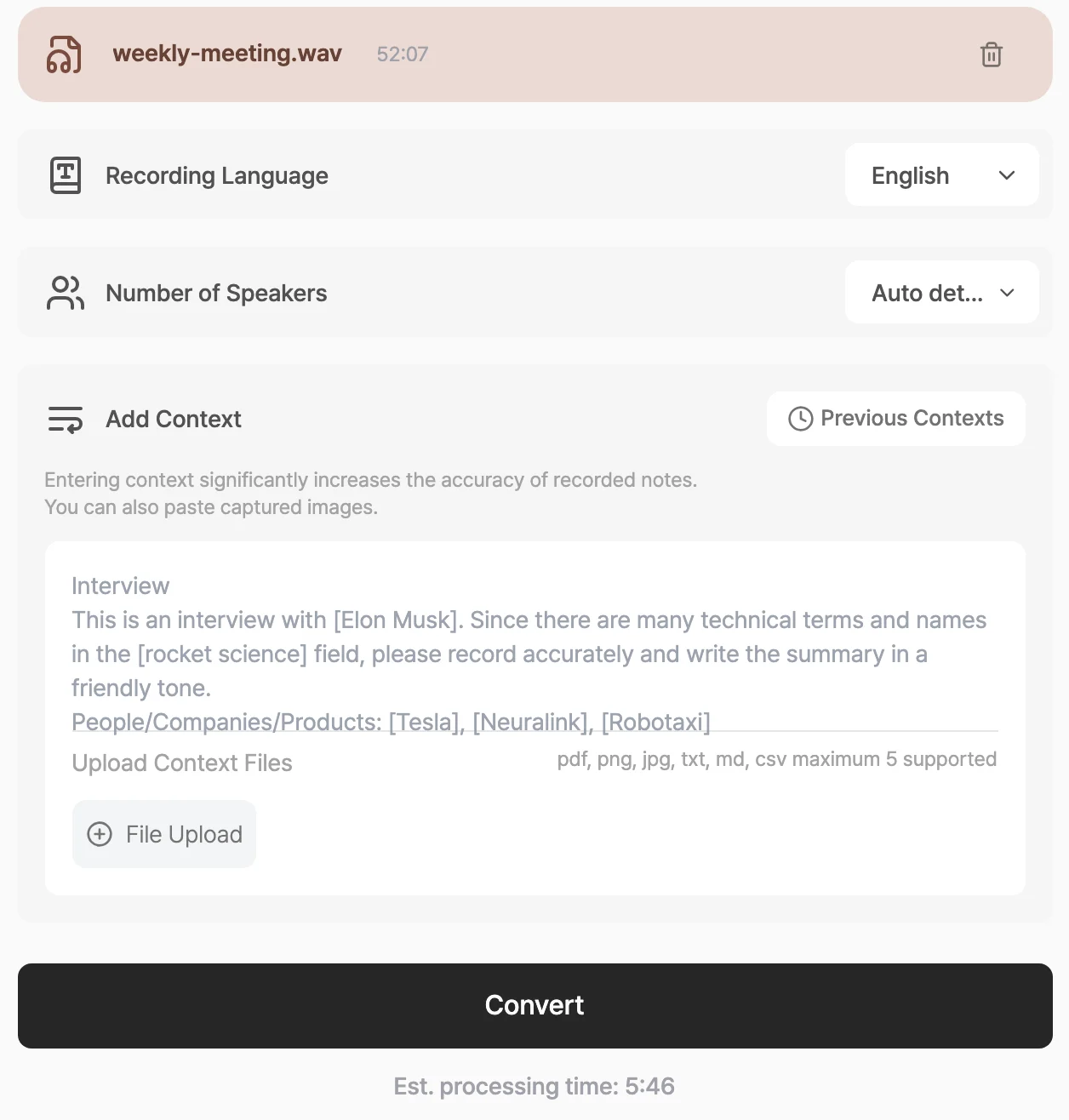 Click **\[Convert]** to start the upload and conversion. The screen shows the estimated processing time and progress stage. When it finishes, Tiro creates a Note, a transcript, and a one-page document.
## Supported formats and limits
* **File formats**: MP3, MP4, M4A, AAC, WAV, FLAC, OGG, OPUS, WebM, MOV, MP2, PCM
* **Size and length**: up to 1GB and 5 hours per file
* You can upload one file at a time.
When you upload a video file (MP4, MOV, and so on), Tiro extracts the audio and converts only that. You can upload a meeting recording as is.
## Upload from a Google Drive link
Paste a link in the form `https://drive.google.com/file/d/...` into the field, and Tiro fetches the file and converts it.
* Link upload currently supports Google Drive only.
* The file's sharing permission must be open so the link can be accessed. If the permission is closed, Tiro can't fetch it.
## When an upload fails
1. A file over 1GB or longer than 5 hours won't upload. Split the file or convert it to a more compressed format (MP3, M4A) and try again.
2. If you see a message that the format isn't supported, check the list above and convert to MP3 if you can.
3. If uploads keep failing on a corporate network, a firewall may be blocking them. Connect to a different network, such as a mobile hotspot, and try again.
## Frequently asked questions
### Do video files get converted?
Yes. When you upload a video file like MP4 or MOV, Tiro extracts the audio and converts it to text.
### Does it separate speakers?
Yes, speaker separation is available on the Pro plan and above. If you know the number of speakers, enter it in the **\[Number of Speakers]** field for better results. For details, see [Speaker Diarization](/en/guide/recording/diarization).
### How long does conversion take?
It depends on the file length. When you select a file, the screen shows the estimated processing time, and during conversion you see the progress stage by stage.
### Can I upload call recording files?
Yes. Any recording converts as long as it meets the format and size requirements. If you're an Android (Galaxy) user, [Call Recording](/en/guide/recording/call-recording), which automatically detects and converts your call recordings, is more convenient.
***
**Related pages**: [Call Recording](/en/guide/recording/call-recording) · [Speaker Diarization](/en/guide/recording/diarization) · [Manage Audio Files](/en/guide/notes/audio-manage)
Click **\[Convert]** to start the upload and conversion. The screen shows the estimated processing time and progress stage. When it finishes, Tiro creates a Note, a transcript, and a one-page document.
## Supported formats and limits
* **File formats**: MP3, MP4, M4A, AAC, WAV, FLAC, OGG, OPUS, WebM, MOV, MP2, PCM
* **Size and length**: up to 1GB and 5 hours per file
* You can upload one file at a time.
When you upload a video file (MP4, MOV, and so on), Tiro extracts the audio and converts only that. You can upload a meeting recording as is.
## Upload from a Google Drive link
Paste a link in the form `https://drive.google.com/file/d/...` into the field, and Tiro fetches the file and converts it.
* Link upload currently supports Google Drive only.
* The file's sharing permission must be open so the link can be accessed. If the permission is closed, Tiro can't fetch it.
## When an upload fails
1. A file over 1GB or longer than 5 hours won't upload. Split the file or convert it to a more compressed format (MP3, M4A) and try again.
2. If you see a message that the format isn't supported, check the list above and convert to MP3 if you can.
3. If uploads keep failing on a corporate network, a firewall may be blocking them. Connect to a different network, such as a mobile hotspot, and try again.
## Frequently asked questions
### Do video files get converted?
Yes. When you upload a video file like MP4 or MOV, Tiro extracts the audio and converts it to text.
### Does it separate speakers?
Yes, speaker separation is available on the Pro plan and above. If you know the number of speakers, enter it in the **\[Number of Speakers]** field for better results. For details, see [Speaker Diarization](/en/guide/recording/diarization).
### How long does conversion take?
It depends on the file length. When you select a file, the screen shows the estimated processing time, and during conversion you see the progress stage by stage.
### Can I upload call recording files?
Yes. Any recording converts as long as it meets the format and size requirements. If you're an Android (Galaxy) user, [Call Recording](/en/guide/recording/call-recording), which automatically detects and converts your call recordings, is more convenient.
***
**Related pages**: [Call Recording](/en/guide/recording/call-recording) · [Speaker Diarization](/en/guide/recording/diarization) · [Manage Audio Files](/en/guide/notes/audio-manage)