> ## Documentation Index
> Fetch the complete documentation index at: https://docs.tiro.ooo/llms.txt
> Use this file to discover all available pages before exploring further.
# Workspace
> A workspace is where your notes, folders, people, and billing live together. Start solo, invite others, and it becomes a team space without missing a beat.
## What is a workspace?
A workspace is where your notes, your folders, and the people you work with all live together. A single Tiro account can belong to several workspaces at once, and you switch between them freely by clicking the workspace name at the top of the left sidebar.
A solo workspace and a shared workspace are not conceptually different. With one person, you use a personal plan (Lite, Pro, or Max). With two or more, you use a team or enterprise plan.
* **Personal folder**: A folder only you can see. Any note you create without choosing a folder lands here automatically.
* **Team folder**: A folder shared automatically with people who have access. See [Folders](/en/guide/sharing/folders) for details.
* **Workspace word list and templates**: Shared by everyone in the workspace.
For information that follows your account (your profile, your personal word list, and so on), see the [account guide](/en/guide/account/overview).
## Create a new workspace
Click the workspace name at the top of the sidebar, choose **\[Add new workspace]**, and enter a name. A new workspace is a completely fresh space, so people and notes from your other workspaces do not carry over. You can create a new workspace on web and desktop.
## Join an existing workspace
To join an active workspace, an admin of that workspace has to invite you. Accept from the invite email, or accept right inside Tiro if you already use it. The role you're given is set by whoever invited you, and you can't change it when you join; for what each role can do, see [Workspace roles](/en/guide/workspace/roles).
### Accept an invite by email
The invite arrives at the email address you were invited at. Click the button in the email to open the invitation page.
* **If you already have a Tiro account**: On the invitation page, check the workspace name and click **\[Join]** to become a member right away. To hold off for now, click **\[Later]** and accept later from inside Tiro. The email you were invited at and the email you're signed in with have to match.
* **If you don't have an account**: You're taken to the sign-up screen. Sign up **with the exact email you were invited at**, and you join automatically the moment sign-up finishes. Signing up with a different email skips the automatic join.
If you can't find the invite email, check your spam folder. If it's still missing, ask the admin to invite you again. The admin can select **\[⋯]** → **\[Cancel invitation]** in the member list and re-invite you.
The only account types you can create yourself as a Tiro user are Google and Microsoft. When you're invited by email, you first create a Tiro account and then accept the invite, so if the invited email can't sign in with a Google or Microsoft account, you can't accept the invitation. Contact [hello@theplato.io](mailto:hello@theplato.io) if you need help.
### Accept an invite inside Tiro
If you already use Tiro, you can accept invitations right inside the app without going through email. This works on the web and desktop apps.
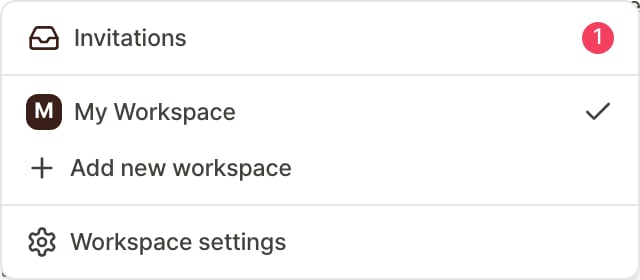
 Click the workspace name at the top of the left sidebar to expand the list. When you have invitations, the count appears next to the workspace name.
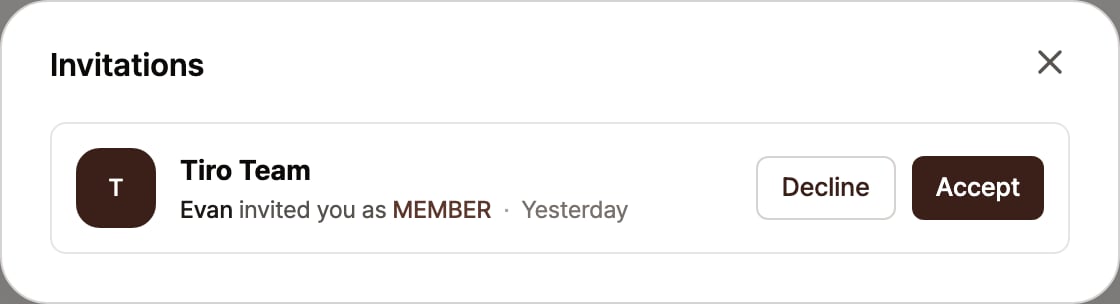
Select **\[Invitations]** from the list to see the invitations you've received. Each one shows the workspace name, who invited you and with which role, and when you were invited.
Click **\[Accept]** on the invitation you want to join, and you join right away. Click **\[Decline]** to not join.
## What an admin can do
A workspace admin manages people, billing, and some policy settings. When there are several admins, they all hold equal permissions. A workspace has no separate "owner."
* Invite, remove, and change the roles of people in the workspace
* Start, change, and cancel subscriptions, and manage payment methods
* Set whether notes can be moved out of the workspace
* View team folders they weren't invited to (the notes inside stay hidden)
Beyond Admin and Member, a workspace also has **Unpaid admin** (the same management permissions as an admin, but no billing and no recording) and **Viewer** (someone who only reads notes shared with them). For each role's permissions and how seats are billed, see [Workspace roles](/en/guide/workspace/roles).
### Invite someone
In Settings, go to **\[Members]** → **\[Invite member]**, set the email and role (Admin or Member), and send the invite. To invite someone into a solo workspace on a personal plan, first switch to a team plan from the **\[Manage Subscription]** menu. See [Tiro plans](/en/guide/workspace/plans).
### Remove someone
In the member list, select **\[⋯]** → **\[Remove member]** next to the person you want to remove (admin permission required).
* Someone you remove can no longer access the workspace. Notes they were invited to directly stay available under **\[Shared with me]**.
* The last remaining admin can't remove themselves. Assign someone else as admin first.
## Move notes between workspaces
You can move a note only when an admin has turned on the move toggle under **\[Settings]** → **\[Workspace]** → General. Once it's allowed, you can move notes you created from the **\[⋯]** → **\[Move to another workspace]** menu at the top right of a note, and you can select several at once.
* A moved note appears in the inbox of your personal folder.
* **Usage stays permanently tied to the workspace where the note was first created.** Even after you move it, it counts toward that original workspace's subscription.
* A note that's still recording can't be moved. Stop recording first, then move it.
## Leave a workspace
Go to **\[Settings]** → **\[Members]**, then select **\[⋯]** → **\[Remove member]** next to your own name to leave. Once you've left, you can't access that workspace's notes and folders, so move anything you need to another workspace first. If you're the last admin, promote someone else to admin before you leave.
## Frequently asked questions
### Can I have several workspaces under one account?
Yes. You can belong to a company workspace and keep a separate personal one. Each workspace has fully independent billing, people, and notes. The one exception: a company account that belongs to an enterprise Organization can't create a separate workspace outside that Organization.
### Do all my existing notes get shared when I invite someone?
No. Notes in your personal folder stay invisible to other people. Only notes you've placed in a team folder are shared, according to each person's access. A new person joining never makes your existing notes public.
### Do I get another free trial if I create a new workspace?
No. The free trial is offered once, in the default workspace created when you sign up. See [Free trial](/en/guide/workspace/free-trial) for details.
### I was on a team plan, and now I have two workspaces.
A workspace redesign gave existing team-plan users two spaces. Your **default workspace** holds the personal notes you made before joining the team, and the **workspace shared with your team** holds the notes made within the team. No notes were moved or deleted automatically, and access stayed the same. Switch between the two from the top of the sidebar.
### I have a personal folder (Private) in two places. Is that normal?
Yes. Each workspace has its own personal folder, and they're independent of each other. If you want to merge them, move the notes over yourself.
### What happens if I invite someone to a solo workspace I'm already paying for?
If you were paying on the web, you can switch to a team plan right away from the **\[Manage Subscription]** menu, and only the prorated difference is charged from the moment you switch. If you were paying through a mobile in-app purchase, you can't switch instantly: start a team plan on desktop and cancel the existing in-app purchase in the store. See [Manage your subscription](/en/guide/workspace/billing-guide) for the full steps.
***
**Related pages**: [Tiro plans](/en/guide/workspace/plans) · [Folders](/en/guide/sharing/folders) · [Manage your subscription](/en/guide/workspace/billing-guide)
Click the workspace name at the top of the left sidebar to expand the list. When you have invitations, the count appears next to the workspace name.
Select **\[Invitations]** from the list to see the invitations you've received. Each one shows the workspace name, who invited you and with which role, and when you were invited.
Click **\[Accept]** on the invitation you want to join, and you join right away. Click **\[Decline]** to not join.
## What an admin can do
A workspace admin manages people, billing, and some policy settings. When there are several admins, they all hold equal permissions. A workspace has no separate "owner."
* Invite, remove, and change the roles of people in the workspace
* Start, change, and cancel subscriptions, and manage payment methods
* Set whether notes can be moved out of the workspace
* View team folders they weren't invited to (the notes inside stay hidden)
Beyond Admin and Member, a workspace also has **Unpaid admin** (the same management permissions as an admin, but no billing and no recording) and **Viewer** (someone who only reads notes shared with them). For each role's permissions and how seats are billed, see [Workspace roles](/en/guide/workspace/roles).
### Invite someone
In Settings, go to **\[Members]** → **\[Invite member]**, set the email and role (Admin or Member), and send the invite. To invite someone into a solo workspace on a personal plan, first switch to a team plan from the **\[Manage Subscription]** menu. See [Tiro plans](/en/guide/workspace/plans).
### Remove someone
In the member list, select **\[⋯]** → **\[Remove member]** next to the person you want to remove (admin permission required).
* Someone you remove can no longer access the workspace. Notes they were invited to directly stay available under **\[Shared with me]**.
* The last remaining admin can't remove themselves. Assign someone else as admin first.
## Move notes between workspaces
You can move a note only when an admin has turned on the move toggle under **\[Settings]** → **\[Workspace]** → General. Once it's allowed, you can move notes you created from the **\[⋯]** → **\[Move to another workspace]** menu at the top right of a note, and you can select several at once.
* A moved note appears in the inbox of your personal folder.
* **Usage stays permanently tied to the workspace where the note was first created.** Even after you move it, it counts toward that original workspace's subscription.
* A note that's still recording can't be moved. Stop recording first, then move it.
## Leave a workspace
Go to **\[Settings]** → **\[Members]**, then select **\[⋯]** → **\[Remove member]** next to your own name to leave. Once you've left, you can't access that workspace's notes and folders, so move anything you need to another workspace first. If you're the last admin, promote someone else to admin before you leave.
## Frequently asked questions
### Can I have several workspaces under one account?
Yes. You can belong to a company workspace and keep a separate personal one. Each workspace has fully independent billing, people, and notes. The one exception: a company account that belongs to an enterprise Organization can't create a separate workspace outside that Organization.
### Do all my existing notes get shared when I invite someone?
No. Notes in your personal folder stay invisible to other people. Only notes you've placed in a team folder are shared, according to each person's access. A new person joining never makes your existing notes public.
### Do I get another free trial if I create a new workspace?
No. The free trial is offered once, in the default workspace created when you sign up. See [Free trial](/en/guide/workspace/free-trial) for details.
### I was on a team plan, and now I have two workspaces.
A workspace redesign gave existing team-plan users two spaces. Your **default workspace** holds the personal notes you made before joining the team, and the **workspace shared with your team** holds the notes made within the team. No notes were moved or deleted automatically, and access stayed the same. Switch between the two from the top of the sidebar.
### I have a personal folder (Private) in two places. Is that normal?
Yes. Each workspace has its own personal folder, and they're independent of each other. If you want to merge them, move the notes over yourself.
### What happens if I invite someone to a solo workspace I'm already paying for?
If you were paying on the web, you can switch to a team plan right away from the **\[Manage Subscription]** menu, and only the prorated difference is charged from the moment you switch. If you were paying through a mobile in-app purchase, you can't switch instantly: start a team plan on desktop and cancel the existing in-app purchase in the store. See [Manage your subscription](/en/guide/workspace/billing-guide) for the full steps.
***
**Related pages**: [Tiro plans](/en/guide/workspace/plans) · [Folders](/en/guide/sharing/folders) · [Manage your subscription](/en/guide/workspace/billing-guide)