

What can you do?
Keep the convenience of sharing notes by link, while an admin keeps the contents from leaking outside the company.- Manage and revoke share links: An admin reviews every link shared in the workspace from one place and revokes any of them right away.
- Enforce a share scope cap : An admin sets the widest share scope people can pick for the links they create, blocking anything broader than the cap. To see how people choose a share scope per note, see the Sharing guide.
- Workspace share policy : An admin sets the share scope cap, the maximum expiry, and the allowed company domains.
Open a link someone shared with you
A note link shared with the [People at my company] scope, received over a Slack DM or email, opens right away once you sign in with your company account. You do not need to sign up for Tiro separately.- Click the link and the “Sign in with your company account” screen appears. If you are already signed in with your company account, the note opens right away.
- Click [Sign in with company account] and sign in with your company Google account.
- After you sign in, you return to the note automatically and can read it.
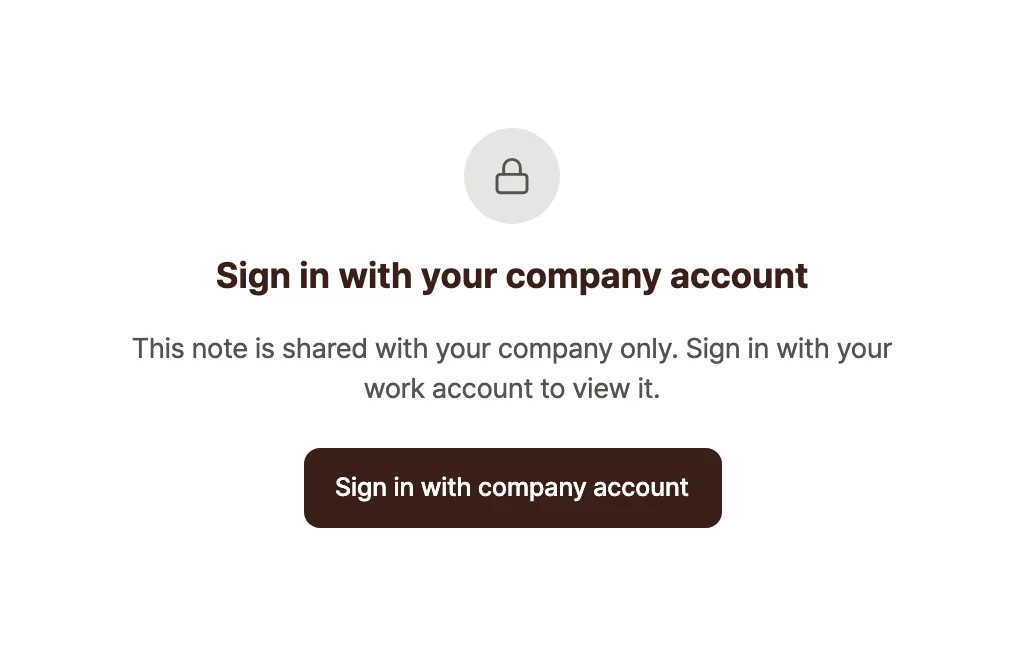
The screen that appears when you open a [People at my company] link without signing in.
Review and revoke shared links
A workspace admin reviews every active link in one place and revokes any of them right away. Under [Settings] → [Workspace], click [Manage shared links] in the “Shared links” section to open the list of currently shared links, along with each note’s title, share scope, creator, and share date. Password-protected links are marked next to their share scope. Use the [All links (N)] and [Public, no password (N)] filters above the list to zero in on the risky links anyone can open with just the address. The counts cover the whole workspace, not just the rows loaded on screen.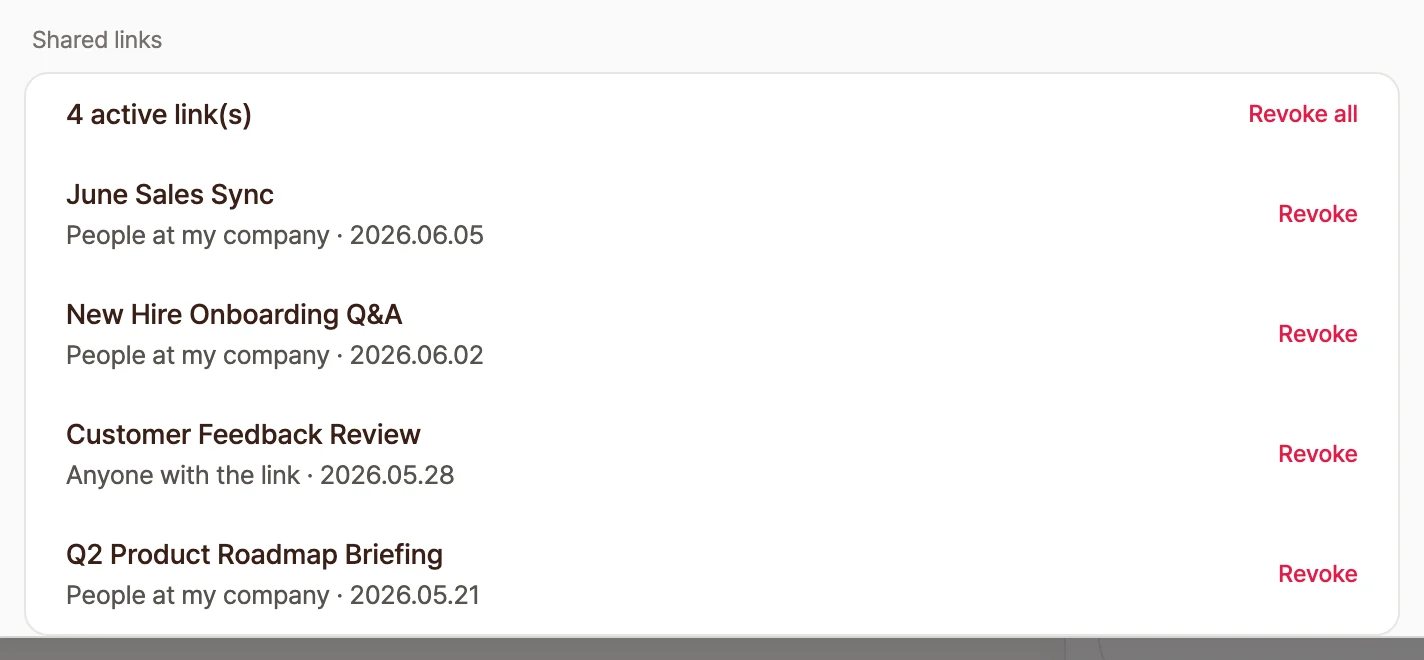
The "Shared links" section in workspace settings.
- To pull back one link, click the [Revoke] button on its row.
- To pull back several links at once, select them with the checkboxes and revoke them.
- To pull back every link at once, click the [Revoke all] button at the top.
Manage workspace share policy
This setting shows only to workspace admins. As an admin, you set the share scope, expiry, and allowed company domains for the links your team creates, at the workspace level. Under [Settings] → [Workspace], set the three policies in the “Share policy” section.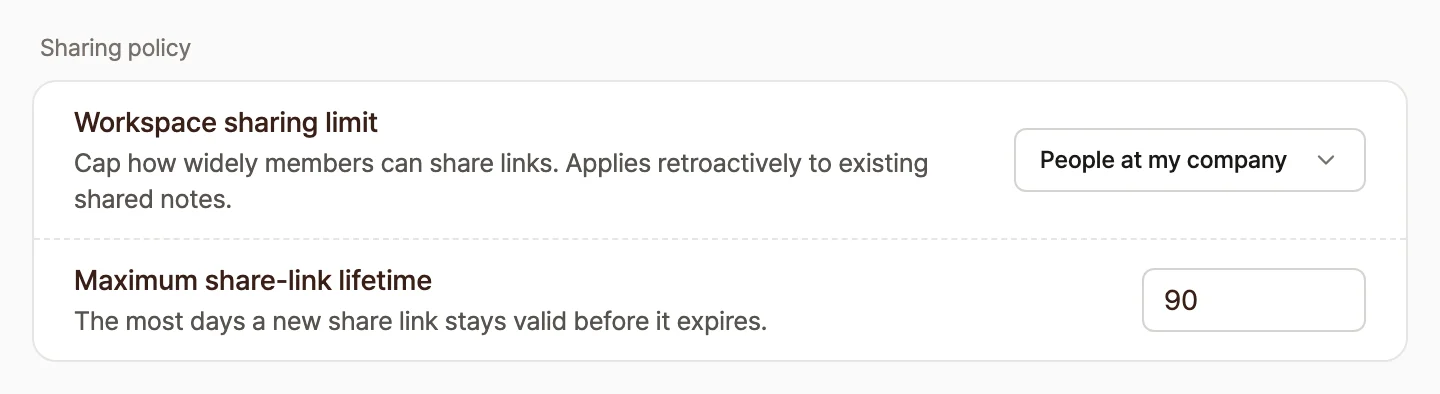
The "Share policy" section in workspace settings.
Frequently asked questions
What happens to links I shared before setting a policy?
They are protected by the share scope cap automatically, with nothing for you to touch. When the cap is set to [People at my company], a note you shared earlier as [Anyone with the link] becomes viewable only by people at your company from that point on. The policy applies at the moment someone opens the note, so there is no need to recreate the link, and the address stays the same. The maximum link expiry applies to existing links right away, just like the visibility cap. If you set or lower the maximum expiry, links created before it can expire immediately under the new limit.How do I show a note to someone outside the company (an external partner)?
Invite them to the note directly. A share link only opens for allowed company domain accounts under the workspace policy, but if you type that person’s Tiro account email into the invite field in the “Share note” popup, you invite them by name and they can view the note. There is no way to use anonymous link sharing to get around the workspace visibility cap. Only named invites, where it is clear who is viewing, are allowed.Can someone open the link without a Tiro account?
Yes, they can, even if they have never signed up for Tiro. Opening a link shared as [People at my company] brings up the “Sign in with your company account” screen, and clicking [Sign in with company account] to sign in with a company Google account takes them straight to the note. The email domain of the account they sign in with has to match an allowed company domain for the note to open.I opened a “People at my company” link but it says the note can’t be found
It is usually one of these three causes. Check them in order.- Check the signed-in account: If you are signed in with a personal account instead of a company account, the note shows as missing for security. Sign in again with your company domain email account.
- Check link expiry: If the workspace has a maximum link expiry set, an expired link is blocked with the same screen.
- Check for revocation: An admin may have revoked the link.
Can I block a link I shared by mistake right away?
Yes. If you shared the note yourself, click [Revoke link] on the “Share link settings” screen of the share popup to kill the link immediately. A workspace admin can also click the [Revoke] button for the note in the “Shared links” list in workspace settings. In a hurry, ask your admin to revoke it along with the note title.Why don’t I see the sharing settings in the mobile app?
The sharing security and management options work on the web and desktop apps today. Mobile support is rolling out over time. Until then, open Tiro in a web browser or the desktop app to manage the sharing settings.Related pages: Sharing · Integrations · Folders · Privacy and security