

Connect your calendar
Open [Settings] → [Calendar Management] in the web or desktop app and connect a Google Calendar or MS Outlook account. The [Connect] button on the calendar banner on your home screen takes you to the same place. Tiro only reads your events. It never creates or edits them. On mobile, you can connect a calendar inside the app if you signed in with Google. Manage your integrations from web or desktop.Connect multiple accounts
You can use Google Calendar and MS Outlook together, and you can connect several accounts from the same service. This lets you see your work and personal calendars on one screen.- Open [Settings] → [Calendar Management] and select the row for the Google or MS Outlook integration you already connected.
- Press [Add Account] at the bottom of the expanded list.
- Sign in with the account you want to add and approve calendar access.
Choose which calendars appear on the home screen
Inside each connected account, choose calendar by calendar which events appear on your home screen. In [Settings] → [Calendar Management], expand an account to see calendars split into two groups.- [My Calendars]: Calendars you created or can edit.
- [Other Calendars]: Shared or subscribed calendars you can view. These are off at first, so turn on the ones you want to see.
Start a note straight from an event
Once your calendar is connected, events from that calendar appear under [Upcoming events] at the top of your home screen, sorted by start time. The five closest events show first, and [View all events] expands the rest.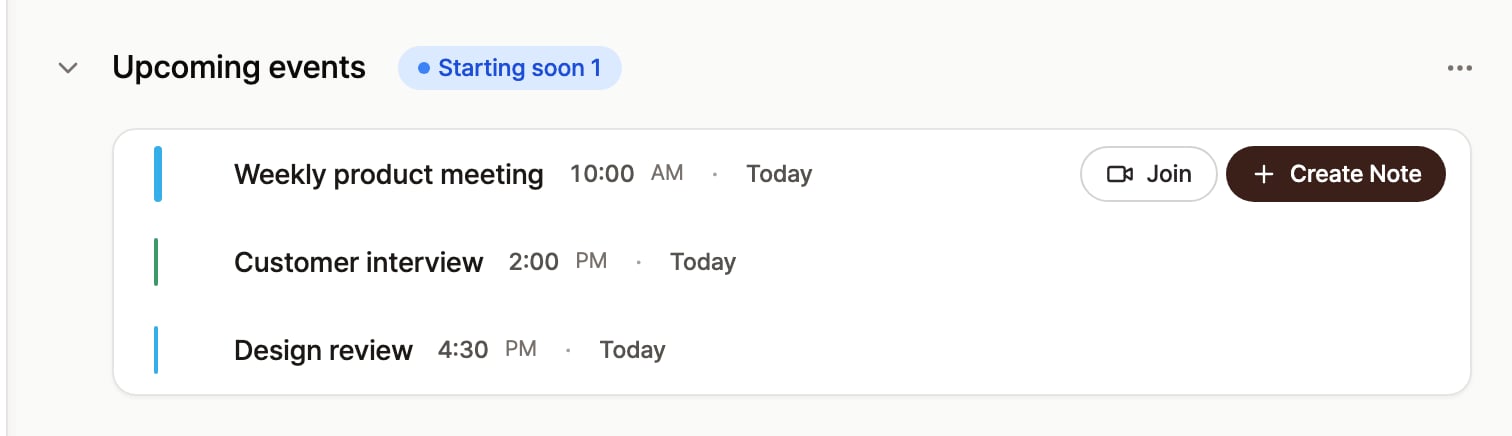
Upcoming events on the home screen. Events starting soon show Join and Create Note right away; for other events today, the same actions appear on hover.
- Create Note: creates a note with the event title as the note title and the emails of everyone who accepted the invite filled in as conversation participants.
- Join: appears only when the event has a meeting link such as Google Meet. Selecting it opens the link in a new tab.
Get a reminder before the meeting
On the desktop app, you get a reminder 10 minutes before a meeting starts. Start recording the moment it arrives, and you catch the conversation from the first word. Don’t have the desktop app yet? Install it from the app guide.Disconnect a calendar
Open [Settings] → [Calendar Management], expand the account, press [Disconnect] at the bottom, then press [Disconnect] again in the confirmation dialog. Events from that account disappear from the home screen, and notes you already created from those events stay as they are. If you connect the same account again later, the calendar on/off settings you previously chose come back. You don’t need to choose calendars from scratch.When you see an integration status badge
If calendar account authorization has a problem, a red badge appears next to the account email in [Settings] → [Calendar Management], and events from that account stop appearing on the home screen. Accounts with a badge show [Reconnect] instead of the [Activate] switch. Press it and sign in with the same account to restore the integration while keeping the calendars you had enabled.Connection Expired
Calendar access you granted to Tiro has expired or been revoked. This badge can also appear if you removed Tiro’s access from your Google or Microsoft security settings. Press [Reconnect] and sign in with the same account to fix it.Calendar permission required
The account is connected, but Tiro is missing permission to read calendars. This badge appears if you approved the integration after clearing calendar-related checkboxes on the consent screen. Press [Reconnect], then approve again with all calendar items checked.Calendar access blocked
The calendar service is blocking Tiro’s access. For a company or school account, this usually means an admin policy limits calendar access for external apps. Ask your admin to allow Tiro calendar access. For Microsoft organization accounts, you can forward the admin approval guidance from Trouble signing in. If this badge appears on a personal account, press [Reconnect] first. If the same badge remains, contact us through support in the app or website.FAQ
Does Outlook calendar work too?
Yes. You can connect both Google Calendar and MS Outlook in the web and desktop app.Can I see events from shared calendars?
Yes. As long as your connected account can access the calendar, it appears in the [Other calendars] group under [Calendar Management]. Shared calendars are off at first, so turn on their checkboxes to show them on the home screen.Does Tiro edit my events?
No. Tiro pulls your events as read-only. It never creates or changes anything on your calendar.My calendar events don’t appear.
Open [Settings] → [Calendar Management] and check these three things from top to bottom.- Make sure the account that owns the event is connected. If you use work and personal accounts together, press [Add Account] to add the missing account.
- Check whether a red badge appears next to the account email. If it does, restore access with [Reconnect].
- Make sure the account switch on the right and the checkbox for the calendar containing the event are both on. Shared calendars are under [Other Calendars] and are off at first.
Will disconnecting a calendar delete my notes?
No. Notes created from calendar events stay as they are. Disconnecting a calendar only stops Tiro from reading events from that account; it doesn’t affect notes or recordings.Related pages: Live Recording · Manage conversation participants