Text appears on screen as you speak. Set different languages for the conversation and the recording, and you also see real-time translation alongside it.
Use this mode when you want to watch the text appear on screen as it’s captured. It fits situations like these:
You want to check something you missed during a meeting, right then and there
You want to follow a foreign-language conversation through real-time translation
If you’re on the move, on an unstable network, or recording something long where you don’t need to watch the screen, offline recording is more reliable. Already have a recording? Use audio file upload. To show captions on a venue screen or your audience’s phones, use Conference mode.
Web and desktop app: On the note list screen, click [Start realtime recording]. A new note opens, ready to record.
Mobile app: On the new note screen, select the [Real-time] mode and tap [Start realtime recording]. Offline recording is selected by default.
Before you start, you can set the following on the note screen.
1
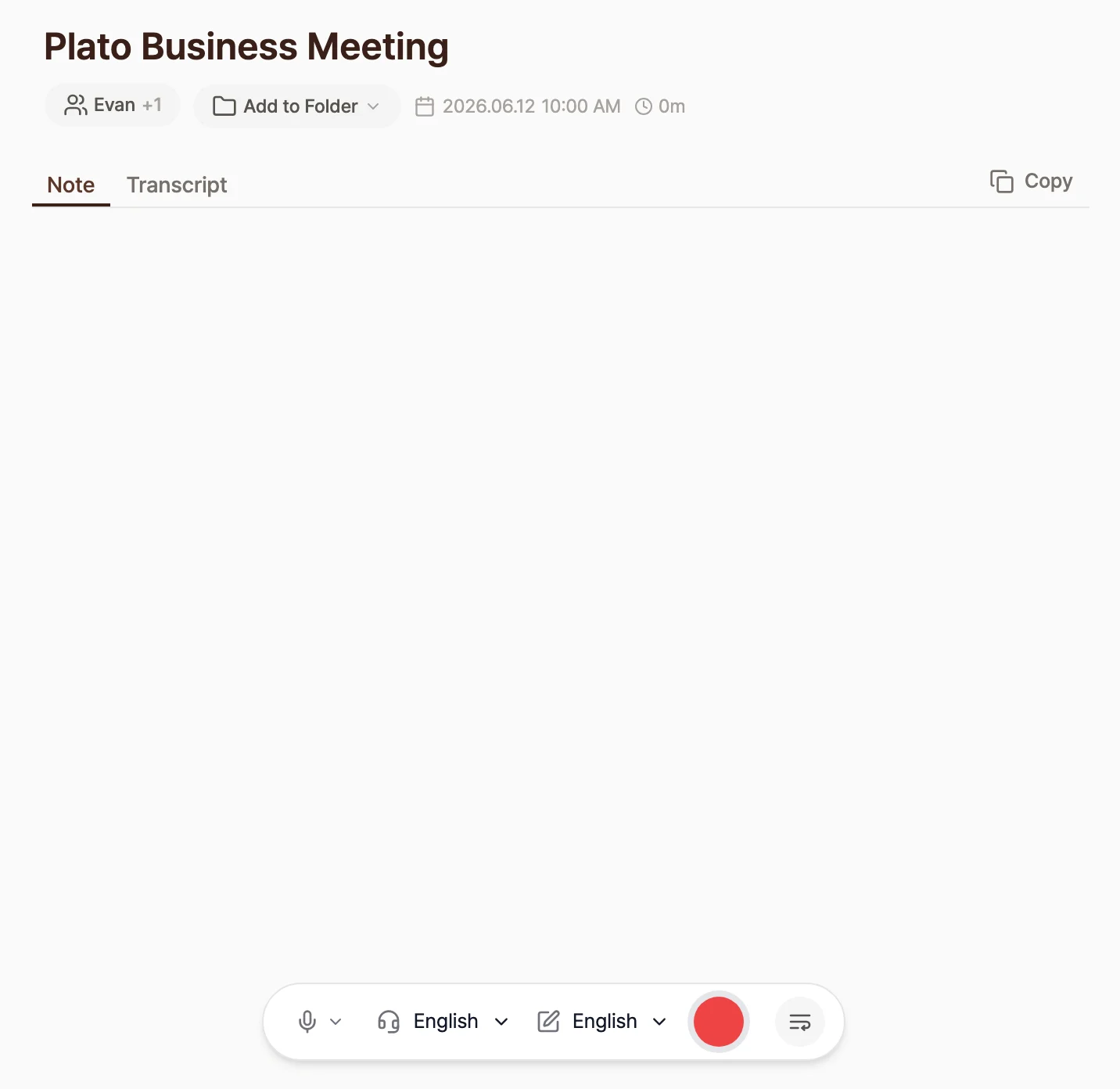
Enter a note title and participants
If you don’t set a title yourself, Tiro listens to the conversation and creates one that fits the topic. Add the names and emails of the people with you in the [Participants] field. This lets you assign names to speakers more quickly after speaker separation, and makes it easier to invite them to the note or search by participant once recording is done. See Conversation participants for details.
The "Note" screen before recording starts. Participant and folder buttons sit below the title, and the bottom controls show the [Listen In] and [Write In] languages next to the red start button
2
Add context
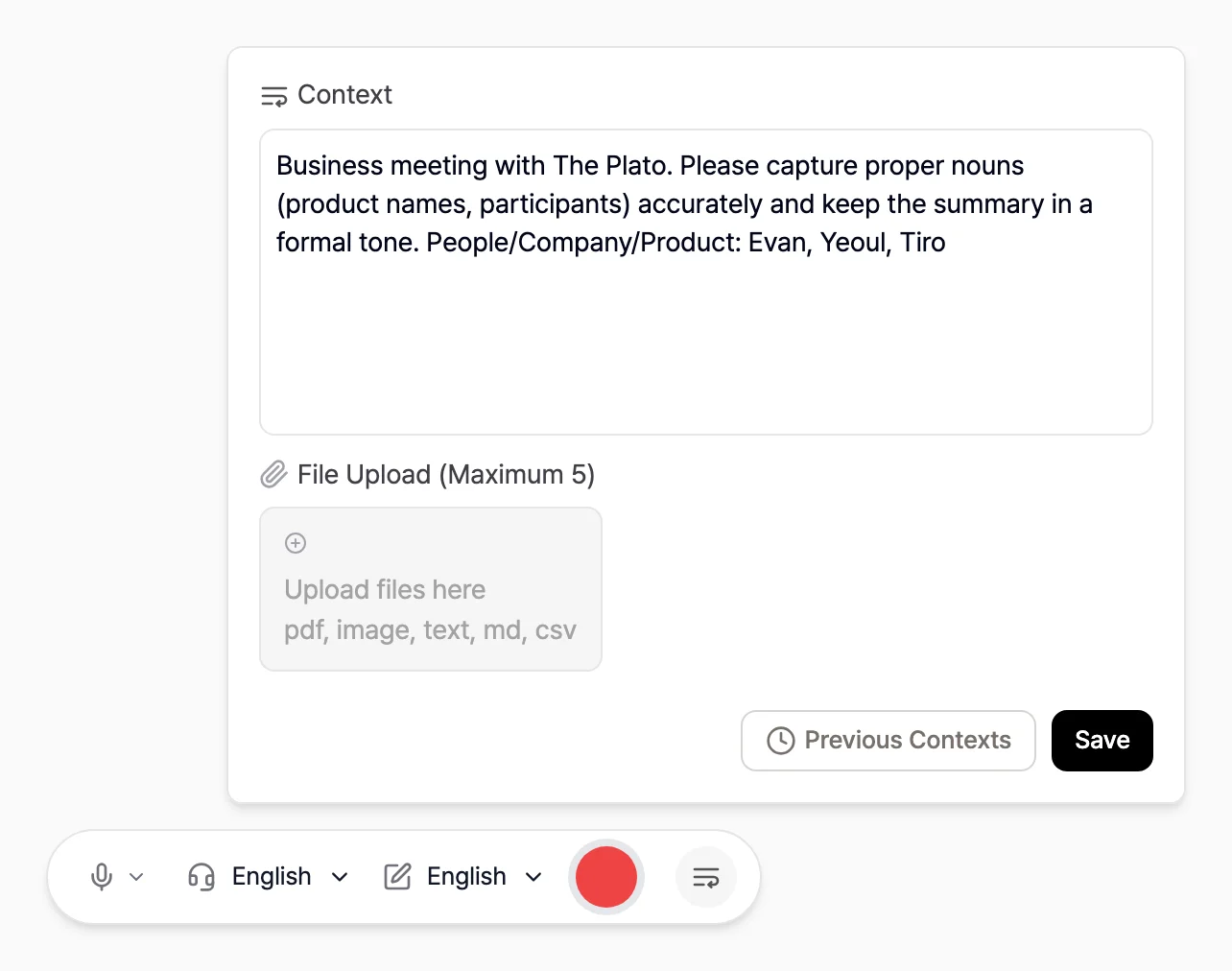
Context is a hint that helps Tiro capture speech more reliably. Tell it about the setting, proper nouns, and people’s names ahead of time in the [Context] field, and both the transcript and the summary improve noticeably.
e.g. A business meeting with [The Plato]. Capture proper nouns like product names and attendees accurately, and write the summary in a formal tone. People / companies / products: [John Doe], [Tiro]
The Context page covers how to write good context in more depth.
The "Context" panel, opened from the button at the far right of the bottom controls. Attach a file, or reuse an earlier note with [Previous Contexts]
3
Set the languages
You can choose two languages separately.
[Listen In]: the language actually spoken in the conversation. This is what speech recognition listens for.
[Write In]: the language your transcript and summary are written in.
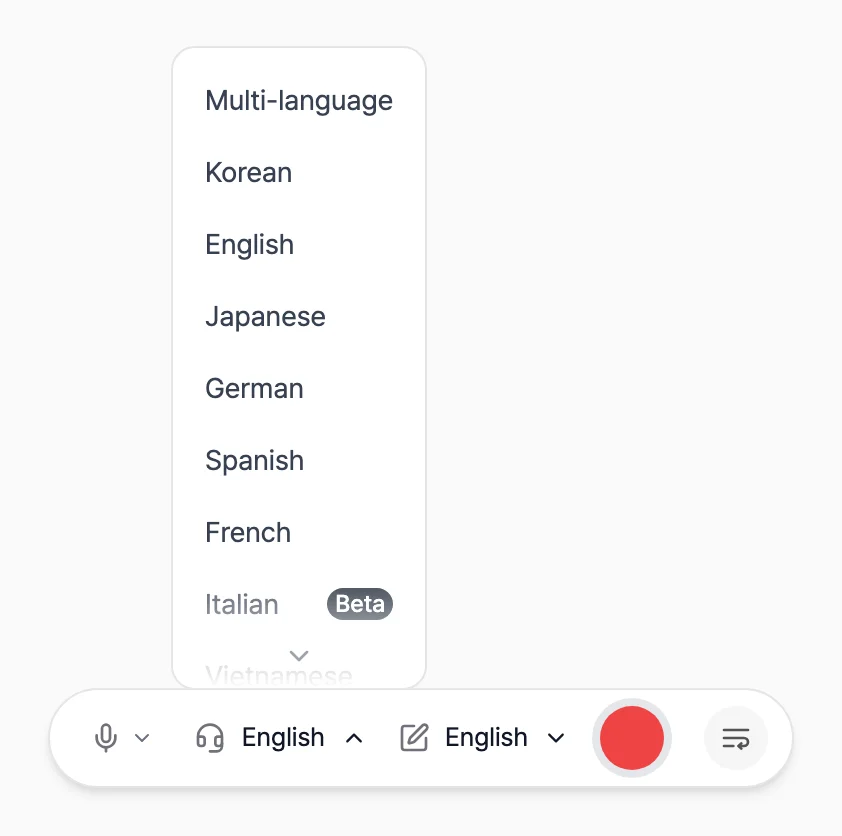
Tiro supports 17 languages, including Korean, English, and Japanese. If you don’t know which language will come up, or several will be mixed, choose the [Multilingual] option.
The [Listen In] language selector expanded in the bottom controls, with the [Multilingual] option at the top followed by the list of supported languages
Set the two languages differently and real-time translation begins. See the Using real-time translation section below.
4
Start recording
Press the start button and the red record button turns into an audio waveform as recording begins.
Pause and resume: Press the waveform button to pause; press it again to keep recording.
Add or edit context: You can enter or change context mid-recording. Context you add or change during recording doesn’t affect the live recording session already in progress; it takes effect the next time a session reconnects or when you regenerate the document. Drop in proper nouns or key terms as they come up in the conversation.
Check and fix the original: Open the raw text with [View script] and click any misrecognized part to fix it on the spot.
For context to shape your Note and transcript, enter it before or during recording. Context you add after recording ends takes effect the next time you regenerate the one-page document.
The desktop app has two conveniences that help you never miss a recording. Turn each on or off under [Settings] → [Preferences]; both work on the desktop app only.
Auto-detected meetings: when Tiro detects a conversation or microphone use on your computer, it shows a “Looks like you’re in a conversation” prompt with a [Start live recording] button. If you don’t want this prompt, turn off [Auto-detected meetings] under [Settings] → [Preferences]. Unlike calendar notifications, which alert you ahead of time based on your schedule, this triggers when actual sound is detected.
Live indicator: Tiro keeps a recording status on the right side of your screen so you never forget a recording is in progress.
Set the [Listen In] and [Write In] languages differently to use real-time translation. For example, set Listen In to English and Write In to Korean, and English speech is translated into Korean. How the translation shows up depends on your device and your Listen In setting.
When the [Listen In] and [Write In] languages are different (including when Listen In is set to [Multilingual]), a [Translation] toggle appears on the recording screen. On web and desktop it’s in the recording controls; on mobile it’s inside the language settings. The toggle controls the live, sentence-by-sentence translation shown while you speak, and it’s off by default. It starts off again with every new note.
If [Listen In] and [Write In] are the same, the [Translation] toggle doesn’t appear. Set the two languages differently first, then look for the toggle.
Even with the toggle off, each paragraph is still translated when it’s finalized, as long as the two languages differ. The toggle only controls the live display while you speak.
While you record, leaving the toggle on shows each paragraph’s original and translated text side by side. Turning it off only hides the live display: translations keep being generated in the background.After you finish, the translation stays with the note. In a finished note you pick the language you want from the [Script] view of the [Transcript] tab.
Web and desktop: open the note, select the [Transcript] tab, then click the [Script] button inside it. A language dropdown appears just to its right. Open it and pick an entry to switch the script to that language.
Mobile app: open the note and tap the [Transcript] tab, then the [Script] button. A dropdown button labeled with the language you’re currently viewing appears in the toolbar at the top. Tap it and choose an entry from the list.
What the dropdown offers depends on the languages in the note.
The [All] entry shows the original and the translation together.
Entries named after a language, such as [English] or [Korean], show only that language. If you set [Listen In] to [Multilingual], the entry for the original is labeled [Multi] instead.
The dropdown appears only when the note holds more than one language. It won’t show up on a note where [Listen In] and [Write In] match and no translation exists, and it never appears in the [Summary] view.
When you end a recording, Tiro creates three things.
One-page document: A summary that structures the whole conversation by key topic, organized by theme rather than in plain time order.
Note: The chronological summary generated live as you speak.
Transcript: A verbatim record of the whole conversation. Filler like “um” and “uh” and small grammar slips are smoothed out while the meaning stays intact.
Need a document shaped for a specific purpose, like meeting minutes or an interview write-up? Build a custom one with templates.
How should you record a conversation that mixes languages?
If a conversation switches between two or more languages, such as English and Korean, set [Listen In] to [Multilingual] before starting live recording. For [Write In], choose one language for the transcript and summary.
Is live recording less accurate than offline recording?
No. In a typical single-language conversation, both use the same speech recognition engine, so they’re equally accurate. The real difference is stability, not accuracy. Live recording depends on your network, so if you don’t need to watch the screen as you go, offline recording is the better pick.
Paid plans record up to 5 hours per note. During the free trial you can record up to 2 hours, but anything past 50 minutes shows as locked and unlocks once you start a paid plan. Without a subscription, you can record up to 60 minutes per note.
Yes, speaker separation is available on Pro and above. During live recording, speakers aren’t split apart in real time, but when you end the recording Tiro re-analyzes the full audio automatically and tags speakers in the transcript. See Speaker diarization for how it works.
The waveform moves in proportion to how loud the incoming sound is. If it’s frozen, check that the right microphone input is selected. On the desktop app, to also record system audio (the sound playing from your device), the [System Sound] input in the recording controls needs to be set above 0%. See Record video calls & computer audio for details.
Tiro supports 17 languages plus the [Multilingual] option: Korean, English, Japanese, Chinese, Spanish, French, German, Italian, Russian, Vietnamese, Indonesian, Thai, Malay, Swedish, Hindi, Turkish, and Ukrainian. You can mix and match the Listen In and Write In languages freely.
Can I record my own input if I’m deaf or hard of hearing and can’t speak aloud?
Yes, with a web tool called Voicepad. You type a sentence, your browser’s speech synthesis plays it through the speaker, and Tiro picks that sound up as system audio and writes it into the note. Your input lands in the same record as everyone else’s voice, without you speaking a word. Use it when you want to take part in a meeting or conversation in writing and keep what you say in the record, whether you’re deaf, hard of hearing, or unable to speak aloud at the moment.
In a Tiro note, set the microphone’s [System Sound] input above 0%, and the sentences you play from Voicepad get recorded into the note. They stay in the record even if you mute your desktop speaker.
Open it in Chrome or Edge, which support speech synthesis, and change the output voice language from the gear icon in Voicepad settings.
Voicepad’s link is shared individually with people who need accessibility support. To request access, reach out through the Support button in the Tiro app or on the website.Related pages: Offline recording · Context · Record video calls & computer audio
{"docsConfig":{"theme":"palm","$schema":"https://mintlify.com/schema.json","name":"Tiro Docs","colors":{"primary":"#3A2018","light":"#5C372B","dark":"#C6A296"},"logo":{"light":"https://mintcdn.com/theplato/5KjFaDac35T-tm2o/logo/light.svg?fit=max\u0026auto=format\u0026n=5KjFaDac35T-tm2o\u0026q=85\u0026s=cd1acb33fc259ba6517be5942fee32e2","dark":"https://mintcdn.com/theplato/5KjFaDac35T-tm2o/logo/dark.svg?fit=max\u0026auto=format\u0026n=5KjFaDac35T-tm2o\u0026q=85\u0026s=f4f882000ca86fd51f87f95703a9d653","href":"https://tiro.ooo"},"favicon":"https://mintcdn.com/theplato/5KjFaDac35T-tm2o/favicon.svg?fit=max\u0026auto=format\u0026n=5KjFaDac35T-tm2o\u0026q=85\u0026s=e6952a672f0e77576815510a1d0a493a","appearance":{"default":"light","strict":true},"search":{"prompt":"Search"},"seo":{"organization":{"id":"https://tiro.ooo/#org","name":"ThePlato","legalName":"ThePlato Inc.","url":"https://tiro.ooo","logo":"https://cdn.tiro.ooo/tiro-icon.png","sameAs":["https://tiro.ooo","https://tiro.ax","https://theplato.io","https://www.linkedin.com/company/theplato","https://www.linkedin.com/showcase/tiro-ooo/","https://x.com/tiro_ooo_ai","https://x.com/tiro_ai_jp","https://www.instagram.com/tiro.ai","https://youtube.com/@tiro_ai"]}},"styling":{"eyebrows":"breadcrumbs","codeblocks":"system","latex":true},"integrations":{"posthog":{"apiKey":"phc_c4vnWkHVFSI1hlGsgS5dJr4DYaF2fED2mWMXNq6k91q","apiHost":"https://us.i.posthog.com"}},"contextual":{"options":["copy","view","chatgpt","claude"],"display":"header"},"thumbnails":{"background":"https://mintcdn.com/theplato/_Qfa5pNzyNiaGswF/images/og-bg.png?fit=max\u0026auto=format\u0026n=_Qfa5pNzyNiaGswF\u0026q=85\u0026s=12d7c69f928db53b4d2866b44f730f0d"},"navigation":{"languages":[{"language":"ko","footer":{"socials":{"x":"https://x.com/tiro_ooo_ai","instagram":"https://www.instagram.com/tiro.kr","linkedin":"https://www.linkedin.com/company/theplato"},"links":[{"header":"제품","items":[{"label":"가격 안내","href":"https://tiro.ooo/"},{"label":"도입 견적","href":"https://www.tiro.ax/ko/roi"},{"label":"사용 가이드","href":"/ko/guide/start/overview"},{"label":"새 소식","href":"/ko/updates"},{"label":"서비스 상태","href":"https://status.tiro.ooo"},{"label":"블로그","href":"https://tiro.ooo/blog"}]},{"header":"개발자","items":[{"label":"API 문서","href":"/ko/developers/fundamentals/api-overview"},{"label":"CLI","href":"/ko/developers/cli/cli-overview"},{"label":"MCP Server","href":"/ko/developers/mcp/mcp-overview"},{"label":"Webhook","href":"/ko/developers/webhooks/webhooks-overview"},{"label":"Platform","href":"https://platform.tiro.ooo"}]},{"header":"문의","items":[{"label":"일반 문의","href":"mailto:hello@theplato.io"},{"label":"기업 문의","href":"mailto:partners@theplato.io"}]},{"header":"약관·정책","items":[{"label":"서비스 이용약관","href":"https://tiro.ooo/terms-of-service"},{"label":"개인정보처리방침","href":"https://tiro.ooo/privacy-policy"},{"label":"보안","href":"https://tiro.ooo/security"},{"label":"Trust Center","href":"https://trust.tiro.ooo"},{"label":"SLA","href":"https://tiro.ooo/service-level-agreement"}]}]},"href":"ko"},{"language":"en","default":true,"footer":{"socials":{"x":"https://x.com/tiro_ooo_ai","instagram":"https://www.instagram.com/tiro.kr","linkedin":"https://www.linkedin.com/company/theplato"},"links":[{"header":"Product","items":[{"label":"Pricing","href":"https://tiro.ooo/"},{"label":"Adoption Quote","href":"https://www.tiro.ax/ko/roi"},{"label":"User Guide","href":"/en/guide/start/overview"},{"label":"What's New","href":"/en/updates"},{"label":"Status Page","href":"https://status.tiro.ooo"},{"label":"Blog","href":"https://tiro.ooo/blog"}]},{"header":"Developers","items":[{"label":"API Documentation","href":"/en/developers/fundamentals/api-overview"},{"label":"CLI","href":"/en/developers/cli/cli-overview"},{"label":"MCP Server","href":"/en/developers/mcp/mcp-overview"},{"label":"Webhooks","href":"/en/developers/webhooks/webhooks-overview"},{"label":"Platform","href":"https://platform.tiro.ooo"}]},{"header":"Contact","items":[{"label":"Contact","href":"mailto:hello@theplato.io"},{"label":"Business Support","href":"mailto:partners@theplato.io"}]},{"header":"Legal","items":[{"label":"Terms of Service","href":"https://tiro.ooo/terms-of-service"},{"label":"Privacy Policy","href":"https://tiro.ooo/privacy-policy"},{"label":"Security","href":"https://tiro.ooo/security"},{"label":"Trust Center","href":"https://trust.tiro.ooo"},{"label":"SLA","href":"https://tiro.ooo/service-level-agreement"}]}]},"href":"en"},{"language":"ja","footer":{"socials":{"x":"https://x.com/tiro_ooo_ai","instagram":"https://www.instagram.com/tiro.ja","linkedin":"https://www.linkedin.com/company/theplato"},"links":[{"header":"製品","items":[{"label":"料金プラン","href":"https://tiro.ooo/"},{"label":"導入見積もり","href":"https://www.tiro.ax/ko/roi"},{"label":"使用ガイド","href":"/ja/guide/start/overview"},{"label":"新着情報","href":"/ja/updates"},{"label":"サービス ステータス","href":"https://status.tiro.ooo"},{"label":"ブログ","href":"https://tiro.ooo/blog"}]},{"header":"開発者","items":[{"label":"APIドキュメント","href":"/ja/developers/fundamentals/api-overview"},{"label":"CLI","href":"/ja/developers/cli/cli-overview"},{"label":"MCP Server","href":"/ja/developers/mcp/mcp-overview"},{"label":"Webhook","href":"/ja/developers/webhooks/webhooks-overview"},{"label":"Platform","href":"https://platform.tiro.ooo"}]},{"header":"お問い合わせ","items":[{"label":"一般お問い合わせ","href":"mailto:hello@theplato.io"},{"label":"法人お問い合わせ","href":"mailto:partners@theplato.io"}]},{"header":"規約・ポリシー","items":[{"label":"利用規約","href":"https://tiro.ooo/terms-of-service"},{"label":"プライバシー","href":"https://tiro.ooo/privacy-policy"},{"label":"セキュリティ","href":"https://tiro.ooo/security"},{"label":"Trust Center","href":"https://trust.tiro.ooo"},{"label":"SLA","href":"https://tiro.ooo/service-level-agreement"}]}]},"href":"ja"}]}},"deployment":{"deploymentMetadataValue":{"subdomain":"theplato","hasAudioNarration":false,"actualSubdomain":"theplato","customDomains":["docs.tiro.ooo"],"gitSource":{"type":"github","owner":"plato-corp","repo":"tiro-client","deployBranch":"develop","contentDirectory":"services/product-docs","isPrivate":true,"mountPath":"","label":""},"chroma":{"liveDeploymentHistoryId":"6ae0de7eccbe779221d108a3","collectionId":"19c45996-aa9b-4265-a115-2e602315d8f1","schemaVersion":"v3","latestBuiltDeploymentHistoryId":"6ae0de7eccbe779221d108a3"},"entitlements":{},"buildId":"6ae0de7eccbe779221d108a3","clientVersion":"0.0.3990","searchFilterCounts":[{"language":"default","tag":"Developer Docs","count":91},{"language":"default","tag":"API","count":91},{"language":"default","tag":"API Reference","count":91},{"language":"en","tag":"User Guide","count":59},{"language":"ja","tag":"ユーザーガイド","count":59},{"language":"ko","tag":"사용자 가이드","count":59},{"language":"en","tag":"Developer Docs","count":46},{"language":"ja","tag":"開発者ドキュメント","count":46},{"language":"ko","tag":"개발자 문서","count":46},{"language":"default","tag":"Word Memory","count":24},{"language":"en","tag":"MCP","count":17},{"language":"ja","tag":"MCP","count":17},{"language":"ko","tag":"MCP","count":17},{"language":"default","tag":"Folder","count":12},{"language":"en","tag":"Tools","count":11},{"language":"ja","tag":"ツール","count":11},{"language":"ko","tag":"도구","count":11},{"language":"en","tag":"Workspace, Plans \u0026 Billing","count":10},{"language":"ja","tag":"ワークスペース・プラン&支払い","count":10},{"language":"ko","tag":"워크스페이스 · 플랜 \u0026 결제","count":10},{"language":"default","tag":"Wiki","count":10},{"language":"en","tag":"API","count":9},{"language":"ja","tag":"API","count":9},{"language":"ko","tag":"API","count":9},{"language":"default","tag":"Note","count":9},{"language":"default","tag":"Organization","count":9},{"language":"default","tag":"Voice File","count":9},{"language":"en","tag":"Troubleshooting","count":8},{"language":"ja","tag":"トラブルシューティング","count":8},{"language":"ko","tag":"문제 해결","count":8},{"language":"default","tag":"Note Document Template","count":8},{"language":"en","tag":"Webhooks","count":7},{"language":"en","tag":"Recording","count":7},{"language":"ja","tag":"Webhook","count":7},{"language":"ja","tag":"会話の記録","count":7},{"language":"ko","tag":"웹훅","count":7},{"language":"ko","tag":"대화 기록하기","count":7},{"language":"en","tag":"CLI","count":5},{"language":"ja","tag":"CLI","count":5},{"language":"ko","tag":"CLI","count":5}],"searchSettings":{"maxResults":15}},"assistantConfig":{},"basePath":"","hasChatPermissions":false,"hasWebMcpPermissions":false,"toggles":[],"isAtlas":false,"googleFontsInlined":false},"customCss":[{"filePath":"global.css","content":"@import url(https://cdn.jsdelivr.net/gh/orioncactus/pretendard@v1.3.9/dist/web/static/pretendard-dynamic-subset.css);/* latin */\n@font-face {\n font-family: 'Averia Serif Libre';\n font-style: italic;\n font-weight: 400;\n font-display: swap;\n src: url(/_mintlify/assets/fonts/google/s/averiaseriflibre/v19/neIUzD2ms4wxr6GvjeD0X88SHPyX2xYOpzuN4Yg.woff2) format('woff2');\n unicode-range: U+0000-00FF, U+0131, U+0152-0153, U+02BB-02BC, U+02C6, U+02DA, U+02DC, U+0304, U+0308, U+0329, U+2000-206F, U+20AC, U+2122, U+2191, U+2193, U+2212, U+2215, U+FEFF, U+FFFD;\n}\n/* latin */\n@font-face {\n font-family: 'Averia Serif Libre';\n font-style: normal;\n font-weight: 400;\n font-display: swap;\n src: url(/_mintlify/assets/fonts/google/s/averiaseriflibre/v19/neIWzD2ms4wxr6GvjeD0X88SHPyX2xYOoguP.woff2) format('woff2');\n unicode-range: U+0000-00FF, U+0131, U+0152-0153, U+02BB-02BC, U+02C6, U+02DA, U+02DC, U+0304, U+0308, U+0329, U+2000-206F, U+20AC, U+2122, U+2191, U+2193, U+2212, U+2215, U+FEFF, U+FFFD;\n}\n/* latin */\n@font-face {\n font-family: 'Averia Serif Libre';\n font-style: normal;\n font-weight: 700;\n font-display: swap;\n src: url(/_mintlify/assets/fonts/google/s/averiaseriflibre/v19/neIVzD2ms4wxr6GvjeD0X88SHPyX2xYGGS6axq0r.woff2) format('woff2');\n unicode-range: U+0000-00FF, U+0131, U+0152-0153, U+02BB-02BC, U+02C6, U+02DA, U+02DC, U+0304, U+0308, U+0329, U+2000-206F, U+20AC, U+2122, U+2191, U+2193, U+2212, U+2215, U+FEFF, U+FFFD;\n}\n:root{--tiro-stone-200:#d6d3d1;--tiro-stone-500:#57534e;--tiro-stone-600:#44403c;--tiro-brown-30:#f8f2f0;--tiro-brown-50:#ebdad4;--tiro-brown-100:#d5bab2;--tiro-brown-200:#c6a296;--tiro-brown-300:#9c6d5f;--tiro-brown-500:#7a4b3d;--tiro-brown-700:#5c372b;--tiro-brown-800:#3a2018;--tiro-brown-light:#c6a296;--tiro-brown-600:#6b4234;--tiro-amber-50:#fffbeb;--tiro-amber-100:#fef3c7;--tiro-amber-200:#fde68a;--tiro-amber-500:#f59e0b;--tiro-amber-700:#b45309;--tiro-rose-50:#fff1f2;--tiro-rose-100:#ffe4e6;--tiro-rose-500:#f43f5e;--tiro-rose-700:#be123c;--tiro-lime-700:#4d7c0f;--tiro-white:#ffffff;--tiro-serif:\"Averia Serif Libre\", Georgia, serif;--tiro-ink-strong:var(--tiro-brown-800);--tiro-ink-accent:var(--tiro-brown-700);--tiro-ink-body:var(--tiro-stone-500);--tiro-fill-soft:var(--tiro-brown-30);--tiro-line-soft:var(--tiro-brown-30)}.dark{--tiro-ink-strong:var(--tiro-brown-50);--tiro-ink-accent:var(--tiro-brown-100);--tiro-ink-body:var(--tiro-stone-200);--tiro-fill-soft:color-mix(in srgb, var(--tiro-brown-300) 14%, transparent);--tiro-line-soft:color-mix(in srgb, var(--tiro-brown-300) 22%, transparent)}.sidebar-group-header{color:var(--tiro-brown-800)!important;font-size:1rem!important;font-weight:700!important;letter-spacing:-.005em;margin-top:.25rem!important;margin-bottom:.6rem!important}.sidebar-group-header .sidebar-group-icon{height:1.05rem!important;width:1.05rem!important}.dark .sidebar-group-header,.dark [data-component-part=card-title]{color:var(--tiro-brown-light)!important}#navigation-items div:has(>.sidebar-group-header>.sidebar-group-icon[style*=house]){display:none!important}#navigation-items a{border-radius:8px;margin-right:8px}#navigation-items a[aria-current=page]{background:var(--tiro-brown-30)!important;font-weight:600}#navigation-items a:not([aria-current=page]):hover{background:color-mix(in srgb,var(--tiro-brown-30) 60%,transparent)!important}.dark #navigation-items a[aria-current=page]{background:color-mix(in srgb,var(--tiro-brown-300) 16%,transparent)!important}.dark #navigation-items a:not([aria-current=page]):hover{background:color-mix(in srgb,var(--tiro-brown-300) 9%,transparent)!important}body:has(#navigation-items a[href$=\"/developers\"]) #content-container>.max-w-5xl{max-width:101rem;column-gap:2rem}@media (min-width:1280px) and (max-width:1919px){body:has(#navigation-items a[href$=\"/developers\"]) #content-side-layout{display:none!important}}@media (max-width:1023px){#navigation-items :is(a, button),[role=dialog] button{min-height:2.75rem}#navbar button[aria-label=\"더 많은 작업\"],#page-context-menu-button+button[aria-label=\"더 많은 작업\"],#search-bar-entry-mobile,[role=dialog] button:has(>.sr-only),button[aria-label=\"메시지 보내기\"]{min-width:2.75rem;min-height:2.75rem;justify-content:center}#page-context-menu-button,a[href=\"https://tiro.ooo\"]:has(img[alt*=logo]){min-height:2.75rem}a[href=\"https://tiro.ooo\"]:has(img[alt*=logo]){display:flex;align-items:center}}#navbar button:focus-visible,#navigation-items a:focus-visible,#sidebar button:focus-visible,[role=dialog] :is(a, button):focus-visible{outline:2px solid var(--tiro-ink-strong);outline-offset:2px}[data-component-part=card-title]{color:var(--tiro-brown-800)!important;font-weight:700!important}[data-component-part=card-content]{font-size:.8125rem!important;line-height:1.5!important}[data-component-part=card-icon]{display:inline-flex!important;align-items:center;justify-content:center;width:2.5rem!important;height:2.5rem!important;margin-bottom:.85rem;background:var(--tiro-brown-800)!important;border-radius:9999px!important;color:var(--tiro-brown-30)!important;fill:var(--tiro-brown-30)!important}[data-component-part=card-icon] svg{width:1.25rem!important;height:1.25rem!important;background-color:var(--tiro-brown-30)!important}#footer,#pagination,#tiro-developer-hero img,#tiro-developer-hero picture,#tiro-guide-hero img,#tiro-guide-hero picture,.frame>div.absolute,.frame>div[class*=bg-grid]{display:none!important}div:has(>#page-title)+div.prose{font-size:.9375rem!important;line-height:1.55!important}div:has(>#page-title)+div.prose p{color:var(--tiro-stone-500)!important}.dark div:has(>#page-title)+div.prose p{color:var(--tiro-stone-200)!important}#tiro-home{width:100%;max-width:none;margin:0 auto;padding:0 0 5rem}#tiro-developer-hero,#tiro-guide-hero{display:block;width:100%;max-width:100%;padding:4rem 1.5rem 5.5rem;background:var(--tiro-brown-800);text-align:center}#tiro-guide-hero{margin-bottom:-2.75rem}#tiro-developer-hero{margin-bottom:2.5rem;padding-bottom:4rem}.dark .prose img[src*=\"/images/guide/\"],.dark .prose img[src*=\"images%2Fguide\"]{filter:brightness(.82) contrast(1.02)}#tiro-hero-eyebrow{font-family:var(--tiro-serif);font-style:italic;font-size:1.05rem;color:var(--tiro-brown-200);margin:0 0 .9rem}#tiro-hero-sub{max-width:600px;margin:0 auto;font-size:1.0625rem;line-height:1.6;color:var(--tiro-brown-100)}#tiro-home-content{max-width:880px;margin:0 auto;padding:0 1.5rem}#content-container:has(#tiro-home){padding:0!important}#content-container:has(#tiro-home) #content,#content-container:has(#tiro-home) #content-area,#content-container:has(#tiro-home)>div,.max-w-5xl:has(#tiro-home){max-width:none!important;width:100%!important;padding:0!important;margin:0!important}#content-container:has(#tiro-home)>div{gap:0!important}#content-container:has(#tiro-home) #content-area{overflow-x:visible!important}.max-w-5xl:has(#tiro-home) #content-side-layout{display:none}@media (max-width:1023px){#content-container:has(#tiro-home){padding-left:0;padding-right:0}#tiro-home-content{padding-left:48px;padding-right:48px}}@media (max-width:767px){#tiro-home-content{padding-left:20px;padding-right:20px}#tiro-developer-hero,#tiro-guide-hero{margin-bottom:2.25rem}}#tiro-hero-title{text-align:center;font-size:clamp(2.2rem,5vw,3.4rem);font-weight:700;line-height:1.12;letter-spacing:-.02em;margin:0 0 1rem;color:var(--tiro-white)}#tiro-hero-search{position:relative;z-index:1;display:flex;align-items:center;gap:.6rem;width:100%;max-width:640px;margin:0 auto 1.25rem;padding:1rem 1.25rem;border:1px solid var(--tiro-stone-200);border-radius:14px;background:var(--tiro-white);color:var(--tiro-stone-600);cursor:pointer;box-shadow:0 12px 32px -8px color-mix(in srgb,var(--tiro-brown-800) 22%,transparent);transition:border-color .15s ease,box-shadow .15s ease}#tiro-hero-search:focus-visible,#tiro-hero-search:hover{border-color:var(--tiro-brown-200);box-shadow:0 14px 36px -8px color-mix(in srgb,var(--tiro-brown-800) 28%,transparent);outline:0}#tiro-hero-search::before{content:\"\";flex:0 0 auto;width:1.15rem;height:1.15rem;background-color:var(--tiro-brown-500);-webkit-mask:url(https://d3gk2c5xim1je2.cloudfront.net/lucide/v1.16.0/search.svg) center/contain no-repeat;mask:url(https://d3gk2c5xim1je2.cloudfront.net/lucide/v1.16.0/search.svg) center/contain no-repeat}#tiro-hero-search-text{flex:1 1 auto;text-align:left;font-size:.95rem}#tiro-hero-search kbd{flex:0 0 auto;font-family:inherit;font-size:.7rem;color:var(--tiro-brown-500);background:var(--tiro-brown-30);border:1px solid var(--tiro-brown-50);border-radius:6px;padding:2px 7px}.tiro-home-kicker{font-size:.75rem!important;font-weight:700!important;letter-spacing:.09em;text-transform:uppercase;color:var(--tiro-ink-body);margin:0 0 .65rem!important}#tiro-home-kicker-featured{margin-top:2.5rem!important}#tiro-home-kicker-all{margin-top:2rem!important}#tiro-home-featured{display:grid;grid-template-columns:repeat(3,1fr);gap:.75rem}#tiro-home-featured a{display:flex;flex-direction:column;gap:.15rem;background:var(--tiro-brown-800);border-radius:8px;padding:1rem 1.1rem;text-decoration:none!important;transition:background .15s ease}#tiro-home-featured a:hover{background:var(--tiro-brown-700)}#tiro-home-featured a strong{font-size:.95rem;font-weight:700;color:var(--tiro-white)}#tiro-home-featured a span{font-size:.8125rem;color:var(--tiro-brown-200)}@media (max-width:640px){#tiro-home-featured{grid-template-columns:1fr}}.dark #tiro-home-featured a{background:color-mix(in srgb,var(--tiro-brown-300) 16%,transparent);border:1px solid color-mix(in srgb,var(--tiro-brown-300) 30%,transparent)}.dark #tiro-home-featured a:hover{background:color-mix(in srgb,var(--tiro-brown-300) 24%,transparent)}.dark #tiro-home-featured a strong{color:var(--tiro-brown-50)}#tiro-home-categories [data-component-part=card-icon]{width:1.9rem!important;height:1.9rem!important;margin-bottom:.5rem}#tiro-home-categories [data-component-part=card-icon] svg{width:1rem!important;height:1rem!important}#tiro-home-categories [data-component-part=card-title]{font-size:.9rem!important}#tiro-home-categories [data-component-part=card-content]{font-size:.75rem!important;color:var(--tiro-ink-body)!important}.dark #tiro-hero-search{background:color-mix(in srgb,var(--tiro-brown-300) 18%,black);border-color:color-mix(in srgb,var(--tiro-brown-300) 45%,black);color:var(--tiro-stone-200)}.callout{background:var(--tiro-brown-30)!important;border:1px solid var(--tiro-brown-30)!important;border-radius:12px!important}.callout [data-component-part=callout-content]{color:var(--tiro-stone-600)!important}.callout svg{color:var(--tiro-brown-500)!important}.dark .callout{background:color-mix(in srgb,var(--tiro-brown-300) 9%,transparent)!important;border-color:color-mix(in srgb,var(--tiro-brown-300) 9%,transparent)!important}.dark .callout [data-component-part=callout-content]{color:var(--tiro-stone-200)!important}.dark .callout svg{color:var(--tiro-brown-200)!important}.plan-badge,.plan-gate-card{background:var(--tiro-brown-800)}.plan-badge{display:inline-block;vertical-align:middle;margin-right:6px;padding:1px 9px;font-size:.72em;font-weight:600;line-height:1.6;letter-spacing:.01em;white-space:nowrap;color:var(--tiro-white);border:0;border-radius:9999px}h2 .plan-badge,h3 .plan-badge{margin-left:8px;margin-right:0}.dark .plan-badge{color:var(--tiro-brown-800);background:var(--tiro-brown-100);border:0}.plan-gate-card{display:flex;flex-wrap:wrap;align-items:center;justify-content:space-between;gap:14px 20px;padding:22px 26px;margin-top:40px;border-radius:12px;border:1px solid var(--tiro-brown-800)}.plan-gate-card-text{flex:1 1 320px}.plan-gate-card-title{display:flex;align-items:center;gap:8px;font-family:var(--tiro-serif);font-size:1.2rem;line-height:1.2;color:var(--tiro-white);margin-bottom:6px}.plan-gate-card .plan-badge{display:inline-block!important;width:auto;margin:0!important;color:var(--tiro-brown-50);background:color-mix(in srgb,var(--tiro-white) 12%,transparent);border:1px solid color-mix(in srgb,var(--tiro-white) 22%,transparent)}.plan-gate-card-text [data-as=p],.plan-gate-card-text p{display:block!important;margin:6px 0 0!important;color:color-mix(in srgb,var(--tiro-white) 86%,var(--tiro-brown-800))!important;font-size:.95em!important;line-height:1.65!important}.plan-gate-card-button{display:inline-flex;align-items:center;gap:6px;flex:0 0 auto;padding:9px 20px;border-radius:9999px;background:var(--tiro-white)!important;color:var(--tiro-brown-800)!important;font-weight:600;font-size:.9em;text-decoration:none!important;border-bottom:none!important;white-space:nowrap;transition:background .15s ease}.plan-gate-card-button:hover{background:var(--tiro-brown-50)!important}.dark .plan-gate-card{border-color:color-mix(in srgb,var(--tiro-brown-300) 30%,transparent)}.frame{background-color:var(--tiro-brown-700)!important;width:fit-content!important;max-width:100%;margin-inline:auto}.frame:has(img[data-path*=\"/mobile-\"]),.frame:has(img[src*=\"/mobile-\"]){width:40%!important}@media (max-width:768px){.frame:has(img[data-path*=\"/mobile-\"]),.frame:has(img[src*=\"/mobile-\"]){width:100%!important}}.frame figcaption,.frame p{width:0;min-width:100%}.frame,.frame *{color:var(--tiro-white)!important}.frame figcaption,.frame span,.frame>p{font-size:.75rem!important;line-height:1.5!important;text-wrap:balance;word-break:keep-all}#content-area pre{border-radius:12px!important;max-width:100%;overflow-x:auto!important}[data-component-part=code-group-header]{font-family:var(--font-mono, ui-monospace, monospace);color:var(--tiro-ink-accent)!important}[data-component-part=step-number]>div{background:var(--tiro-brown-800)!important;color:var(--tiro-white)!important}.dark [data-component-part=step-number]>div{background:var(--tiro-brown-500)!important}.prose table,[data-component-part=accordion]{border:1px solid var(--tiro-line-soft)!important;overflow:hidden}[data-component-part=accordion]{border-radius:10px!important;background:var(--tiro-fill-soft)!important}[data-component-part=accordion-trigger]{color:var(--tiro-ink-strong)!important;font-weight:600!important}[data-component-part=accordion] svg{color:var(--tiro-brown-300)!important}.prose table{width:100%;table-layout:fixed;border-radius:12px;border-collapse:separate!important;border-spacing:0}.prose td,.prose th{padding:12px 16px!important;border:0!important;border-bottom:1px solid var(--tiro-line-soft)!important}.prose tbody td{overflow-wrap:anywhere;word-break:break-word;vertical-align:top;color:var(--tiro-ink-body)}.prose tbody tr:last-child td{border-bottom:none!important}.prose thead th{background:var(--tiro-fill-soft)!important;color:var(--tiro-ink-body)!important;font-weight:600!important;font-size:.85rem!important;text-align:left;vertical-align:middle}.prose thead th:first-child{width:22%}.prose tbody td:first-child{color:var(--tiro-ink-strong)!important;font-weight:500}body:has(#navigation-items a[href$=\"/developers\"]) .prose table{table-layout:auto}body:has(#navigation-items a[href$=\"/developers\"]) .prose tbody td{overflow-wrap:break-word}body:has(#navigation-items a[href$=\"/developers\"]) .prose thead th:first-child{width:auto}body:has(#navigation-items a[href$=\"/developers\"]) .prose tbody td:first-child>code{white-space:nowrap}body:has(#navigation-items a[href$=\"/developers\"]) .prose table:has(thead th:nth-child(2):last-child) :is(th, td):nth-child(2){min-width:20rem}.cell-no,.cell-yes{color:var(--tiro-lime-700);font-weight:700}.cell-no{color:var(--tiro-rose-500)}[data-component-part=tab][data-state=active],[role=tab][aria-selected=true]{color:var(--tiro-ink-strong)!important;box-shadow:inset 0 -2px 0 var(--tiro-ink-strong)!important}.prose :not(pre)>code{background:var(--tiro-fill-soft)!important;color:var(--tiro-ink-accent)!important;border:1px solid var(--tiro-line-soft)!important;border-radius:5px!important;padding:2px 6px!important;font-weight:500}.prose :not(pre)>code::after,.prose :not(pre)>code::before{content:\"\"!important}.prose a{text-decoration-color:var(--tiro-brown-200);text-underline-offset:3px}[data-component-part=field-required]{color:var(--tiro-rose-700)!important;background:var(--tiro-rose-50)!important;border:1px solid var(--tiro-rose-100)!important;border-radius:9999px!important;padding:1px 8px!important;font-size:.72em!important;font-weight:600!important}.dark [data-component-part=field-required]{color:var(--tiro-rose-500)!important;background:color-mix(in srgb,var(--tiro-rose-500) 12%,transparent)!important;border-color:color-mix(in srgb,var(--tiro-rose-500) 28%,transparent)!important}.tiro-two-doors{display:grid;grid-template-columns:1fr 1fr;gap:1rem;margin:1.5rem 0 2rem}@media (max-width:768px){.tiro-two-doors{grid-template-columns:1fr}}.tiro-two-doors__door{display:block;padding:1.25rem 1.5rem;border:1px solid var(--tiro-stone-200);border-radius:12px;background:var(--tiro-white);text-decoration:none;transition:border-color 120ms ease,box-shadow 120ms ease}.tiro-two-doors__door:hover{border-color:var(--tiro-brown-500);box-shadow:0 6px 20px -10px color-mix(in srgb,var(--tiro-brown-800) 30%,transparent)}.tiro-two-doors__label{display:inline-block;font-family:var(--tiro-serif);font-style:italic;font-size:.85rem;color:var(--tiro-brown-500);margin-bottom:.5rem}.tiro-two-doors__title{font-size:1.1rem;font-weight:600;margin:0 0 .35rem;color:var(--tiro-ink-strong)}.tiro-two-doors__desc{font-size:.9rem;color:var(--tiro-ink-body);margin:0;line-height:1.55}.tiro-tool-table{width:100%;border-collapse:collapse;font-size:.9rem;margin:1rem 0}.tiro-tool-table td,.tiro-tool-table th{text-align:left;padding:.6rem .75rem;border-bottom:1px solid var(--tiro-line-soft);vertical-align:top}.tiro-tool-table th{font-weight:600;color:var(--tiro-ink-strong);background:var(--tiro-fill-soft)}.tiro-tool-table code{color:var(--tiro-ink-accent)}"}],"page":{"pagePath":"en/guide/recording/live","slug":"/en/guide/recording/live","pageMetadata":{"title":"Live Recording","description":"Text appears on screen as you speak. Set different languages for the conversation and the recording, and you also see real-time translation alongside it.","og:locale":"en_US","og:image":"https://docs.tiro.ooo/images/og-guide-en.png","og:image:secure_url":"https://docs.tiro.ooo/images/og-guide-en.png","og:image:alt":"Tiro User Guide","twitter:image":"https://docs.tiro.ooo/images/og-guide-en.png","href":"/en/guide/recording/live"},"description":{"compiledSource":"\"use strict\";\nconst {jsx: _jsx} = arguments[0];\nconst {useMDXComponents: _provideComponents} = arguments[0];\nfunction _createMdxContent(props) {\n const _components = {\n p: \"p\",\n ..._provideComponents(),\n ...props.components\n };\n return _jsx(_components.p, {\n children: \"Text appears on screen as you speak. Set different languages for the conversation and the recording, and you also see real-time translation alongside it.\"\n });\n}\nfunction MDXContent(props = {}) {\n const {wrapper: MDXLayout} = {\n ..._provideComponents(),\n ...props.components\n };\n return MDXLayout ? _jsx(MDXLayout, {\n ...props,\n children: _jsx(_createMdxContent, {\n ...props\n })\n }) : _createMdxContent(props);\n}\nreturn {\n default: MDXContent\n};\n","frontmatter":{},"scope":{}},"pageType":"default","mdx":{"mdxSource":{"compiledSource":"\"use strict\";const{Fragment:_Fragment,jsx:_jsx,jsxs:_jsxs}=arguments[0];const{useMDXComponents:_provideComponents}=arguments[0];const PlanBadge=({plan,lang=`ko`})=>_jsx(`span`,{className:`plan-badge`,children:{pro:{ko:`Pro+`,en:`Pro+`,ja:`Pro+`},team:{ko:`팀 플랜`,en:`Team Plan`,ja:`チームプラン`},enterprise:{ko:`엔터프라이즈`,en:`Enterprise`,ja:`エンタープライズ`}}[plan][lang]});function _createMdxContent(props){const _components={a:`a`,blockquote:`blockquote`,hr:`hr`,li:`li`,p:`p`,strong:`strong`,ul:`ul`,..._provideComponents(),...props.components},{Frame,Heading,Note,OptimizedImage,Step,Steps,Tip,_MdxComponentBoundary}=_components;if(!Frame)_missingMdxReference(`Frame`,true);if(!Heading)_missingMdxReference(`Heading`,true);if(!Note)_missingMdxReference(`Note`,true);if(!OptimizedImage)_missingMdxReference(`OptimizedImage`,true);if(!Step)_missingMdxReference(`Step`,true);if(!Steps)_missingMdxReference(`Steps`,true);if(!Tip)_missingMdxReference(`Tip`,true);if(!_MdxComponentBoundary)_missingMdxReference(`_MdxComponentBoundary`,true);return _jsxs(_Fragment,{children:[_jsx(Heading,{level:`2`,id:`when-should-you-use-live-recording`,children:`When should you use live recording?`}),`\n`,_jsx(_components.p,{children:`Use this mode when you want to watch the text appear on screen as it’s captured. It fits situations like these:`}),`\n`,_jsxs(_components.ul,{children:[`\n`,_jsx(_components.li,{children:`You want to check something you missed during a meeting, right then and there`}),`\n`,_jsx(_components.li,{children:`You want to follow a foreign-language conversation through real-time translation`}),`\n`]}),`\n`,_jsxs(_components.p,{children:[`If you’re on the move, on an unstable network, or recording something long where you don’t need to watch the screen, `,_jsx(_components.a,{href:`/en/guide/recording/offline`,children:`offline recording`}),` is more reliable. Already have a recording? Use `,_jsx(_components.a,{href:`/en/guide/recording/upload`,children:`audio file upload`}),`. To show captions on a venue screen or your audience’s phones, use `,_jsx(_components.a,{href:`/en/guide/recording/conference`,children:`Conference mode`}),`.`]}),`\n`,_jsx(Heading,{level:`2`,id:`how-to-start-live-recording`,children:`How to start live recording`}),`\n`,_jsx(_components.p,{children:`Where you start depends on your platform.`}),`\n`,_jsxs(_components.ul,{children:[`\n`,_jsxs(_components.li,{children:[_jsx(_components.strong,{children:`Web and desktop app`}),`: On the note list screen, click `,_jsx(_components.strong,{children:`[Start realtime recording]`}),`. A new note opens, ready to record.`]}),`\n`,_jsxs(_components.li,{children:[_jsx(_components.strong,{children:`Mobile app`}),`: On the new note screen, select the `,_jsx(_components.strong,{children:`[Real-time]`}),` mode and tap `,_jsx(_components.strong,{children:`[Start realtime recording]`}),`. Offline recording is selected by default.`]}),`\n`]}),`\n`,_jsx(_components.p,{children:`Before you start, you can set the following on the note screen.`}),`\n`,_jsxs(Steps,{children:[_jsxs(Step,{title:`Enter a note title and participants`,children:[_jsxs(_components.p,{children:[`If you don’t set a title yourself, Tiro listens to the conversation and creates one that fits the topic. Add the names and emails of the people with you in the `,_jsx(_components.strong,{children:`[Participants]`}),` field. This lets you assign names to speakers more quickly after speaker separation, and makes it easier to invite them to the note or search by participant once recording is done. See `,_jsx(_components.a,{href:`/en/guide/recording/participants`,children:`Conversation participants`}),` for details.`]}),_jsx(Frame,{caption:`The \"Note\" screen before recording starts. Participant and folder buttons sit below the title, and the bottom controls show the [Listen In] and [Write In] languages next to the red start button`,children:_jsx(OptimizedImage,{src:`https://mintcdn.com/theplato/ktoeN7oq59Lj2gzb/images/guide/recording/live/en/start-settings.png?fit=max\u0026auto=format\u0026n=ktoeN7oq59Lj2gzb\u0026q=85\u0026s=657f59b1354f7cd08384e54f4752bad5`,alt:`Note screen before recording, showing the note title with participant and folder buttons, the Note and Transcript tabs, and a bottom bar with the microphone, the listen and write language selectors, and a red start-recording button`,\"data-og-width\":`1432`,width:`1432`,\"data-og-height\":`1392`,height:`1392`,\"data-path\":`images/guide/recording/live/en/start-settings.png`,\"data-optimize\":`true`,\"data-opv\":`3`,srcset:`https://mintcdn.com/theplato/ktoeN7oq59Lj2gzb/images/guide/recording/live/en/start-settings.png?w=280\u0026fit=max\u0026auto=format\u0026n=ktoeN7oq59Lj2gzb\u0026q=85\u0026s=58268c0106bf291ac205e5c097472421 280w, https://mintcdn.com/theplato/ktoeN7oq59Lj2gzb/images/guide/recording/live/en/start-settings.png?w=560\u0026fit=max\u0026auto=format\u0026n=ktoeN7oq59Lj2gzb\u0026q=85\u0026s=2c148ea8857ce3011287386260cbf0e5 560w, https://mintcdn.com/theplato/ktoeN7oq59Lj2gzb/images/guide/recording/live/en/start-settings.png?w=840\u0026fit=max\u0026auto=format\u0026n=ktoeN7oq59Lj2gzb\u0026q=85\u0026s=2e1fb00a1fdcb69e9ca1c3cb531a1b0b 840w, https://mintcdn.com/theplato/ktoeN7oq59Lj2gzb/images/guide/recording/live/en/start-settings.png?w=1100\u0026fit=max\u0026auto=format\u0026n=ktoeN7oq59Lj2gzb\u0026q=85\u0026s=34dc849e8753e6a5b37de057c2fac3f2 1100w, https://mintcdn.com/theplato/ktoeN7oq59Lj2gzb/images/guide/recording/live/en/start-settings.png?w=1650\u0026fit=max\u0026auto=format\u0026n=ktoeN7oq59Lj2gzb\u0026q=85\u0026s=0f5ee939c5562c3d87b904447d5f4bf5 1650w, https://mintcdn.com/theplato/ktoeN7oq59Lj2gzb/images/guide/recording/live/en/start-settings.png?w=2500\u0026fit=max\u0026auto=format\u0026n=ktoeN7oq59Lj2gzb\u0026q=85\u0026s=73365e56eefdedc6902ec5bc6eacd6b2 2500w`})})]}),_jsxs(Step,{title:`Add context`,children:[_jsxs(_components.p,{children:[`Context is a hint that helps Tiro capture speech more reliably. Tell it about the setting, proper nouns, and people’s names ahead of time in the `,_jsx(_components.strong,{children:`[Context]`}),` field, and both the transcript and the summary improve noticeably.`]}),_jsxs(_components.blockquote,{children:[`\n`,_jsx(_components.p,{children:`e.g. A business meeting with [The Plato]. Capture proper nouns like product names and attendees accurately, and write the summary in a formal tone. People / companies / products: [John Doe], [Tiro]`}),`\n`]}),_jsxs(_components.p,{children:[`The `,_jsx(_components.a,{href:`/en/guide/recording/context`,children:`Context`}),` page covers how to write good context in more depth.`]}),_jsx(Frame,{caption:`The \"Context\" panel, opened from the button at the far right of the bottom controls. Attach a file, or reuse an earlier note with [Previous Contexts]`,children:_jsx(OptimizedImage,{src:`https://mintcdn.com/theplato/ktoeN7oq59Lj2gzb/images/guide/recording/live/en/context-input.png?fit=max\u0026auto=format\u0026n=ktoeN7oq59Lj2gzb\u0026q=85\u0026s=9a487e25bc6f8f02f5b58e881a1f9ffd`,alt:`Context popup showing a text field with the conversation setting and proper nouns, a file upload area, and Previous Contexts and Save buttons`,\"data-og-width\":`1284`,width:`1284`,\"data-og-height\":`1012`,height:`1012`,\"data-path\":`images/guide/recording/live/en/context-input.png`,\"data-optimize\":`true`,\"data-opv\":`3`,srcset:`https://mintcdn.com/theplato/ktoeN7oq59Lj2gzb/images/guide/recording/live/en/context-input.png?w=280\u0026fit=max\u0026auto=format\u0026n=ktoeN7oq59Lj2gzb\u0026q=85\u0026s=e0e007f4f004b01438c88fb96270d8ed 280w, https://mintcdn.com/theplato/ktoeN7oq59Lj2gzb/images/guide/recording/live/en/context-input.png?w=560\u0026fit=max\u0026auto=format\u0026n=ktoeN7oq59Lj2gzb\u0026q=85\u0026s=63f5fcfcf99d430c362744d5e463cf0e 560w, https://mintcdn.com/theplato/ktoeN7oq59Lj2gzb/images/guide/recording/live/en/context-input.png?w=840\u0026fit=max\u0026auto=format\u0026n=ktoeN7oq59Lj2gzb\u0026q=85\u0026s=79a3c2cd48ae5e01d6b5e007be0dd0cf 840w, https://mintcdn.com/theplato/ktoeN7oq59Lj2gzb/images/guide/recording/live/en/context-input.png?w=1100\u0026fit=max\u0026auto=format\u0026n=ktoeN7oq59Lj2gzb\u0026q=85\u0026s=641b33294f91ad3720d0725f52a20f49 1100w, https://mintcdn.com/theplato/ktoeN7oq59Lj2gzb/images/guide/recording/live/en/context-input.png?w=1650\u0026fit=max\u0026auto=format\u0026n=ktoeN7oq59Lj2gzb\u0026q=85\u0026s=adfaf3fcb27bd721fb84584eb1c13195 1650w, https://mintcdn.com/theplato/ktoeN7oq59Lj2gzb/images/guide/recording/live/en/context-input.png?w=2500\u0026fit=max\u0026auto=format\u0026n=ktoeN7oq59Lj2gzb\u0026q=85\u0026s=97f622b7e92b865b218b7f585e57bd54 2500w`})})]}),_jsxs(Step,{title:`Set the languages`,children:[_jsx(_components.p,{children:`You can choose two languages separately.`}),_jsxs(_components.ul,{children:[`\n`,_jsxs(_components.li,{children:[_jsx(_components.strong,{children:`[Listen In]`}),`: the language actually spoken in the conversation. This is what speech recognition listens for.`]}),`\n`,_jsxs(_components.li,{children:[_jsx(_components.strong,{children:`[Write In]`}),`: the language your transcript and summary are written in.`]}),`\n`]}),_jsxs(_components.p,{children:[`Tiro supports 17 languages, including Korean, English, and Japanese. If you don’t know which language will come up, or several will be mixed, choose the `,_jsx(_components.strong,{children:`[Multilingual]`}),` option.`]}),_jsx(Frame,{caption:`The [Listen In] language selector expanded in the bottom controls, with the [Multilingual] option at the top followed by the list of supported languages`,children:_jsx(OptimizedImage,{src:`https://mintcdn.com/theplato/ktoeN7oq59Lj2gzb/images/guide/recording/live/en/language-select.png?fit=max\u0026auto=format\u0026n=ktoeN7oq59Lj2gzb\u0026q=85\u0026s=2a153849778fc4f6c26b7c47235d8ad6`,alt:`Recording controls with the conversation language dropdown open, listing Multilingual, Korean, English, Japanese, and other supported languages`,\"data-og-width\":`842`,width:`842`,\"data-og-height\":`836`,height:`836`,\"data-path\":`images/guide/recording/live/en/language-select.png`,\"data-optimize\":`true`,\"data-opv\":`3`,srcset:`https://mintcdn.com/theplato/ktoeN7oq59Lj2gzb/images/guide/recording/live/en/language-select.png?w=280\u0026fit=max\u0026auto=format\u0026n=ktoeN7oq59Lj2gzb\u0026q=85\u0026s=22f27be75dd360f0f7f3ec07934eedc1 280w, https://mintcdn.com/theplato/ktoeN7oq59Lj2gzb/images/guide/recording/live/en/language-select.png?w=560\u0026fit=max\u0026auto=format\u0026n=ktoeN7oq59Lj2gzb\u0026q=85\u0026s=2248d325d19089657605ab4250dddad9 560w, https://mintcdn.com/theplato/ktoeN7oq59Lj2gzb/images/guide/recording/live/en/language-select.png?w=840\u0026fit=max\u0026auto=format\u0026n=ktoeN7oq59Lj2gzb\u0026q=85\u0026s=269186f8103b24c26b788618a2a8e20e 840w, https://mintcdn.com/theplato/ktoeN7oq59Lj2gzb/images/guide/recording/live/en/language-select.png?w=1100\u0026fit=max\u0026auto=format\u0026n=ktoeN7oq59Lj2gzb\u0026q=85\u0026s=73b2508d7a5f429bf3fd558f023a7f69 1100w, https://mintcdn.com/theplato/ktoeN7oq59Lj2gzb/images/guide/recording/live/en/language-select.png?w=1650\u0026fit=max\u0026auto=format\u0026n=ktoeN7oq59Lj2gzb\u0026q=85\u0026s=56c8e8018fef4b60b1bd493ed25d50f5 1650w, https://mintcdn.com/theplato/ktoeN7oq59Lj2gzb/images/guide/recording/live/en/language-select.png?w=2500\u0026fit=max\u0026auto=format\u0026n=ktoeN7oq59Lj2gzb\u0026q=85\u0026s=d7e3599dd9e9b25738857ac6c4d73ca2 2500w`})}),_jsxs(_components.p,{children:[`Set the two languages differently and real-time translation begins. See the `,_jsx(_components.a,{href:`#using-real-time-translation`,children:`Using real-time translation`}),` section below.`]})]}),_jsx(Step,{title:`Start recording`,children:_jsx(_components.p,{children:`Press the start button and the red record button turns into an audio waveform as recording begins.`})})]}),`\n`,_jsx(Heading,{level:`2`,id:`what-you-can-do-while-recording`,children:`What you can do while recording`}),`\n`,_jsxs(_components.ul,{children:[`\n`,_jsxs(_components.li,{children:[_jsx(_components.strong,{children:`Pause and resume`}),`: Press the waveform button to pause; press it again to keep recording.`]}),`\n`,_jsxs(_components.li,{children:[_jsx(_components.strong,{children:`Add or edit context`}),`: You can enter or change context mid-recording. Context you add or change during recording doesn’t affect the live recording session already in progress; it takes effect the next time a session reconnects or when you regenerate the document. Drop in proper nouns or key terms as they come up in the conversation.`]}),`\n`,_jsxs(_components.li,{children:[_jsx(_components.strong,{children:`Check and fix the original`}),`: Open the raw text with `,_jsx(_components.strong,{children:`[View script]`}),` and click any misrecognized part to fix it on the spot.`]}),`\n`]}),`\n`,_jsx(Tip,{children:`For context to shape your Note and transcript, enter it before or during recording. Context you add after recording ends takes effect the next time you regenerate the one-page document.`}),`\n`,_jsx(Heading,{level:`2`,id:`make-recording-easier-on-the-desktop-app`,children:`Make recording easier on the desktop app`}),`\n`,_jsxs(_components.p,{children:[`The desktop app has two conveniences that help you never miss a recording. Turn each on or off under `,_jsx(_components.strong,{children:`[Settings]`}),` → `,_jsx(_components.strong,{children:`[Preferences]`}),`; both work on the desktop app only.`]}),`\n`,_jsxs(_components.ul,{children:[`\n`,_jsxs(_components.li,{children:[_jsx(_components.strong,{children:`Auto-detected meetings`}),`: when Tiro detects a conversation or microphone use on your computer, it shows a `,_jsx(_components.strong,{children:`“Looks like you’re in a conversation”`}),` prompt with a `,_jsx(_components.strong,{children:`[Start live recording]`}),` button. If you don’t want this prompt, turn off `,_jsx(_components.strong,{children:`[Auto-detected meetings]`}),` under `,_jsx(_components.strong,{children:`[Settings]`}),` → `,_jsx(_components.strong,{children:`[Preferences]`}),`. Unlike calendar notifications, which alert you ahead of time based on your schedule, this triggers when actual sound is detected.`]}),`\n`,_jsxs(_components.li,{children:[_jsx(_components.strong,{children:`Live indicator`}),`: Tiro keeps a recording status on the right side of your screen so you never forget a recording is in progress.`]}),`\n`]}),`\n`,_jsx(Heading,{level:`2`,id:`using-real-time-translation`,children:`Using real-time translation`}),`\n`,_jsxs(_components.p,{children:[`Set the `,_jsx(_components.strong,{children:`[Listen In]`}),` and `,_jsx(_components.strong,{children:`[Write In]`}),` languages differently to use real-time translation. For example, set Listen In to English and Write In to Korean, and English speech is translated into Korean. How the translation shows up depends on your device and your Listen In setting.`]}),`\n`,_jsx(Heading,{level:`3`,id:`turning-on-the-translation-toggle`,children:`Turning on the translation toggle`}),`\n`,_jsxs(_components.p,{children:[`When the `,_jsx(_components.strong,{children:`[Listen In]`}),` and `,_jsx(_components.strong,{children:`[Write In]`}),` languages are different (including when Listen In is set to `,_jsx(_components.strong,{children:`[Multilingual]`}),`), a `,_jsx(_components.strong,{children:`[Translation]`}),` toggle appears on the recording screen. On web and desktop it’s in the recording controls; on mobile it’s inside the language settings. The toggle controls the live, sentence-by-sentence translation shown while you speak, and it’s off by default. It starts off again with every new note.`]}),`\n`,_jsxs(Note,{children:[`If `,_jsx(_components.strong,{children:`[Listen In]`}),` and `,_jsx(_components.strong,{children:`[Write In]`}),` are the same, the `,_jsx(_components.strong,{children:`[Translation]`}),` toggle doesn’t appear. Set the two languages differently first, then look for the toggle.`]}),`\n`,_jsx(Tip,{children:`Even with the toggle off, each paragraph is still translated when it’s finalized, as long as the two languages differ. The toggle only controls the live display while you speak.`}),`\n`,_jsx(Heading,{level:`3`,id:`seeing-the-translation-during-and-after-recording`,children:`Seeing the translation during and after recording`}),`\n`,_jsxs(_components.p,{children:[_jsx(_components.strong,{children:`While you record`}),`, leaving the toggle on shows each paragraph’s original and translated text side by side. Turning it off only hides the live display: translations keep being generated in the background.`]}),`\n`,_jsxs(_components.p,{children:[_jsx(_components.strong,{children:`After you finish`}),`, the translation stays with the note. In a finished note you pick the language you want from the `,_jsx(_components.strong,{children:`[Script]`}),` view of the `,_jsx(_components.strong,{children:`[Transcript]`}),` tab.`]}),`\n`,_jsxs(_components.ul,{children:[`\n`,_jsxs(_components.li,{children:[_jsx(_components.strong,{children:`Web and desktop`}),`: open the note, select the `,_jsx(_components.strong,{children:`[Transcript]`}),` tab, then click the `,_jsx(_components.strong,{children:`[Script]`}),` button inside it. A language dropdown appears just to its right. Open it and pick an entry to switch the script to that language.`]}),`\n`,_jsxs(_components.li,{children:[_jsx(_components.strong,{children:`Mobile app`}),`: open the note and tap the `,_jsx(_components.strong,{children:`[Transcript]`}),` tab, then the `,_jsx(_components.strong,{children:`[Script]`}),` button. A dropdown button labeled with the language you’re currently viewing appears in the toolbar at the top. Tap it and choose an entry from the list.`]}),`\n`]}),`\n`,_jsx(_components.p,{children:`What the dropdown offers depends on the languages in the note.`}),`\n`,_jsxs(_components.ul,{children:[`\n`,_jsxs(_components.li,{children:[`The `,_jsx(_components.strong,{children:`[All]`}),` entry shows the original and the translation together.`]}),`\n`,_jsxs(_components.li,{children:[`Entries named after a language, such as `,_jsx(_components.strong,{children:`[English]`}),` or `,_jsx(_components.strong,{children:`[Korean]`}),`, show only that language. If you set `,_jsx(_components.strong,{children:`[Listen In]`}),` to `,_jsx(_components.strong,{children:`[Multilingual]`}),`, the entry for the original is labeled `,_jsx(_components.strong,{children:`[Multi]`}),` instead.`]}),`\n`]}),`\n`,_jsxs(Note,{children:[`The dropdown appears only when the note holds more than one language. It won’t show up on a note where `,_jsx(_components.strong,{children:`[Listen In]`}),` and `,_jsx(_components.strong,{children:`[Write In]`}),` match and no translation exists, and it never appears in the `,_jsx(_components.strong,{children:`[Summary]`}),` view.`]}),`\n`,_jsx(Heading,{level:`2`,id:`after-you-finish-recording`,children:`After you finish recording`}),`\n`,_jsx(_components.p,{children:`When you end a recording, Tiro creates three things.`}),`\n`,_jsxs(_components.ul,{children:[`\n`,_jsxs(_components.li,{children:[_jsx(_components.strong,{children:`One-page document`}),`: A summary that structures the whole conversation by key topic, organized by theme rather than in plain time order.`]}),`\n`,_jsxs(_components.li,{children:[_jsx(_components.strong,{children:`Note`}),`: The chronological summary generated live as you speak.`]}),`\n`,_jsxs(_components.li,{children:[_jsx(_components.strong,{children:`Transcript`}),`: A verbatim record of the whole conversation. Filler like “um” and “uh” and small grammar slips are smoothed out while the meaning stays intact.`]}),`\n`]}),`\n`,_jsxs(_components.p,{children:[`Need a document shaped for a specific purpose, like meeting minutes or an interview write-up? Build a custom one with `,_jsx(_components.a,{href:`/en/guide/notes/templates`,children:`templates`}),`.`]}),`\n`,_jsx(Heading,{level:`2`,id:`how-should-you-record-a-conversation-that-mixes-languages`,children:`How should you record a conversation that mixes languages?`}),`\n`,_jsxs(_components.p,{children:[`If a conversation switches between two or more languages, such as English and Korean, set `,_jsx(_components.strong,{children:`[Listen In]`}),` to `,_jsx(_components.strong,{children:`[Multilingual]`}),` before starting live recording. For `,_jsx(_components.strong,{children:`[Write In]`}),`, choose one language for the transcript and summary.`]}),`\n`,_jsx(Heading,{level:`2`,id:`when-another-recording-mode-works-better`,children:`When another recording mode works better`}),`\n`,_jsxs(_components.ul,{children:[`\n`,_jsxs(_components.li,{children:[_jsx(_components.strong,{children:`Unstable network`}),`: Live recording depends on your internet connection. Where the connection might drop, offline recording is the safer choice.`]}),`\n`]}),`\n`,_jsx(Heading,{level:`2`,id:`frequently-asked-questions`,children:`Frequently asked questions`}),`\n`,_jsx(Heading,{level:`3`,id:`is-live-recording-less-accurate-than-offline-recording`,children:`Is live recording less accurate than offline recording?`}),`\n`,_jsx(_components.p,{children:`No. In a typical single-language conversation, both use the same speech recognition engine, so they’re equally accurate. The real difference is stability, not accuracy. Live recording depends on your network, so if you don’t need to watch the screen as you go, offline recording is the better pick.`}),`\n`,_jsx(Heading,{level:`3`,id:`how-long-can-a-single-note-record`,children:`How long can a single note record?`}),`\n`,_jsx(_components.p,{children:`Paid plans record up to 5 hours per note. During the free trial you can record up to 2 hours, but anything past 50 minutes shows as locked and unlocks once you start a paid plan. Without a subscription, you can record up to 60 minutes per note.`}),`\n`,_jsxs(Heading,{level:`3`,id:`can-tiro-separate-speakers`,children:[`Can Tiro separate speakers? `,_jsx(_MdxComponentBoundary,{name:`PlanBadge`,children:_jsx(PlanBadge,{lang:`en`,plan:`pro`})})]}),`\n`,_jsxs(_components.p,{children:[`Yes, speaker separation is available on Pro and above. During live recording, speakers aren’t split apart in real time, but when you end the recording Tiro re-analyzes the full audio automatically and tags speakers in the transcript. See `,_jsx(_components.a,{href:`/en/guide/recording/diarization`,children:`Speaker diarization`}),` for how it works.`]}),`\n`,_jsx(Heading,{level:`3`,id:`the-waveform-isn’t-moving-while-we’re-talking`,children:`The waveform isn’t moving while we’re talking`}),`\n`,_jsxs(_components.p,{children:[`The waveform moves in proportion to how loud the incoming sound is. If it’s frozen, check that the right microphone input is selected. On the desktop app, to also record system audio (the sound playing from your device), the `,_jsx(_components.strong,{children:`[System Sound]`}),` input in the recording controls needs to be set above 0%. See `,_jsx(_components.a,{href:`/en/guide/recording/system-audio`,children:`Record video calls \u0026 computer audio`}),` for details.`]}),`\n`,_jsx(Heading,{level:`3`,id:`how-many-languages-does-recording-support`,children:`How many languages does recording support?`}),`\n`,_jsxs(_components.p,{children:[`Tiro supports 17 languages plus the `,_jsx(_components.strong,{children:`[Multilingual]`}),` option: Korean, English, Japanese, Chinese, Spanish, French, German, Italian, Russian, Vietnamese, Indonesian, Thai, Malay, Swedish, Hindi, Turkish, and Ukrainian. You can mix and match the Listen In and Write In languages freely.`]}),`\n`,_jsx(Heading,{level:`3`,id:`can-i-record-my-own-input-if-i’m-deaf-or-hard-of-hearing-and-can’t-speak-aloud`,children:`Can I record my own input if I’m deaf or hard of hearing and can’t speak aloud?`}),`\n`,_jsxs(_components.p,{children:[`Yes, with a web tool called `,_jsx(_components.strong,{children:`Voicepad`}),`. You type a sentence, your browser’s speech synthesis plays it through the speaker, and Tiro picks that sound up as system audio and writes it into the note. Your input lands in the same record as everyone else’s voice, without you speaking a word. Use it when you want to take part in a meeting or conversation in writing and keep what you say in the record, whether you’re deaf, hard of hearing, or unable to speak aloud at the moment.`]}),`\n`,_jsxs(_components.ul,{children:[`\n`,_jsxs(_components.li,{children:[`In a Tiro note, set the microphone’s `,_jsx(_components.strong,{children:`[System Sound]`}),` input above 0%, and the sentences you play from Voicepad get recorded into the note. They stay in the record even if you mute your desktop speaker.`]}),`\n`,_jsx(_components.li,{children:`Open it in Chrome or Edge, which support speech synthesis, and change the output voice language from the gear icon in Voicepad settings.`}),`\n`]}),`\n`,_jsxs(_components.p,{children:[`Voicepad’s link is shared individually with people who need accessibility support. To request access, reach out through the `,_jsx(_components.strong,{children:`Support`}),` button in the Tiro app or on the website.`]}),`\n`,_jsx(_components.hr,{}),`\n`,_jsxs(_components.p,{children:[_jsx(_components.strong,{children:`Related pages`}),`: `,_jsx(_components.a,{href:`/en/guide/recording/offline`,children:`Offline recording`}),` · `,_jsx(_components.a,{href:`/en/guide/recording/context`,children:`Context`}),` · `,_jsx(_components.a,{href:`/en/guide/recording/system-audio`,children:`Record video calls \u0026 computer audio`})]})]})}function MDXContent(props={}){const{wrapper:MDXLayout}={..._provideComponents(),...props.components};return MDXLayout?_jsx(MDXLayout,{...props,children:_jsx(_createMdxContent,{...props})}):_createMdxContent(props)}return{PlanBadge,default:MDXContent};function _missingMdxReference(id,component){throw new Error(`Expected `+(component?`component`:`object`)+\" `\"+id+\"` to be defined: you likely forgot to import, pass, or provide it.\")}","frontmatter":{},"scope":{"codeStyling":"system","config":{},"pageMetadata":{"title":"Live Recording","description":"Text appears on screen as you speak. Set different languages for the conversation and the recording, and you also see real-time translation alongside it.","og:locale":"en_US","og:image":"https://docs.tiro.ooo/images/og-guide-en.png","og:image:secure_url":"https://docs.tiro.ooo/images/og-guide-en.png","og:image:alt":"Tiro User Guide","twitter:image":"https://docs.tiro.ooo/images/og-guide-en.png","href":"/en/guide/recording/live"}}},"mdxSourceWithNoJs":null,"noJsSplices":[[145,372,")=>null;function _cr"]]},"mdxExtracts":{"tableOfContents":[{"title":"When should you use live recording?","slug":"when-should-you-use-live-recording","depth":2,"children":[]},{"title":"How to start live recording","slug":"how-to-start-live-recording","depth":2,"children":[]},{"title":"What you can do while recording","slug":"what-you-can-do-while-recording","depth":2,"children":[]},{"title":"Make recording easier on the desktop app","slug":"make-recording-easier-on-the-desktop-app","depth":2,"children":[]},{"title":"Using real-time translation","slug":"using-real-time-translation","depth":2,"children":[{"title":"Turning on the translation toggle","slug":"turning-on-the-translation-toggle","depth":3,"children":[]},{"title":"Seeing the translation during and after recording","slug":"seeing-the-translation-during-and-after-recording","depth":3,"children":[]}]},{"title":"After you finish recording","slug":"after-you-finish-recording","depth":2,"children":[]},{"title":"How should you record a conversation that mixes languages?","slug":"how-should-you-record-a-conversation-that-mixes-languages","depth":2,"children":[]},{"title":"When another recording mode works better","slug":"when-another-recording-mode-works-better","depth":2,"children":[]},{"title":"Frequently asked questions","slug":"frequently-asked-questions","depth":2,"children":[{"title":"Is live recording less accurate than offline recording?","slug":"is-live-recording-less-accurate-than-offline-recording","depth":3,"children":[]},{"title":"How long can a single note record?","slug":"how-long-can-a-single-note-record","depth":3,"children":[]},{"title":"Can Tiro separate speakers? ","slug":"can-tiro-separate-speakers","depth":3,"children":[]},{"title":"The waveform isn’t moving while we’re talking","slug":"the-waveform-isn’t-moving-while-we’re-talking","depth":3,"children":[]},{"title":"How many languages does recording support?","slug":"how-many-languages-does-recording-support","depth":3,"children":[]},{"title":"Can I record my own input if I’m deaf or hard of hearing and can’t speak aloud?","slug":"can-i-record-my-own-input-if-i’m-deaf-or-hard-of-hearing-and-can’t-speak-aloud","depth":3,"children":[]}]}],"codeExamples":{}},"jsLinks":["/_mintlify/custom/theplato/6eb6516d8f115aa4/public/sidebar-divider-init.js","/_mintlify/custom/theplato/4e052999dc72fa95/public/home-hero-init.js","/_mintlify/custom/theplato/186ddc06f28dc6eb/nav-toggles.js"],"subdomain":"theplato","siteName":"Tiro Docs","title":"Live Recording - Tiro Docs","navMaps":{"firstHrefInVersion":{},"firstHrefInLanguage":{"ko":{"href":"/ko/guide/recording/live","matchLevel":1},"en":{"href":"/en/guide/recording/live","matchLevel":0},"ja":{"href":"/ja/guide/recording/live","matchLevel":1}}},"lastModified":"2026-09-16T17:04:22.055Z","originalFileLocation":"en/guide/recording/live.mdx","locale":"en"},"headHtml":"\u003cscript data-mint-head>(function(){var d=document.documentElement,p=\"light\";if(!p){try{p=localStorage.getItem(\"isDarkMode\")}catch(e){}if(p==='true')p='dark';else if(p==='false')p='light';if(p!=='light'\u0026\u0026p!=='dark'\u0026\u0026p!=='system')p=\"light\"}var r=p==='system'?(matchMedia(\"(prefers-color-scheme: dark)\").matches?'dark':'light'):p;d.classList.remove(r==='dark'?'light':'dark');d.classList.add(r);d.setAttribute(\"data-theme-preference\",p)})();\u003c/script>\u003cmeta data-mint-head name=\"description\" content=\"Text appears on screen as you speak. Set different languages for the conversation and the recording, and you also see real-time translation alongside it.\">\u003cmeta data-mint-head name=\"application-name\" content=\"Tiro Docs\">\u003cmeta data-mint-head name=\"generator\" content=\"Mintlify\">\u003clink data-mint-head rel=\"icon\" type=\"image/png\" sizes=\"192x192\" href=\"/mintlify-assets/_mintlify/favicons/theplato/dh2iu1TlSrr0o0Ph/_generated/favicon/android-chrome-192x192.png\" media=\"(prefers-color-scheme: light)\">\u003clink data-mint-head rel=\"apple-touch-icon\" type=\"image/png\" sizes=\"180x180\" href=\"/mintlify-assets/_mintlify/favicons/theplato/dh2iu1TlSrr0o0Ph/_generated/favicon/apple-touch-icon.png\">\u003clink data-mint-head rel=\"icon\" type=\"image/png\" sizes=\"16x16\" href=\"/mintlify-assets/_mintlify/favicons/theplato/dh2iu1TlSrr0o0Ph/_generated/favicon/favicon-16x16.png\" media=\"(prefers-color-scheme: light)\">\u003clink data-mint-head rel=\"icon\" type=\"image/png\" sizes=\"32x32\" href=\"/mintlify-assets/_mintlify/favicons/theplato/dh2iu1TlSrr0o0Ph/_generated/favicon/favicon-32x32.png\" media=\"(prefers-color-scheme: light)\">\u003clink data-mint-head rel=\"shortcut icon\" type=\"image/x-icon\" href=\"/mintlify-assets/_mintlify/favicons/theplato/dh2iu1TlSrr0o0Ph/_generated/favicon/favicon.ico\" media=\"(prefers-color-scheme: light)\">\u003clink data-mint-head rel=\"icon\" type=\"image/png\" sizes=\"192x192\" href=\"/mintlify-assets/_mintlify/favicons/theplato/dh2iu1TlSrr0o0Ph/_generated/favicon-dark/android-chrome-192x192.png\" media=\"(prefers-color-scheme: dark)\">\u003clink data-mint-head rel=\"icon\" type=\"image/png\" sizes=\"16x16\" href=\"/mintlify-assets/_mintlify/favicons/theplato/dh2iu1TlSrr0o0Ph/_generated/favicon-dark/favicon-16x16.png\" media=\"(prefers-color-scheme: dark)\">\u003clink data-mint-head rel=\"icon\" type=\"image/png\" sizes=\"32x32\" href=\"/mintlify-assets/_mintlify/favicons/theplato/dh2iu1TlSrr0o0Ph/_generated/favicon-dark/favicon-32x32.png\" media=\"(prefers-color-scheme: dark)\">\u003clink data-mint-head rel=\"shortcut icon\" type=\"image/x-icon\" href=\"/mintlify-assets/_mintlify/favicons/theplato/dh2iu1TlSrr0o0Ph/_generated/favicon-dark/favicon.ico\" media=\"(prefers-color-scheme: dark)\">\u003cmeta data-mint-head property=\"og:title\" content=\"Live Recording - Tiro Docs\">\u003cmeta data-mint-head property=\"og:description\" content=\"Text appears on screen as you speak. Set different languages for the conversation and the recording, and you also see real-time translation alongside it.\">\u003cmeta data-mint-head property=\"og:site_name\" content=\"Tiro Docs\">\u003cmeta data-mint-head property=\"og:url\" content=\"https://docs.tiro.ooo/en/guide/recording/live\">\u003cmeta data-mint-head property=\"og:type\" content=\"website\">\u003cmeta data-mint-head property=\"og:image\" content=\"https://docs.tiro.ooo/images/og-guide-en.png\">\u003cmeta data-mint-head property=\"og:image:width\" content=\"1200\">\u003cmeta data-mint-head property=\"og:image:height\" content=\"630\">\u003cmeta data-mint-head name=\"twitter:card\" content=\"summary_large_image\">\u003cmeta data-mint-head name=\"twitter:title\" content=\"Live Recording - Tiro Docs\">\u003cmeta data-mint-head name=\"twitter:description\" content=\"Text appears on screen as you speak. Set different languages for the conversation and the recording, and you also see real-time translation alongside it.\">\u003cmeta data-mint-head name=\"twitter:image\" content=\"https://docs.tiro.ooo/images/og-guide-en.png\">\u003cmeta data-mint-head name=\"twitter:image:width\" content=\"1200\">\u003cmeta data-mint-head name=\"twitter:image:height\" content=\"630\">\u003cmeta data-mint-head name=\"msapplication-config\" content=\"/mintlify-assets/_mintlify/favicons/theplato/dh2iu1TlSrr0o0Ph/_generated/favicon/browserconfig.xml\">\u003cmeta data-mint-head name=\"apple-mobile-web-app-title\" content=\"Tiro Docs\">\u003cmeta data-mint-head name=\"msapplication-TileColor\" content=\"#3A2018\">\u003cmeta data-mint-head name=\"og:locale\" content=\"en_US\">\u003clink data-mint-head rel=\"canonical\" href=\"https://docs.tiro.ooo/en/guide/recording/live\">\u003clink data-mint-head rel=\"alternate\" type=\"application/xml\" href=\"/sitemap.xml\">\u003clink data-mint-head rel=\"alternate\" type=\"text/markdown\" href=\"/en/guide/recording/live.md\">\u003clink data-mint-head rel=\"alternate\" hreflang=\"en\" href=\"https://docs.tiro.ooo/en/guide/recording/live\">\u003clink data-mint-head rel=\"alternate\" hreflang=\"ko\" href=\"https://docs.tiro.ooo/ko/guide/recording/live\">\u003clink data-mint-head rel=\"alternate\" hreflang=\"ja\" href=\"https://docs.tiro.ooo/ja/guide/recording/live\">\u003clink data-mint-head rel=\"alternate\" hreflang=\"x-default\" href=\"https://docs.tiro.ooo/en/guide/recording/live\">\u003cscript data-mint-head type=\"application/ld+json\">{\"@context\":\"https://schema.org\",\"@graph\":[{\"@type\":\"Organization\",\"@id\":\"https://tiro.ooo/#org\",\"name\":\"ThePlato\",\"legalName\":\"ThePlato Inc.\",\"url\":\"https://tiro.ooo\",\"logo\":{\"@type\":\"ImageObject\",\"url\":\"https://cdn.tiro.ooo/tiro-icon.png\"},\"sameAs\":[\"https://tiro.ooo\",\"https://tiro.ax\",\"https://theplato.io\",\"https://www.linkedin.com/company/theplato\",\"https://www.linkedin.com/showcase/tiro-ooo/\",\"https://x.com/tiro_ooo_ai\",\"https://x.com/tiro_ai_jp\",\"https://www.instagram.com/tiro.ai\",\"https://youtube.com/@tiro_ai\"]},{\"@type\":\"WebSite\",\"@id\":\"https://docs.tiro.ooo#website\",\"name\":\"Tiro Docs\",\"url\":\"https://docs.tiro.ooo\",\"publisher\":{\"@id\":\"https://tiro.ooo/#org\"}},{\"@type\":\"WebPage\",\"@id\":\"https://docs.tiro.ooo/en/guide/recording/live#webpage\",\"url\":\"https://docs.tiro.ooo/en/guide/recording/live\",\"name\":\"Live Recording\",\"description\":\"Text appears on screen as you speak. Set different languages for the conversation and the recording, and you also see real-time translation alongside it.\",\"dateModified\":\"2026-09-16T17:04:22.055Z\",\"isPartOf\":{\"@id\":\"https://docs.tiro.ooo#website\"},\"breadcrumb\":{\"@id\":\"https://docs.tiro.ooo/en/guide/recording/live#breadcrumb\"}},{\"@type\":\"BreadcrumbList\",\"@id\":\"https://docs.tiro.ooo/en/guide/recording/live#breadcrumb\",\"itemListElement\":[{\"@type\":\"ListItem\",\"position\":1,\"name\":\"Tiro Docs\",\"item\":\"https://docs.tiro.ooo\"},{\"@type\":\"ListItem\",\"position\":2,\"name\":\"Live Recording\",\"item\":\"https://docs.tiro.ooo/en/guide/recording/live\"}]},{\"@type\":[\"Article\",\"TechArticle\"],\"@id\":\"https://docs.tiro.ooo/en/guide/recording/live#article\",\"headline\":\"Live Recording\",\"name\":\"Live Recording\",\"description\":\"Text appears on screen as you speak. Set different languages for the conversation and the recording, and you also see real-time translation alongside it.\",\"url\":\"https://docs.tiro.ooo/en/guide/recording/live\",\"mainEntityOfPage\":{\"@id\":\"https://docs.tiro.ooo/en/guide/recording/live#webpage\"},\"image\":\"https://docs.tiro.ooo/images/og-guide-en.png\",\"dateModified\":\"2026-09-16T17:04:22.055Z\",\"publisher\":{\"@id\":\"https://tiro.ooo/#org\"},\"isPartOf\":{\"@id\":\"https://docs.tiro.ooo#website\"}}]}\u003c/script>\u003cscript data-mint-head type=\"application/ld+json\">{\"@context\":\"https://schema.org\",\"@type\":\"WebSite\",\"name\":\"Tiro Docs\",\"creator\":{\"@type\":\"Organization\",\"name\":\"Mintlify\",\"url\":\"https://mintlify.com\"}}\u003c/script>","siteName":"Tiro Docs","nav":{"global":null,"languages":[{"language":"ko","footer":{"socials":{"x":"https://x.com/tiro_ooo_ai","instagram":"https://www.instagram.com/tiro.kr","linkedin":"https://www.linkedin.com/company/theplato"},"links":[{"header":"제품","items":[{"label":"가격 안내","href":"https://tiro.ooo/"},{"label":"도입 견적","href":"https://www.tiro.ax/ko/roi"},{"label":"사용 가이드","href":"/ko/guide/start/overview"},{"label":"새 소식","href":"/ko/updates"},{"label":"서비스 상태","href":"https://status.tiro.ooo"},{"label":"블로그","href":"https://tiro.ooo/blog"}]},{"header":"개발자","items":[{"label":"API 문서","href":"/ko/developers/fundamentals/api-overview"},{"label":"CLI","href":"/ko/developers/cli/cli-overview"},{"label":"MCP Server","href":"/ko/developers/mcp/mcp-overview"},{"label":"Webhook","href":"/ko/developers/webhooks/webhooks-overview"},{"label":"Platform","href":"https://platform.tiro.ooo"}]},{"header":"문의","items":[{"label":"일반 문의","href":"mailto:hello@theplato.io"},{"label":"기업 문의","href":"mailto:partners@theplato.io"}]},{"header":"약관·정책","items":[{"label":"서비스 이용약관","href":"https://tiro.ooo/terms-of-service"},{"label":"개인정보처리방침","href":"https://tiro.ooo/privacy-policy"},{"label":"보안","href":"https://tiro.ooo/security"},{"label":"Trust Center","href":"https://trust.tiro.ooo"},{"label":"SLA","href":"https://tiro.ooo/service-level-agreement"}]}]},"pages":[{"title":"ko","href":"/ko/guide/recording/live"}]},{"language":"en","default":true,"footer":{"socials":{"x":"https://x.com/tiro_ooo_ai","instagram":"https://www.instagram.com/tiro.kr","linkedin":"https://www.linkedin.com/company/theplato"},"links":[{"header":"Product","items":[{"label":"Pricing","href":"https://tiro.ooo/"},{"label":"Adoption Quote","href":"https://www.tiro.ax/ko/roi"},{"label":"User Guide","href":"/en/guide/start/overview"},{"label":"What's New","href":"/en/updates"},{"label":"Status Page","href":"https://status.tiro.ooo"},{"label":"Blog","href":"https://tiro.ooo/blog"}]},{"header":"Developers","items":[{"label":"API Documentation","href":"/en/developers/fundamentals/api-overview"},{"label":"CLI","href":"/en/developers/cli/cli-overview"},{"label":"MCP Server","href":"/en/developers/mcp/mcp-overview"},{"label":"Webhooks","href":"/en/developers/webhooks/webhooks-overview"},{"label":"Platform","href":"https://platform.tiro.ooo"}]},{"header":"Contact","items":[{"label":"Contact","href":"mailto:hello@theplato.io"},{"label":"Business Support","href":"mailto:partners@theplato.io"}]},{"header":"Legal","items":[{"label":"Terms of Service","href":"https://tiro.ooo/terms-of-service"},{"label":"Privacy Policy","href":"https://tiro.ooo/privacy-policy"},{"label":"Security","href":"https://tiro.ooo/security"},{"label":"Trust Center","href":"https://trust.tiro.ooo"},{"label":"SLA","href":"https://tiro.ooo/service-level-agreement"}]}]},"tabs":[{"tab":"User Guide","groups":[{"group":"Home","icon":"house","pages":[{"title":"How can we help?","sidebarTitle":"Home","mode":"frame","href":"/en"}]},{"group":"Getting Started","pages":[{"title":"What is Tiro? AI Note Taker for Meetings","sidebarTitle":"About Tiro","href":"/en/guide/start/overview"},{"title":"Quick Start","sidebarTitle":"Quick Start","href":"/en/guide/start/quickstart"},{"title":"Download Tiro: Windows, Mac, iOS, Android","sidebarTitle":"App guide","href":"/en/guide/start/download"},{"title":"Connect Tiro to AI","sidebarTitle":"Connect Tiro to AI","description":"Four ways to put your Tiro notes and wiki to work with AI: from the built-in AI chat to Claude and ChatGPT connections to API automation.","href":"/en/guide/start/ai-connect"}]},{"group":"Recording","pages":[{"title":"Live Recording","href":"/en/guide/recording/live"},{"title":"Offline Recording","sidebarTitle":"Offline Recording","description":"Capture conversations without an internet connection. Recordings are saved to your device first, then upload and turn into a note once you're back online.","href":"/en/guide/recording/offline"},{"title":"Audio File Upload","href":"/en/guide/recording/upload"},{"title":"Record Video Calls \u0026 Computer Audio (System Audio)","sidebarTitle":"Video Calls \u0026 Computer Audio","tag":"Desktop","href":"/en/guide/recording/system-audio"},{"title":"Tiro Watch app: record from your Apple Watch","sidebarTitle":"Apple Watch recording","tag":"Apple Watch","href":"/en/guide/recording/watch"},{"title":"Call Recording (Android)","sidebarTitle":"Call Recording","tag":"Android","href":"/en/guide/recording/call-recording"},{"title":"Conference Mode: live captions and translation for events","sidebarTitle":"Conference Mode","href":"/en/guide/recording/conference"}]},{"group":"Recording Quality","pages":[{"title":"Context","href":"/en/guide/recording/context"},{"title":"Speaker Diarization","href":"/en/guide/recording/diarization"},{"title":"Conversation Participants","href":"/en/guide/recording/participants"},{"title":"Word Memory","href":"/en/guide/recording/wordbook"}]},{"group":"Creating Notes","pages":[{"title":"Basic Notes","sidebarTitle":"Basic Notes","href":"/en/guide/notes/document"},{"title":"One-page Document","sidebarTitle":"One-page Document","href":"/en/guide/notes/one-page"},{"title":"Templates","sidebarTitle":"Templates","href":"/en/guide/notes/templates"}]},{"group":"Using Notes with AI","pages":[{"title":"Wiki","href":"/en/guide/notes/wiki"},{"title":"Ask Tiro","sidebarTitle":"Ask Tiro","href":"/en/guide/notes/ask-tiro"},{"title":"API · MCP · CLI","href":"/en/guide/notes/api-mcp-cli"},{"title":"Tiro Prompt Library","sidebarTitle":"Prompt Library","href":"/en/guide/notes/prompt-library"}]},{"group":"Replay","pages":[{"title":"Replay by Paragraph","sidebarTitle":"Replay by Paragraph","href":"/en/guide/notes/replay"},{"title":"Local Audio Save (Desktop)","sidebarTitle":"Local Audio Save","tag":"Desktop","href":"/en/guide/notes/local-audio"},{"title":"Audio File Management","sidebarTitle":"Audio File Management","tag":"Mobile","href":"/en/guide/notes/audio-manage"}]},{"group":"Sharing \u0026 Collaboration","pages":[{"title":"Sharing","sidebarTitle":"Sharing","href":"/en/guide/sharing/overview"},{"title":"Sharing security and management","sidebarTitle":"Sharing security and management","href":"/en/guide/sharing/link-security"},{"title":"Exporting","sidebarTitle":"Exporting","href":"/en/guide/sharing/integrations"},{"title":"Connect Salesforce","sidebarTitle":"Salesforce","href":"/en/guide/sharing/salesforce"},{"title":"Folders (Personal \u0026 Workspace)","sidebarTitle":"Folders","href":"/en/guide/sharing/folders"}]},{"group":"Automation","pages":[{"title":"Share Automation","sidebarTitle":"Share Automation","href":"/en/guide/automation/sharing"},{"title":"Folder Automation","sidebarTitle":"Folder Automation","href":"/en/guide/automation/folders"},{"title":"Calendar integration","sidebarTitle":"Calendar integration","href":"/en/guide/automation/calendar"}]},{"group":"Workspace, Plans \u0026 Billing","pages":[{"title":"Workspace","sidebarTitle":"Workspace","href":"/en/guide/workspace/overview"},{"title":"Workspace roles","sidebarTitle":"Roles","href":"/en/guide/workspace/roles"},{"title":"Tiro plans","sidebarTitle":"Tiro plans","href":"/en/guide/workspace/plans"},{"title":"Enterprise plan","sidebarTitle":"Enterprise","href":"/en/guide/workspace/enterprise"},{"title":"Free Trial","sidebarTitle":"Free Trial","href":"/en/guide/workspace/free-trial"},{"title":"Credits","sidebarTitle":"Credits","href":"/en/guide/workspace/credits"},{"title":"Gift Tiro","sidebarTitle":"Gift Tiro","href":"/en/guide/workspace/referral-rewards"},{"title":"Manage your subscription","sidebarTitle":"Manage subscription","href":"/en/guide/workspace/billing-guide"},{"title":"Switch from in-app to web billing","sidebarTitle":"Switch to web billing","href":"/en/guide/workspace/switch-to-web-billing"},{"title":"Billing FAQ","sidebarTitle":"Billing FAQ","href":"/en/guide/workspace/billing-faq"}]},{"group":"Account","pages":[{"title":"Sign up for Tiro","sidebarTitle":"Sign up","href":"/en/guide/account/signup"},{"title":"Account management guide","sidebarTitle":"Account management guide","href":"/en/guide/account/overview"},{"title":"Using multiple devices","sidebarTitle":"Using multiple devices","href":"/en/guide/account/multi-device"},{"title":"Account FAQ","sidebarTitle":"Account FAQ","href":"/en/guide/account/faq"}]},{"group":"Privacy \u0026 Security","pages":[{"title":"Security \u0026 Privacy","sidebarTitle":"Security \u0026 Privacy","href":"/en/guide/privacy/overview"},{"title":"Organization Security","sidebarTitle":"Organization Security","href":"/en/guide/privacy/enterprise-security"},{"title":"Audit Logs and SIEM Integration","sidebarTitle":"Audit Logs and SIEM Integration","href":"/en/guide/privacy/audit-log"}]},{"group":"Troubleshooting","pages":[{"title":"Frequently asked questions","sidebarTitle":"Frequently asked questions","href":"/en/guide/troubleshooting/overview"},{"title":"Live recording fails or only captures part of the audio","sidebarTitle":"Live recording fails","href":"/en/guide/troubleshooting/recording"},{"title":"Troubleshoot offline recordings","sidebarTitle":"Offline recording issues","href":"/en/guide/troubleshooting/upload-failed"},{"title":"I accidentally deleted a note","sidebarTitle":"Recover a deleted note","href":"/en/guide/troubleshooting/deleted-note"},{"title":"Payment not applied or charged to the wrong account","sidebarTitle":"Payment not applied","href":"/en/guide/troubleshooting/billing-not-applied"},{"title":"Can't log in or blocked at a verification screen","sidebarTitle":"Can't log in","href":"/en/guide/troubleshooting/login"},{"title":"Updating the Desktop App","sidebarTitle":"App won't update","tag":"Desktop","href":"/en/guide/troubleshooting/desktop-update"},{"title":"Not receiving emails","sidebarTitle":"Not receiving emails","href":"/en/guide/troubleshooting/email"}]}]},{"tab":"Developer Docs","pages":[{"title":"Developer Docs","href":"/en/developers"}]},{"tab":"What's New","pages":[{"title":"What's New","href":"/en/updates"}]}]},{"language":"ja","footer":{"socials":{"x":"https://x.com/tiro_ooo_ai","instagram":"https://www.instagram.com/tiro.ja","linkedin":"https://www.linkedin.com/company/theplato"},"links":[{"header":"製品","items":[{"label":"料金プラン","href":"https://tiro.ooo/"},{"label":"導入見積もり","href":"https://www.tiro.ax/ko/roi"},{"label":"使用ガイド","href":"/ja/guide/start/overview"},{"label":"新着情報","href":"/ja/updates"},{"label":"サービス ステータス","href":"https://status.tiro.ooo"},{"label":"ブログ","href":"https://tiro.ooo/blog"}]},{"header":"開発者","items":[{"label":"APIドキュメント","href":"/ja/developers/fundamentals/api-overview"},{"label":"CLI","href":"/ja/developers/cli/cli-overview"},{"label":"MCP Server","href":"/ja/developers/mcp/mcp-overview"},{"label":"Webhook","href":"/ja/developers/webhooks/webhooks-overview"},{"label":"Platform","href":"https://platform.tiro.ooo"}]},{"header":"お問い合わせ","items":[{"label":"一般お問い合わせ","href":"mailto:hello@theplato.io"},{"label":"法人お問い合わせ","href":"mailto:partners@theplato.io"}]},{"header":"規約・ポリシー","items":[{"label":"利用規約","href":"https://tiro.ooo/terms-of-service"},{"label":"プライバシー","href":"https://tiro.ooo/privacy-policy"},{"label":"セキュリティ","href":"https://tiro.ooo/security"},{"label":"Trust Center","href":"https://trust.tiro.ooo"},{"label":"SLA","href":"https://tiro.ooo/service-level-agreement"}]}]},"pages":[{"title":"ja","href":"/ja/guide/recording/live"}]}]},"title":"Live Recording - Tiro Docs","buildId":"dpl_2oYXwqkEXirXBPk8wV1FtM5USFWi","deploymentId":"dpl_2oYXwqkEXirXBPk8wV1FtM5USFWi","dynamics":["07c022d89b","a74be98ba7","a9bb46feb3"],"chunks":["Frame-BbYRHtLl.js","DynamicMarkdown-DN96a4Ur.js","zoom-image-lightbox-D7yRe3On.js","lightbox-handle-r17bVUz3.js","Markdown-CCeGv-zI.js","clsx-BGBGWFTt.js","lib--scc4DXi.js","lib-B8HbPgcC.js","html-void-elements-mCSPHezU.js","dist-Cv_O2fky.js","katex-YMM-FMeD.js","marked.esm-CZWythHk.js","AssistantPageLink-2C5OB2eV.js"]}