Web and desktop app: In a new note, choose the [File Upload] menu.
Mobile app: On the new note screen, choose the [Audio File] mode.
2
Select a file or drag and drop
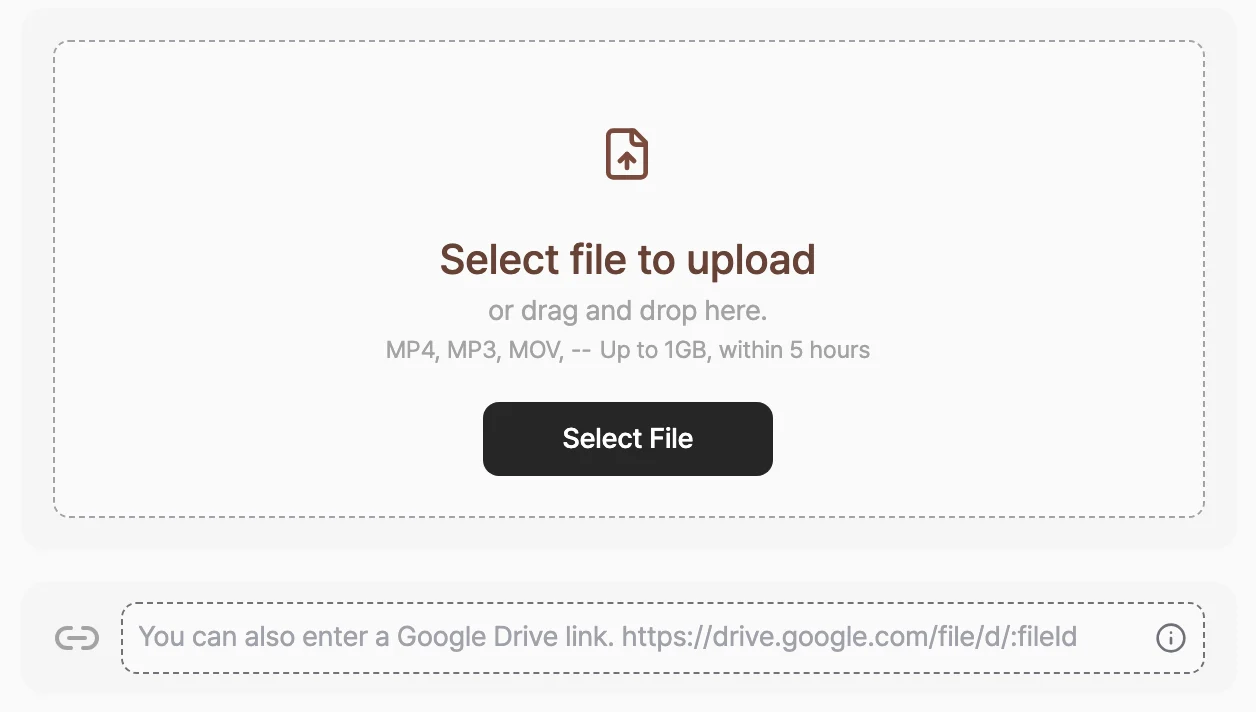
Click [Select File] to pick a file, or drag one into the upload area. You can also paste a Google Drive link to upload. See Upload from a Google Drive link below.
The "File Upload" screen. Click [Select File] or drag a file into the dotted area. The field at the bottom takes a Google Drive link
3
Set the recording language, speaker count, and context
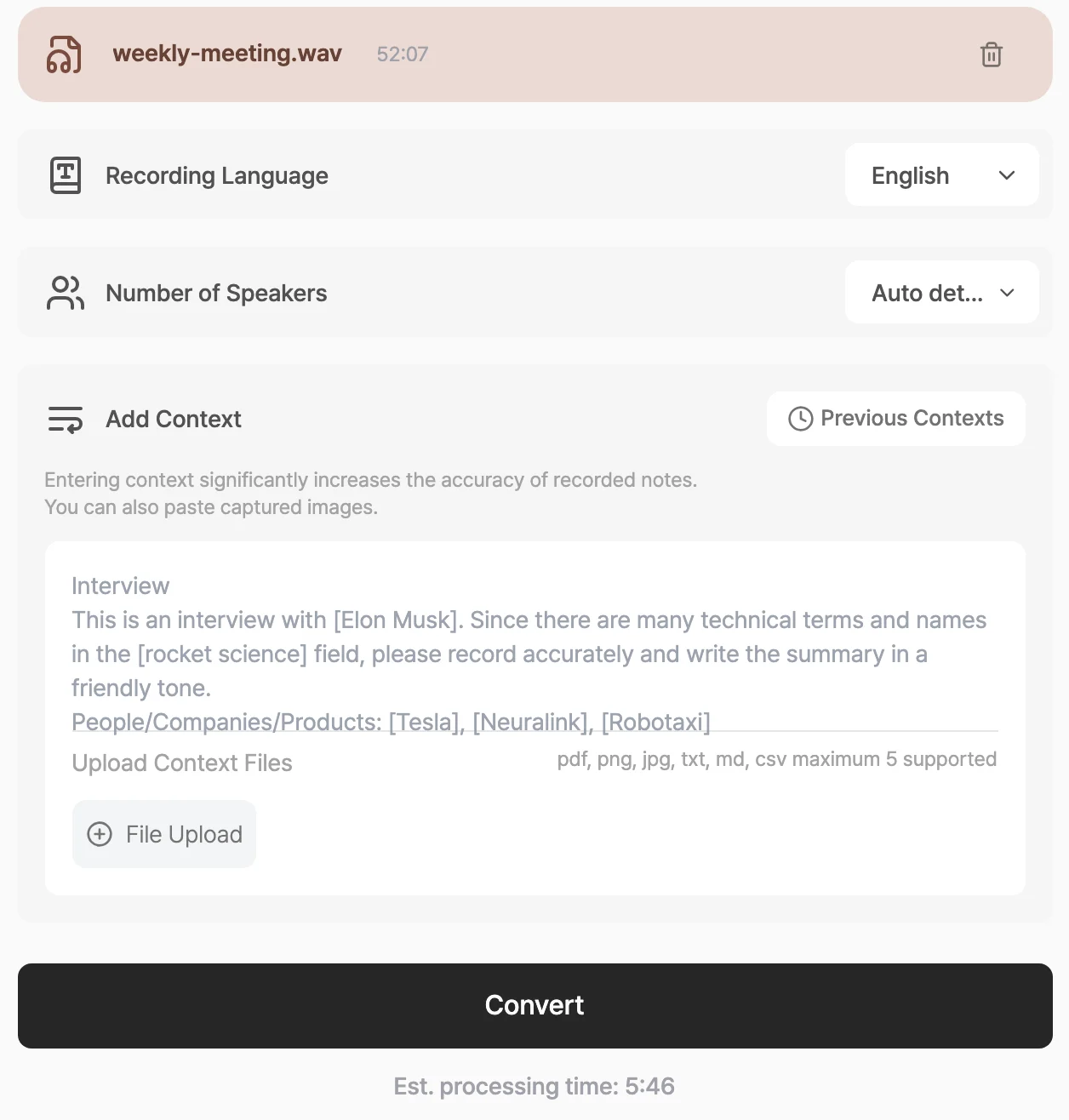
[Recording Language]: The language your transcript and summary are written in. Tiro detects the spoken language automatically.
[Number of Speakers]: Enter the number of people in the conversation if you know it, or leave it on auto-detect.
Context: Tell Tiro about the situation and any proper nouns to improve conversion accuracy.
Once you select a file, the [Recording Language], [Number of Speakers], and [Add context] settings appear. The estimated processing time shows below the [Convert] button
4
Convert
Click [Convert] to start the upload and conversion. The screen shows the estimated processing time and progress stage. When it finishes, Tiro creates a Note, a transcript, and a one-page document.
A file over 1GB or longer than 5 hours won’t upload. Split the file or convert it to a more compressed format (MP3, M4A) and try again.
If you see a message that the format isn’t supported, check the list above and convert to MP3 if you can.
If uploads keep failing on a corporate network, a firewall may be blocking them. Connect to a different network, such as a mobile hotspot, and try again.
Yes, speaker separation is available on the Pro plan and above. If you know the number of speakers, enter it in the [Number of Speakers] field for better results. For details, see Speaker Diarization.
It depends on the file length. When you select a file, the screen shows the estimated processing time, and during conversion you see the progress stage by stage.
Yes. Any recording converts as long as it meets the format and size requirements. If you’re an Android (Galaxy) user, Call Recording, which automatically detects and converts your call recordings, is more convenient.Related pages: Call Recording · Speaker Diarization · Manage Audio Files
{"docsConfig":{"theme":"palm","$schema":"https://mintlify.com/schema.json","name":"Tiro Docs","colors":{"primary":"#3A2018","light":"#5C372B","dark":"#C6A296"},"logo":{"light":"https://mintcdn.com/theplato/5KjFaDac35T-tm2o/logo/light.svg?fit=max\u0026auto=format\u0026n=5KjFaDac35T-tm2o\u0026q=85\u0026s=cd1acb33fc259ba6517be5942fee32e2","dark":"https://mintcdn.com/theplato/5KjFaDac35T-tm2o/logo/dark.svg?fit=max\u0026auto=format\u0026n=5KjFaDac35T-tm2o\u0026q=85\u0026s=f4f882000ca86fd51f87f95703a9d653","href":"https://tiro.ooo"},"favicon":"https://mintcdn.com/theplato/5KjFaDac35T-tm2o/favicon.svg?fit=max\u0026auto=format\u0026n=5KjFaDac35T-tm2o\u0026q=85\u0026s=e6952a672f0e77576815510a1d0a493a","appearance":{"default":"light","strict":true},"search":{"prompt":"Search"},"seo":{"organization":{"id":"https://tiro.ooo/#org","name":"ThePlato","legalName":"ThePlato Inc.","url":"https://tiro.ooo","logo":"https://cdn.tiro.ooo/tiro-icon.png","sameAs":["https://tiro.ooo","https://tiro.ax","https://theplato.io","https://www.linkedin.com/company/theplato","https://www.linkedin.com/showcase/tiro-ooo/","https://x.com/tiro_ooo_ai","https://x.com/tiro_ai_jp","https://www.instagram.com/tiro.ai","https://youtube.com/@tiro_ai"]}},"styling":{"eyebrows":"breadcrumbs","codeblocks":"system","latex":true},"integrations":{"posthog":{"apiKey":"phc_c4vnWkHVFSI1hlGsgS5dJr4DYaF2fED2mWMXNq6k91q","apiHost":"https://us.i.posthog.com"}},"contextual":{"options":["copy","view","chatgpt","claude"],"display":"header"},"thumbnails":{"background":"https://mintcdn.com/theplato/_Qfa5pNzyNiaGswF/images/og-bg.png?fit=max\u0026auto=format\u0026n=_Qfa5pNzyNiaGswF\u0026q=85\u0026s=12d7c69f928db53b4d2866b44f730f0d"},"navigation":{"languages":[{"language":"ko","footer":{"socials":{"x":"https://x.com/tiro_ooo_ai","instagram":"https://www.instagram.com/tiro.kr","linkedin":"https://www.linkedin.com/company/theplato"},"links":[{"header":"제품","items":[{"label":"가격 안내","href":"https://tiro.ooo/"},{"label":"도입 견적","href":"https://www.tiro.ax/ko/roi"},{"label":"사용 가이드","href":"/ko/guide/start/overview"},{"label":"새 소식","href":"/ko/updates"},{"label":"서비스 상태","href":"https://status.tiro.ooo"},{"label":"블로그","href":"https://tiro.ooo/blog"}]},{"header":"개발자","items":[{"label":"API 문서","href":"/ko/developers/fundamentals/api-overview"},{"label":"CLI","href":"/ko/developers/cli/cli-overview"},{"label":"MCP Server","href":"/ko/developers/mcp/mcp-overview"},{"label":"Webhook","href":"/ko/developers/webhooks/webhooks-overview"},{"label":"Platform","href":"https://platform.tiro.ooo"}]},{"header":"문의","items":[{"label":"일반 문의","href":"mailto:hello@theplato.io"},{"label":"기업 문의","href":"mailto:partners@theplato.io"}]},{"header":"약관·정책","items":[{"label":"서비스 이용약관","href":"https://tiro.ooo/terms-of-service"},{"label":"개인정보처리방침","href":"https://tiro.ooo/privacy-policy"},{"label":"보안","href":"https://tiro.ooo/security"},{"label":"Trust Center","href":"https://trust.tiro.ooo"},{"label":"SLA","href":"https://tiro.ooo/service-level-agreement"}]}]},"href":"ko"},{"language":"en","default":true,"footer":{"socials":{"x":"https://x.com/tiro_ooo_ai","instagram":"https://www.instagram.com/tiro.kr","linkedin":"https://www.linkedin.com/company/theplato"},"links":[{"header":"Product","items":[{"label":"Pricing","href":"https://tiro.ooo/"},{"label":"Adoption Quote","href":"https://www.tiro.ax/ko/roi"},{"label":"User Guide","href":"/en/guide/start/overview"},{"label":"What's New","href":"/en/updates"},{"label":"Status Page","href":"https://status.tiro.ooo"},{"label":"Blog","href":"https://tiro.ooo/blog"}]},{"header":"Developers","items":[{"label":"API Documentation","href":"/en/developers/fundamentals/api-overview"},{"label":"CLI","href":"/en/developers/cli/cli-overview"},{"label":"MCP Server","href":"/en/developers/mcp/mcp-overview"},{"label":"Webhooks","href":"/en/developers/webhooks/webhooks-overview"},{"label":"Platform","href":"https://platform.tiro.ooo"}]},{"header":"Contact","items":[{"label":"Contact","href":"mailto:hello@theplato.io"},{"label":"Business Support","href":"mailto:partners@theplato.io"}]},{"header":"Legal","items":[{"label":"Terms of Service","href":"https://tiro.ooo/terms-of-service"},{"label":"Privacy Policy","href":"https://tiro.ooo/privacy-policy"},{"label":"Security","href":"https://tiro.ooo/security"},{"label":"Trust Center","href":"https://trust.tiro.ooo"},{"label":"SLA","href":"https://tiro.ooo/service-level-agreement"}]}]},"href":"en"},{"language":"ja","footer":{"socials":{"x":"https://x.com/tiro_ooo_ai","instagram":"https://www.instagram.com/tiro.ja","linkedin":"https://www.linkedin.com/company/theplato"},"links":[{"header":"製品","items":[{"label":"料金プラン","href":"https://tiro.ooo/"},{"label":"導入見積もり","href":"https://www.tiro.ax/ko/roi"},{"label":"使用ガイド","href":"/ja/guide/start/overview"},{"label":"新着情報","href":"/ja/updates"},{"label":"サービス ステータス","href":"https://status.tiro.ooo"},{"label":"ブログ","href":"https://tiro.ooo/blog"}]},{"header":"開発者","items":[{"label":"APIドキュメント","href":"/ja/developers/fundamentals/api-overview"},{"label":"CLI","href":"/ja/developers/cli/cli-overview"},{"label":"MCP Server","href":"/ja/developers/mcp/mcp-overview"},{"label":"Webhook","href":"/ja/developers/webhooks/webhooks-overview"},{"label":"Platform","href":"https://platform.tiro.ooo"}]},{"header":"お問い合わせ","items":[{"label":"一般お問い合わせ","href":"mailto:hello@theplato.io"},{"label":"法人お問い合わせ","href":"mailto:partners@theplato.io"}]},{"header":"規約・ポリシー","items":[{"label":"利用規約","href":"https://tiro.ooo/terms-of-service"},{"label":"プライバシー","href":"https://tiro.ooo/privacy-policy"},{"label":"セキュリティ","href":"https://tiro.ooo/security"},{"label":"Trust Center","href":"https://trust.tiro.ooo"},{"label":"SLA","href":"https://tiro.ooo/service-level-agreement"}]}]},"href":"ja"}]}},"deployment":{"deploymentMetadataValue":{"subdomain":"theplato","hasAudioNarration":false,"actualSubdomain":"theplato","customDomains":["docs.tiro.ooo"],"gitSource":{"type":"github","owner":"plato-corp","repo":"tiro-client","deployBranch":"develop","contentDirectory":"services/product-docs","isPrivate":true,"mountPath":"","label":""},"chroma":{"liveDeploymentHistoryId":"6ae2194e4fe4c8cc739d47f4","collectionId":"b29399e4-7ecc-4d6e-a0d9-c7f3061facbc","schemaVersion":"v3","latestBuiltDeploymentHistoryId":"6ae2194e4fe4c8cc739d47f4"},"entitlements":{},"buildId":"6ae2194e4fe4c8cc739d47f4","clientVersion":"0.0.4006","searchFilterCounts":[{"language":"default","tag":"Developer Docs","count":91},{"language":"default","tag":"API","count":91},{"language":"default","tag":"API Reference","count":91},{"language":"en","tag":"User Guide","count":59},{"language":"ja","tag":"ユーザーガイド","count":59},{"language":"ko","tag":"사용자 가이드","count":59},{"language":"en","tag":"Developer Docs","count":46},{"language":"ja","tag":"開発者ドキュメント","count":46},{"language":"ko","tag":"개발자 문서","count":46},{"language":"default","tag":"Word Memory","count":24},{"language":"en","tag":"MCP","count":17},{"language":"ja","tag":"MCP","count":17},{"language":"ko","tag":"MCP","count":17},{"language":"default","tag":"Folder","count":12},{"language":"en","tag":"Tools","count":11},{"language":"ja","tag":"ツール","count":11},{"language":"ko","tag":"도구","count":11},{"language":"en","tag":"Workspace, Plans \u0026 Billing","count":10},{"language":"ja","tag":"ワークスペース・プラン&支払い","count":10},{"language":"ko","tag":"워크스페이스 · 플랜 \u0026 결제","count":10},{"language":"default","tag":"Wiki","count":10},{"language":"en","tag":"API","count":9},{"language":"ja","tag":"API","count":9},{"language":"ko","tag":"API","count":9},{"language":"default","tag":"Note","count":9},{"language":"default","tag":"Organization","count":9},{"language":"default","tag":"Voice File","count":9},{"language":"en","tag":"Troubleshooting","count":8},{"language":"ja","tag":"トラブルシューティング","count":8},{"language":"ko","tag":"문제 해결","count":8},{"language":"default","tag":"Note Document Template","count":8},{"language":"en","tag":"Webhooks","count":7},{"language":"en","tag":"Recording","count":7},{"language":"ja","tag":"Webhook","count":7},{"language":"ja","tag":"会話の記録","count":7},{"language":"ko","tag":"웹훅","count":7},{"language":"ko","tag":"대화 기록하기","count":7},{"language":"en","tag":"CLI","count":5},{"language":"ja","tag":"CLI","count":5},{"language":"ko","tag":"CLI","count":5}],"searchSettings":{"maxResults":15}},"assistantConfig":{},"basePath":"","hasChatPermissions":false,"hasWebMcpPermissions":false,"toggles":[{"name":"kill-isr","enabled":true,"variant":{"name":"disabled","enabled":false,"feature_enabled":true},"impressionData":false},{"name":"agent-mintlify-slack","enabled":true,"variant":{"name":"disabled","enabled":false,"feature_enabled":true},"impressionData":false},{"name":"editor-v7-file-tree","enabled":true,"variant":{"name":"disabled","enabled":false,"feature_enabled":true},"impressionData":false},{"name":"agent-integrations-settings","enabled":true,"variant":{"name":"disabled","enabled":false,"feature_enabled":true},"impressionData":false},{"name":"automations-pr-grouping","enabled":true,"variant":{"name":"disabled","enabled":false,"feature_enabled":true},"impressionData":false},{"name":"custom-prefix","enabled":true,"variant":{"name":"disabled","enabled":false,"feature_enabled":true},"impressionData":false},{"name":"analytics-v7","enabled":true,"variant":{"name":"disabled","enabled":false,"feature_enabled":true},"impressionData":false},{"name":"user-flows-analytics","enabled":true,"variant":{"name":"disabled","enabled":false,"feature_enabled":true},"impressionData":false},{"name":"no-publish-flow","enabled":true,"variant":{"name":"disabled","enabled":false,"feature_enabled":true},"impressionData":false},{"name":"workos-onboarding","enabled":true,"variant":{"name":"disabled","enabled":false,"feature_enabled":true},"impressionData":false},{"name":"llms-txt-v2","enabled":true,"variant":{"name":"disabled","enabled":false,"feature_enabled":true},"impressionData":false},{"name":"pause-universal-search-reconcile","enabled":true,"variant":{"name":"disabled","enabled":false,"feature_enabled":true},"impressionData":false},{"name":"snapshot-serving-live","enabled":true,"variant":{"name":"disabled","enabled":false,"feature_enabled":true},"impressionData":false},{"name":"stripTemperatureMiddleware","enabled":true,"variant":{"name":"disabled","enabled":false,"feature_enabled":true},"impressionData":false},{"name":"per-site-search-delta","enabled":true,"variant":{"name":"disabled","enabled":false,"feature_enabled":true},"impressionData":false},{"name":"support-platform-pylon-zendesk","enabled":true,"variant":{"name":"disabled","enabled":false,"feature_enabled":true},"impressionData":false},{"name":"snapshot-serving","enabled":true,"variant":{"name":"disabled","enabled":false,"feature_enabled":true},"impressionData":false},{"name":"instant-rollback","enabled":true,"variant":{"name":"disabled","enabled":false,"feature_enabled":true},"impressionData":false},{"name":"granular-notifications-server","enabled":true,"variant":{"name":"disabled","enabled":false,"feature_enabled":true},"impressionData":false},{"name":"granular-notifications","enabled":true,"variant":{"name":"disabled","enabled":false,"feature_enabled":true},"impressionData":false},{"name":"editor-private-page-search","enabled":true,"variant":{"name":"disabled","enabled":false,"feature_enabled":true},"impressionData":false},{"name":"automations-fable","enabled":true,"variant":{"name":"disabled","enabled":false,"feature_enabled":true},"impressionData":false},{"name":"fixed-ai-action-pricing","enabled":true,"variant":{"name":"disabled","enabled":false,"feature_enabled":true},"impressionData":false},{"name":"automation-resolve-merge-conflict","enabled":true,"variant":{"name":"disabled","enabled":false,"feature_enabled":true},"impressionData":false},{"name":"scoped-publishing","enabled":true,"variant":{"name":"disabled","enabled":false,"feature_enabled":true},"impressionData":false},{"name":"mintql","enabled":true,"variant":{"name":"disabled","enabled":false,"feature_enabled":true},"impressionData":false},{"name":"page-level-analytics","enabled":true,"variant":{"name":"disabled","enabled":false,"feature_enabled":true},"impressionData":false},{"name":"editor-version-history-v2","enabled":true,"variant":{"name":"disabled","enabled":false,"feature_enabled":true},"impressionData":false},{"name":"editor-nav-generations","enabled":true,"variant":{"name":"disabled","enabled":false,"feature_enabled":true},"impressionData":false},{"name":"billing-page-v2","enabled":true,"variant":{"name":"disabled","enabled":false,"feature_enabled":true},"impressionData":false},{"name":"workspace-projects","enabled":true,"variant":{"name":"disabled","enabled":false,"feature_enabled":true},"impressionData":false},{"name":"assistant-v5","enabled":true,"variant":{"name":"disabled","enabled":false,"feature_enabled":true},"impressionData":false},{"name":"byok-sep-25","enabled":true,"variant":{"name":"disabled","enabled":false,"feature_enabled":true},"impressionData":false},{"name":"fork-pr-previews","enabled":true,"variant":{"name":"disabled","enabled":false,"feature_enabled":true},"impressionData":false},{"name":"revalidation-jwt","enabled":true,"variant":{"name":"disabled","enabled":false,"feature_enabled":true},"impressionData":false},{"name":"vite-origin","enabled":true,"variant":{"name":"disabled","enabled":false,"feature_enabled":true},"impressionData":false},{"name":"editor-agent-model-picker","enabled":true,"variant":{"name":"disabled","enabled":false,"feature_enabled":true},"impressionData":false},{"name":"billing-updated-9-15","enabled":true,"variant":{"name":"disabled","enabled":false,"feature_enabled":true},"impressionData":false},{"name":"workos-sso-scim","enabled":true,"variant":{"name":"disabled","enabled":false,"feature_enabled":true},"impressionData":false},{"name":"hobby-abuse-scan","enabled":true,"variant":{"name":"disabled","enabled":false,"feature_enabled":true},"impressionData":false},{"name":"dashboard-inbox","enabled":true,"variant":{"name":"disabled","enabled":false,"feature_enabled":true},"impressionData":false},{"name":"workos-signup","enabled":true,"variant":{"name":"disabled","enabled":false,"feature_enabled":true},"impressionData":false},{"name":"workos-enabled","enabled":true,"variant":{"name":"disabled","enabled":false,"feature_enabled":true},"impressionData":false}],"googleFontsInlined":false},"customCss":[{"filePath":"global.css","content":"@import url(https://cdn.jsdelivr.net/gh/orioncactus/pretendard@v1.3.9/dist/web/static/pretendard-dynamic-subset.css);/* latin */\n@font-face {\n font-family: 'Averia Serif Libre';\n font-style: italic;\n font-weight: 400;\n font-display: swap;\n src: url(/_mintlify/assets/fonts/google/s/averiaseriflibre/v19/neIUzD2ms4wxr6GvjeD0X88SHPyX2xYOpzuN4Yg.woff2) format('woff2');\n unicode-range: U+0000-00FF, U+0131, U+0152-0153, U+02BB-02BC, U+02C6, U+02DA, U+02DC, U+0304, U+0308, U+0329, U+2000-206F, U+20AC, U+2122, U+2191, U+2193, U+2212, U+2215, U+FEFF, U+FFFD;\n}\n/* latin */\n@font-face {\n font-family: 'Averia Serif Libre';\n font-style: normal;\n font-weight: 400;\n font-display: swap;\n src: url(/_mintlify/assets/fonts/google/s/averiaseriflibre/v19/neIWzD2ms4wxr6GvjeD0X88SHPyX2xYOoguP.woff2) format('woff2');\n unicode-range: U+0000-00FF, U+0131, U+0152-0153, U+02BB-02BC, U+02C6, U+02DA, U+02DC, U+0304, U+0308, U+0329, U+2000-206F, U+20AC, U+2122, U+2191, U+2193, U+2212, U+2215, U+FEFF, U+FFFD;\n}\n/* latin */\n@font-face {\n font-family: 'Averia Serif Libre';\n font-style: normal;\n font-weight: 700;\n font-display: swap;\n src: url(/_mintlify/assets/fonts/google/s/averiaseriflibre/v19/neIVzD2ms4wxr6GvjeD0X88SHPyX2xYGGS6axq0r.woff2) format('woff2');\n unicode-range: U+0000-00FF, U+0131, U+0152-0153, U+02BB-02BC, U+02C6, U+02DA, U+02DC, U+0304, U+0308, U+0329, U+2000-206F, U+20AC, U+2122, U+2191, U+2193, U+2212, U+2215, U+FEFF, U+FFFD;\n}\n:root{--tiro-stone-200:#d6d3d1;--tiro-stone-500:#57534e;--tiro-stone-600:#44403c;--tiro-brown-30:#f8f2f0;--tiro-brown-50:#ebdad4;--tiro-brown-100:#d5bab2;--tiro-brown-200:#c6a296;--tiro-brown-300:#9c6d5f;--tiro-brown-500:#7a4b3d;--tiro-brown-700:#5c372b;--tiro-brown-800:#3a2018;--tiro-brown-light:#c6a296;--tiro-brown-600:#6b4234;--tiro-amber-50:#fffbeb;--tiro-amber-100:#fef3c7;--tiro-amber-200:#fde68a;--tiro-amber-500:#f59e0b;--tiro-amber-700:#b45309;--tiro-rose-50:#fff1f2;--tiro-rose-100:#ffe4e6;--tiro-rose-500:#f43f5e;--tiro-rose-700:#be123c;--tiro-lime-700:#4d7c0f;--tiro-white:#ffffff;--tiro-serif:\"Averia Serif Libre\", Georgia, serif;--tiro-ink-strong:var(--tiro-brown-800);--tiro-ink-accent:var(--tiro-brown-700);--tiro-ink-body:var(--tiro-stone-500);--tiro-fill-soft:var(--tiro-brown-30);--tiro-line-soft:var(--tiro-brown-30)}.dark{--tiro-ink-strong:var(--tiro-brown-50);--tiro-ink-accent:var(--tiro-brown-100);--tiro-ink-body:var(--tiro-stone-200);--tiro-fill-soft:color-mix(in srgb, var(--tiro-brown-300) 14%, transparent);--tiro-line-soft:color-mix(in srgb, var(--tiro-brown-300) 22%, transparent)}.sidebar-group-header{color:var(--tiro-brown-800)!important;font-size:1rem!important;font-weight:700!important;letter-spacing:-.005em;margin-top:.25rem!important;margin-bottom:.6rem!important}.sidebar-group-header .sidebar-group-icon{height:1.05rem!important;width:1.05rem!important}.dark .sidebar-group-header,.dark [data-component-part=card-title]{color:var(--tiro-brown-light)!important}#navigation-items div:has(>.sidebar-group-header>.sidebar-group-icon[style*=house]){display:none!important}#navigation-items a{border-radius:8px;margin-right:8px}#navigation-items a[aria-current=page]{background:var(--tiro-brown-30)!important;font-weight:600}#navigation-items a:not([aria-current=page]):hover{background:color-mix(in srgb,var(--tiro-brown-30) 60%,transparent)!important}.dark #navigation-items a[aria-current=page]{background:color-mix(in srgb,var(--tiro-brown-300) 16%,transparent)!important}.dark #navigation-items a:not([aria-current=page]):hover{background:color-mix(in srgb,var(--tiro-brown-300) 9%,transparent)!important}body:has(#navigation-items a[href$=\"/developers\"]) #content-container>.max-w-5xl{max-width:101rem;column-gap:2rem}@media (min-width:1280px) and (max-width:1919px){body:has(#navigation-items a[href$=\"/developers\"]) #content-side-layout{display:none!important}}@media (max-width:1023px){#navigation-items :is(a, button),[role=dialog] button{min-height:2.75rem}#navbar button[aria-label=\"더 많은 작업\"],#page-context-menu-button+button[aria-label=\"더 많은 작업\"],#search-bar-entry-mobile,[role=dialog] button:has(>.sr-only),button[aria-label=\"메시지 보내기\"]{min-width:2.75rem;min-height:2.75rem;justify-content:center}#page-context-menu-button,a[href=\"https://tiro.ooo\"]:has(img[alt*=logo]){min-height:2.75rem}a[href=\"https://tiro.ooo\"]:has(img[alt*=logo]){display:flex;align-items:center}}#navbar button:focus-visible,#navigation-items a:focus-visible,#sidebar button:focus-visible,[role=dialog] :is(a, button):focus-visible{outline:2px solid var(--tiro-ink-strong);outline-offset:2px}[data-component-part=card-title]{color:var(--tiro-brown-800)!important;font-weight:700!important}[data-component-part=card-content]{font-size:.8125rem!important;line-height:1.5!important}[data-component-part=card-icon]{display:inline-flex!important;align-items:center;justify-content:center;width:2.5rem!important;height:2.5rem!important;margin-bottom:.85rem;background:var(--tiro-brown-800)!important;border-radius:9999px!important;color:var(--tiro-brown-30)!important;fill:var(--tiro-brown-30)!important}[data-component-part=card-icon] svg{width:1.25rem!important;height:1.25rem!important;background-color:var(--tiro-brown-30)!important}#footer,#pagination,#tiro-developer-hero img,#tiro-developer-hero picture,#tiro-guide-hero img,#tiro-guide-hero picture,.frame>div.absolute,.frame>div[class*=bg-grid]{display:none!important}div:has(>#page-title)+div.prose{font-size:.9375rem!important;line-height:1.55!important}div:has(>#page-title)+div.prose p{color:var(--tiro-stone-500)!important}.dark div:has(>#page-title)+div.prose p{color:var(--tiro-stone-200)!important}#tiro-home{width:100%;max-width:none;margin:0 auto;padding:0 0 5rem}#tiro-developer-hero,#tiro-guide-hero{display:block;width:100%;max-width:100%;padding:4rem 1.5rem 5.5rem;background:var(--tiro-brown-800);text-align:center}#tiro-guide-hero{margin-bottom:-2.75rem}#tiro-developer-hero{margin-bottom:2.5rem;padding-bottom:4rem}.dark .prose img[src*=\"/images/guide/\"],.dark .prose img[src*=\"images%2Fguide\"]{filter:brightness(.82) contrast(1.02)}#tiro-hero-eyebrow{font-family:var(--tiro-serif);font-style:italic;font-size:1.05rem;color:var(--tiro-brown-200);margin:0 0 .9rem}#tiro-hero-sub{max-width:600px;margin:0 auto;font-size:1.0625rem;line-height:1.6;color:var(--tiro-brown-100)}#tiro-home-content{max-width:880px;margin:0 auto;padding:0 1.5rem}#content-container:has(#tiro-home){padding:0!important}#content-container:has(#tiro-home) #content,#content-container:has(#tiro-home) #content-area,#content-container:has(#tiro-home)>div,.max-w-5xl:has(#tiro-home){max-width:none!important;width:100%!important;padding:0!important;margin:0!important}#content-container:has(#tiro-home)>div{gap:0!important}#content-container:has(#tiro-home) #content-area{overflow-x:visible!important}.max-w-5xl:has(#tiro-home) #content-side-layout{display:none}@media (max-width:1023px){#content-container:has(#tiro-home){padding-left:0;padding-right:0}#tiro-home-content{padding-left:48px;padding-right:48px}}@media (max-width:767px){#tiro-home-content{padding-left:20px;padding-right:20px}#tiro-developer-hero,#tiro-guide-hero{margin-bottom:2.25rem}}#tiro-hero-title{text-align:center;font-size:clamp(2.2rem,5vw,3.4rem);font-weight:700;line-height:1.12;letter-spacing:-.02em;margin:0 0 1rem;color:var(--tiro-white)}#tiro-hero-search{position:relative;z-index:1;display:flex;align-items:center;gap:.6rem;width:100%;max-width:640px;margin:0 auto 1.25rem;padding:1rem 1.25rem;border:1px solid var(--tiro-stone-200);border-radius:14px;background:var(--tiro-white);color:var(--tiro-stone-600);cursor:pointer;box-shadow:0 12px 32px -8px color-mix(in srgb,var(--tiro-brown-800) 22%,transparent);transition:border-color .15s ease,box-shadow .15s ease}#tiro-hero-search:focus-visible,#tiro-hero-search:hover{border-color:var(--tiro-brown-200);box-shadow:0 14px 36px -8px color-mix(in srgb,var(--tiro-brown-800) 28%,transparent);outline:0}#tiro-hero-search::before{content:\"\";flex:0 0 auto;width:1.15rem;height:1.15rem;background-color:var(--tiro-brown-500);-webkit-mask:url(https://d3gk2c5xim1je2.cloudfront.net/lucide/v1.16.0/search.svg) center/contain no-repeat;mask:url(https://d3gk2c5xim1je2.cloudfront.net/lucide/v1.16.0/search.svg) center/contain no-repeat}#tiro-hero-search-text{flex:1 1 auto;text-align:left;font-size:.95rem}#tiro-hero-search kbd{flex:0 0 auto;font-family:inherit;font-size:.7rem;color:var(--tiro-brown-500);background:var(--tiro-brown-30);border:1px solid var(--tiro-brown-50);border-radius:6px;padding:2px 7px}.tiro-home-kicker{font-size:.75rem!important;font-weight:700!important;letter-spacing:.09em;text-transform:uppercase;color:var(--tiro-ink-body);margin:0 0 .65rem!important}#tiro-home-kicker-featured{margin-top:2.5rem!important}#tiro-home-kicker-all{margin-top:2rem!important}#tiro-home-featured{display:grid;grid-template-columns:repeat(3,1fr);gap:.75rem}#tiro-home-featured a{display:flex;flex-direction:column;gap:.15rem;background:var(--tiro-brown-800);border-radius:8px;padding:1rem 1.1rem;text-decoration:none!important;transition:background .15s ease}#tiro-home-featured a:hover{background:var(--tiro-brown-700)}#tiro-home-featured a strong{font-size:.95rem;font-weight:700;color:var(--tiro-white)}#tiro-home-featured a span{font-size:.8125rem;color:var(--tiro-brown-200)}@media (max-width:640px){#tiro-home-featured{grid-template-columns:1fr}}.dark #tiro-home-featured a{background:color-mix(in srgb,var(--tiro-brown-300) 16%,transparent);border:1px solid color-mix(in srgb,var(--tiro-brown-300) 30%,transparent)}.dark #tiro-home-featured a:hover{background:color-mix(in srgb,var(--tiro-brown-300) 24%,transparent)}.dark #tiro-home-featured a strong{color:var(--tiro-brown-50)}#tiro-home-categories [data-component-part=card-icon]{width:1.9rem!important;height:1.9rem!important;margin-bottom:.5rem}#tiro-home-categories [data-component-part=card-icon] svg{width:1rem!important;height:1rem!important}#tiro-home-categories [data-component-part=card-title]{font-size:.9rem!important}#tiro-home-categories [data-component-part=card-content]{font-size:.75rem!important;color:var(--tiro-ink-body)!important}.dark #tiro-hero-search{background:color-mix(in srgb,var(--tiro-brown-300) 18%,black);border-color:color-mix(in srgb,var(--tiro-brown-300) 45%,black);color:var(--tiro-stone-200)}.callout{background:var(--tiro-brown-30)!important;border:1px solid var(--tiro-brown-30)!important;border-radius:12px!important}.callout [data-component-part=callout-content]{color:var(--tiro-stone-600)!important}.callout svg{color:var(--tiro-brown-500)!important}.dark .callout{background:color-mix(in srgb,var(--tiro-brown-300) 9%,transparent)!important;border-color:color-mix(in srgb,var(--tiro-brown-300) 9%,transparent)!important}.dark .callout [data-component-part=callout-content]{color:var(--tiro-stone-200)!important}.dark .callout svg{color:var(--tiro-brown-200)!important}.plan-badge,.plan-gate-card{background:var(--tiro-brown-800)}.plan-badge{display:inline-block;vertical-align:middle;margin-right:6px;padding:1px 9px;font-size:.72em;font-weight:600;line-height:1.6;letter-spacing:.01em;white-space:nowrap;color:var(--tiro-white);border:0;border-radius:9999px}h2 .plan-badge,h3 .plan-badge{margin-left:8px;margin-right:0}.dark .plan-badge{color:var(--tiro-brown-800);background:var(--tiro-brown-100);border:0}.plan-gate-card{display:flex;flex-wrap:wrap;align-items:center;justify-content:space-between;gap:14px 20px;padding:22px 26px;margin-top:40px;border-radius:12px;border:1px solid var(--tiro-brown-800)}.plan-gate-card-text{flex:1 1 320px}.plan-gate-card-title{display:flex;align-items:center;gap:8px;font-family:var(--tiro-serif);font-size:1.2rem;line-height:1.2;color:var(--tiro-white);margin-bottom:6px}.plan-gate-card .plan-badge{display:inline-block!important;width:auto;margin:0!important;color:var(--tiro-brown-50);background:color-mix(in srgb,var(--tiro-white) 12%,transparent);border:1px solid color-mix(in srgb,var(--tiro-white) 22%,transparent)}.plan-gate-card-text [data-as=p],.plan-gate-card-text p{display:block!important;margin:6px 0 0!important;color:color-mix(in srgb,var(--tiro-white) 86%,var(--tiro-brown-800))!important;font-size:.95em!important;line-height:1.65!important}.plan-gate-card-button{display:inline-flex;align-items:center;gap:6px;flex:0 0 auto;padding:9px 20px;border-radius:9999px;background:var(--tiro-white)!important;color:var(--tiro-brown-800)!important;font-weight:600;font-size:.9em;text-decoration:none!important;border-bottom:none!important;white-space:nowrap;transition:background .15s ease}.plan-gate-card-button:hover{background:var(--tiro-brown-50)!important}.dark .plan-gate-card{border-color:color-mix(in srgb,var(--tiro-brown-300) 30%,transparent)}.frame{background-color:var(--tiro-brown-700)!important;width:fit-content!important;max-width:100%;margin-inline:auto}.frame:has(img[data-path*=\"/mobile-\"]),.frame:has(img[src*=\"/mobile-\"]){width:40%!important}@media (max-width:768px){.frame:has(img[data-path*=\"/mobile-\"]),.frame:has(img[src*=\"/mobile-\"]){width:100%!important}}.frame figcaption,.frame p{width:0;min-width:100%}.frame,.frame *{color:var(--tiro-white)!important}.frame figcaption,.frame span,.frame>p{font-size:.75rem!important;line-height:1.5!important;text-wrap:balance;word-break:keep-all}#content-area pre{border-radius:12px!important;max-width:100%;overflow-x:auto!important}[data-component-part=code-group-header]{font-family:var(--font-mono, ui-monospace, monospace);color:var(--tiro-ink-accent)!important}[data-component-part=step-number]>div{background:var(--tiro-brown-800)!important;color:var(--tiro-white)!important}.dark [data-component-part=step-number]>div{background:var(--tiro-brown-500)!important}.prose table,[data-component-part=accordion]{border:1px solid var(--tiro-line-soft)!important;overflow:hidden}[data-component-part=accordion]{border-radius:10px!important;background:var(--tiro-fill-soft)!important}[data-component-part=accordion-trigger]{color:var(--tiro-ink-strong)!important;font-weight:600!important}[data-component-part=accordion] svg{color:var(--tiro-brown-300)!important}.prose table{width:100%;table-layout:fixed;border-radius:12px;border-collapse:separate!important;border-spacing:0}.prose td,.prose th{padding:12px 16px!important;border:0!important;border-bottom:1px solid var(--tiro-line-soft)!important}.prose tbody td{overflow-wrap:anywhere;word-break:break-word;vertical-align:top;color:var(--tiro-ink-body)}.prose tbody tr:last-child td{border-bottom:none!important}.prose thead th{background:var(--tiro-fill-soft)!important;color:var(--tiro-ink-body)!important;font-weight:600!important;font-size:.85rem!important;text-align:left;vertical-align:middle}.prose thead th:first-child{width:22%}.prose tbody td:first-child{color:var(--tiro-ink-strong)!important;font-weight:500}body:has(#navigation-items a[href$=\"/developers\"]) .prose table{table-layout:auto}body:has(#navigation-items a[href$=\"/developers\"]) .prose tbody td{overflow-wrap:break-word}body:has(#navigation-items a[href$=\"/developers\"]) .prose thead th:first-child{width:auto}body:has(#navigation-items a[href$=\"/developers\"]) .prose tbody td:first-child>code{white-space:nowrap}body:has(#navigation-items a[href$=\"/developers\"]) .prose table:has(thead th:nth-child(2):last-child) :is(th, td):nth-child(2){min-width:20rem}.cell-no,.cell-yes{color:var(--tiro-lime-700);font-weight:700}.cell-no{color:var(--tiro-rose-500)}[data-component-part=tab][data-state=active],[role=tab][aria-selected=true]{color:var(--tiro-ink-strong)!important;box-shadow:inset 0 -2px 0 var(--tiro-ink-strong)!important}.prose :not(pre)>code{background:var(--tiro-fill-soft)!important;color:var(--tiro-ink-accent)!important;border:1px solid var(--tiro-line-soft)!important;border-radius:5px!important;padding:2px 6px!important;font-weight:500}.prose :not(pre)>code::after,.prose :not(pre)>code::before{content:\"\"!important}.prose a{text-decoration-color:var(--tiro-brown-200);text-underline-offset:3px}[data-component-part=field-required]{color:var(--tiro-rose-700)!important;background:var(--tiro-rose-50)!important;border:1px solid var(--tiro-rose-100)!important;border-radius:9999px!important;padding:1px 8px!important;font-size:.72em!important;font-weight:600!important}.dark [data-component-part=field-required]{color:var(--tiro-rose-500)!important;background:color-mix(in srgb,var(--tiro-rose-500) 12%,transparent)!important;border-color:color-mix(in srgb,var(--tiro-rose-500) 28%,transparent)!important}.tiro-two-doors{display:grid;grid-template-columns:1fr 1fr;gap:1rem;margin:1.5rem 0 2rem}@media (max-width:768px){.tiro-two-doors{grid-template-columns:1fr}}.tiro-two-doors__door{display:block;padding:1.25rem 1.5rem;border:1px solid var(--tiro-stone-200);border-radius:12px;background:var(--tiro-white);text-decoration:none;transition:border-color 120ms ease,box-shadow 120ms ease}.tiro-two-doors__door:hover{border-color:var(--tiro-brown-500);box-shadow:0 6px 20px -10px color-mix(in srgb,var(--tiro-brown-800) 30%,transparent)}.tiro-two-doors__label{display:inline-block;font-family:var(--tiro-serif);font-style:italic;font-size:.85rem;color:var(--tiro-brown-500);margin-bottom:.5rem}.tiro-two-doors__title{font-size:1.1rem;font-weight:600;margin:0 0 .35rem;color:var(--tiro-ink-strong)}.tiro-two-doors__desc{font-size:.9rem;color:var(--tiro-ink-body);margin:0;line-height:1.55}.tiro-tool-table{width:100%;border-collapse:collapse;font-size:.9rem;margin:1rem 0}.tiro-tool-table td,.tiro-tool-table th{text-align:left;padding:.6rem .75rem;border-bottom:1px solid var(--tiro-line-soft);vertical-align:top}.tiro-tool-table th{font-weight:600;color:var(--tiro-ink-strong);background:var(--tiro-fill-soft)}.tiro-tool-table code{color:var(--tiro-ink-accent)}"}],"page":{"pagePath":"en/guide/recording/upload","slug":"/en/guide/recording/upload","pageMetadata":{"title":"Audio File Upload","description":"Upload an audio or video file you already have, and Tiro turns it into a clean text note. Each file can be up to 1GB and 5 hours long.","og:locale":"en_US","og:image":"https://docs.tiro.ooo/images/og-guide-en.png","og:image:secure_url":"https://docs.tiro.ooo/images/og-guide-en.png","og:image:alt":"Tiro User Guide","twitter:image":"https://docs.tiro.ooo/images/og-guide-en.png","href":"/en/guide/recording/upload"},"description":{"compiledSource":"\"use strict\";\nconst {jsx: _jsx} = arguments[0];\nconst {useMDXComponents: _provideComponents} = arguments[0];\nfunction _createMdxContent(props) {\n const _components = {\n p: \"p\",\n ..._provideComponents(),\n ...props.components\n };\n return _jsx(_components.p, {\n children: \"Upload an audio or video file you already have, and Tiro turns it into a clean text note. Each file can be up to 1GB and 5 hours long.\"\n });\n}\nfunction MDXContent(props = {}) {\n const {wrapper: MDXLayout} = {\n ..._provideComponents(),\n ...props.components\n };\n return MDXLayout ? _jsx(MDXLayout, {\n ...props,\n children: _jsx(_createMdxContent, {\n ...props\n })\n }) : _createMdxContent(props);\n}\nreturn {\n default: MDXContent\n};\n","frontmatter":{},"scope":{}},"pageType":"default","mdx":{"mdxSource":{"compiledSource":"\"use strict\";const{Fragment:_Fragment,jsx:_jsx,jsxs:_jsxs}=arguments[0];const{useMDXComponents:_provideComponents}=arguments[0];const PlanBadge=({plan,lang=`ko`})=>_jsx(`span`,{className:`plan-badge`,children:{pro:{ko:`Pro+`,en:`Pro+`,ja:`Pro+`},team:{ko:`팀 플랜`,en:`Team Plan`,ja:`チームプラン`},enterprise:{ko:`엔터프라이즈`,en:`Enterprise`,ja:`エンタープライズ`}}[plan][lang]});function _createMdxContent(props){const _components={a:`a`,code:`code`,hr:`hr`,li:`li`,ol:`ol`,p:`p`,strong:`strong`,ul:`ul`,..._provideComponents(),...props.components},{Frame,Heading,OptimizedImage,Step,Steps,_MdxComponentBoundary}=_components;if(!Frame)_missingMdxReference(`Frame`,true);if(!Heading)_missingMdxReference(`Heading`,true);if(!OptimizedImage)_missingMdxReference(`OptimizedImage`,true);if(!Step)_missingMdxReference(`Step`,true);if(!Steps)_missingMdxReference(`Steps`,true);if(!_MdxComponentBoundary)_missingMdxReference(`_MdxComponentBoundary`,true);return _jsxs(_Fragment,{children:[_jsx(Heading,{level:`2`,id:`turn-a-file-into-a-note`,children:`Turn a file into a note`}),`\n`,_jsxs(Steps,{children:[_jsxs(Step,{title:`Open file upload`,children:[_jsx(_components.p,{children:`Where you start depends on your platform.`}),_jsxs(_components.ul,{children:[`\n`,_jsxs(_components.li,{children:[_jsx(_components.strong,{children:`Web and desktop app`}),`: In a new note, choose the `,_jsx(_components.strong,{children:`[File Upload]`}),` menu.`]}),`\n`,_jsxs(_components.li,{children:[_jsx(_components.strong,{children:`Mobile app`}),`: On the new note screen, choose the `,_jsx(_components.strong,{children:`[Audio File]`}),` mode.`]}),`\n`]})]}),_jsxs(Step,{title:`Select a file or drag and drop`,children:[_jsxs(_components.p,{children:[`Click `,_jsx(_components.strong,{children:`[Select File]`}),` to pick a file, or drag one into the upload area. You can also paste a Google Drive link to upload. See `,_jsx(_components.a,{href:`#upload-from-a-google-drive-link`,children:`Upload from a Google Drive link`}),` below.`]}),_jsx(Frame,{caption:`The \"File Upload\" screen. Click [Select File] or drag a file into the dotted area. The field at the bottom takes a Google Drive link`,children:_jsx(OptimizedImage,{src:`https://mintcdn.com/theplato/ktoeN7oq59Lj2gzb/images/guide/recording/upload/en/upload-form.png?fit=max\u0026auto=format\u0026n=ktoeN7oq59Lj2gzb\u0026q=85\u0026s=b4b9026340a725451a2a0bd8bb4173cf`,alt:`File upload screen showing a dotted area prompting you to select a file, a Select File button, and a Google Drive link field below it`,\"data-og-width\":`1256`,width:`1256`,\"data-og-height\":`712`,height:`712`,\"data-path\":`images/guide/recording/upload/en/upload-form.png`,\"data-optimize\":`true`,\"data-opv\":`3`,srcset:`https://mintcdn.com/theplato/ktoeN7oq59Lj2gzb/images/guide/recording/upload/en/upload-form.png?w=280\u0026fit=max\u0026auto=format\u0026n=ktoeN7oq59Lj2gzb\u0026q=85\u0026s=b3eeec9d73296461209d650d40244094 280w, https://mintcdn.com/theplato/ktoeN7oq59Lj2gzb/images/guide/recording/upload/en/upload-form.png?w=560\u0026fit=max\u0026auto=format\u0026n=ktoeN7oq59Lj2gzb\u0026q=85\u0026s=3a6d1eec6ccef0ec6cd9512e7407cbb4 560w, https://mintcdn.com/theplato/ktoeN7oq59Lj2gzb/images/guide/recording/upload/en/upload-form.png?w=840\u0026fit=max\u0026auto=format\u0026n=ktoeN7oq59Lj2gzb\u0026q=85\u0026s=ece2913497d06931314f5c6c279d226e 840w, https://mintcdn.com/theplato/ktoeN7oq59Lj2gzb/images/guide/recording/upload/en/upload-form.png?w=1100\u0026fit=max\u0026auto=format\u0026n=ktoeN7oq59Lj2gzb\u0026q=85\u0026s=1de53b88077c6ec73d9d2ee786ec3315 1100w, https://mintcdn.com/theplato/ktoeN7oq59Lj2gzb/images/guide/recording/upload/en/upload-form.png?w=1650\u0026fit=max\u0026auto=format\u0026n=ktoeN7oq59Lj2gzb\u0026q=85\u0026s=65a2abc280970f5b5557f5ec9f5554f6 1650w, https://mintcdn.com/theplato/ktoeN7oq59Lj2gzb/images/guide/recording/upload/en/upload-form.png?w=2500\u0026fit=max\u0026auto=format\u0026n=ktoeN7oq59Lj2gzb\u0026q=85\u0026s=70d10d86d29a2bb567ea1e2f8bb467a6 2500w`})})]}),_jsxs(Step,{title:`Set the recording language, speaker count, and context`,children:[_jsxs(_components.ul,{children:[`\n`,_jsxs(_components.li,{children:[_jsx(_components.strong,{children:`[Recording Language]`}),`: The language your transcript and summary are written in. Tiro detects the spoken language automatically.`]}),`\n`,_jsxs(_components.li,{children:[_jsx(_components.strong,{children:`[Number of Speakers]`}),`: Enter the number of people in the conversation if you know it, or leave it on auto-detect.`]}),`\n`,_jsxs(_components.li,{children:[_jsx(_components.strong,{children:`Context`}),`: Tell Tiro about the situation and any proper nouns to improve conversion accuracy.`]}),`\n`]}),_jsx(Frame,{caption:`Once you select a file, the [Recording Language], [Number of Speakers], and [Add context] settings appear. The estimated processing time shows below the [Convert] button`,children:_jsx(OptimizedImage,{src:`https://mintcdn.com/theplato/ktoeN7oq59Lj2gzb/images/guide/recording/upload/en/upload-settings.png?fit=max\u0026auto=format\u0026n=ktoeN7oq59Lj2gzb\u0026q=85\u0026s=3687894cf58bd0ebbdc27dd2653c08a2`,alt:`Screen after selecting a file, showing recording language, number of speakers, and add context settings below the file details, with a Convert button and the estimated processing time`,\"data-og-width\":`1256`,width:`1256`,\"data-og-height\":`1316`,height:`1316`,\"data-path\":`images/guide/recording/upload/en/upload-settings.png`,\"data-optimize\":`true`,\"data-opv\":`3`,srcset:`https://mintcdn.com/theplato/ktoeN7oq59Lj2gzb/images/guide/recording/upload/en/upload-settings.png?w=280\u0026fit=max\u0026auto=format\u0026n=ktoeN7oq59Lj2gzb\u0026q=85\u0026s=9c2ee408ea28bb60ca3b5bc622bac83e 280w, https://mintcdn.com/theplato/ktoeN7oq59Lj2gzb/images/guide/recording/upload/en/upload-settings.png?w=560\u0026fit=max\u0026auto=format\u0026n=ktoeN7oq59Lj2gzb\u0026q=85\u0026s=09a3ff744dc2be30bd1376a7beeb7832 560w, https://mintcdn.com/theplato/ktoeN7oq59Lj2gzb/images/guide/recording/upload/en/upload-settings.png?w=840\u0026fit=max\u0026auto=format\u0026n=ktoeN7oq59Lj2gzb\u0026q=85\u0026s=2e7b9707076addcbc75f4ccdee027d5f 840w, https://mintcdn.com/theplato/ktoeN7oq59Lj2gzb/images/guide/recording/upload/en/upload-settings.png?w=1100\u0026fit=max\u0026auto=format\u0026n=ktoeN7oq59Lj2gzb\u0026q=85\u0026s=d6606a194fe6bddf0fa7ff528505247a 1100w, https://mintcdn.com/theplato/ktoeN7oq59Lj2gzb/images/guide/recording/upload/en/upload-settings.png?w=1650\u0026fit=max\u0026auto=format\u0026n=ktoeN7oq59Lj2gzb\u0026q=85\u0026s=3e6903705489271d639cf150f5f9b5a4 1650w, https://mintcdn.com/theplato/ktoeN7oq59Lj2gzb/images/guide/recording/upload/en/upload-settings.png?w=2500\u0026fit=max\u0026auto=format\u0026n=ktoeN7oq59Lj2gzb\u0026q=85\u0026s=df713b36cab71777ac1f8514853ab060 2500w`})})]}),_jsx(Step,{title:`Convert`,children:_jsxs(_components.p,{children:[`Click `,_jsx(_components.strong,{children:`[Convert]`}),` to start the upload and conversion. The screen shows the estimated processing time and progress stage. When it finishes, Tiro creates a Note, a transcript, and a one-page document.`]})})]}),`\n`,_jsx(Heading,{level:`2`,id:`supported-formats-and-limits`,children:`Supported formats and limits`}),`\n`,_jsxs(_components.ul,{children:[`\n`,_jsxs(_components.li,{children:[_jsx(_components.strong,{children:`File formats`}),`: MP3, MP4, M4A, AAC, WAV, FLAC, OGG, OPUS, WebM, MOV, MP2, PCM`]}),`\n`,_jsxs(_components.li,{children:[_jsx(_components.strong,{children:`Size and length`}),`: up to 1GB and 5 hours per file`]}),`\n`,_jsx(_components.li,{children:`You can upload one file at a time.`}),`\n`]}),`\n`,_jsx(_components.p,{children:`When you upload a video file (MP4, MOV, and so on), Tiro extracts the audio and converts only that. You can upload a meeting recording as is.`}),`\n`,_jsx(Heading,{level:`2`,id:`upload-from-a-google-drive-link`,children:`Upload from a Google Drive link`}),`\n`,_jsxs(_components.p,{children:[`Paste a link in the form `,_jsx(_components.code,{children:`https://drive.google.com/file/d/...`}),` into the field, and Tiro fetches the file and converts it.`]}),`\n`,_jsxs(_components.ul,{children:[`\n`,_jsx(_components.li,{children:`Link upload currently supports Google Drive only.`}),`\n`,_jsx(_components.li,{children:`The file’s sharing permission must be open so the link can be accessed. If the permission is closed, Tiro can’t fetch it.`}),`\n`]}),`\n`,_jsx(Heading,{level:`2`,id:`when-an-upload-fails`,children:`When an upload fails`}),`\n`,_jsxs(_components.ol,{children:[`\n`,_jsx(_components.li,{children:`A file over 1GB or longer than 5 hours won’t upload. Split the file or convert it to a more compressed format (MP3, M4A) and try again.`}),`\n`,_jsx(_components.li,{children:`If you see a message that the format isn’t supported, check the list above and convert to MP3 if you can.`}),`\n`,_jsx(_components.li,{children:`If uploads keep failing on a corporate network, a firewall may be blocking them. Connect to a different network, such as a mobile hotspot, and try again.`}),`\n`]}),`\n`,_jsx(Heading,{level:`2`,id:`frequently-asked-questions`,children:`Frequently asked questions`}),`\n`,_jsx(Heading,{level:`3`,id:`do-video-files-get-converted`,children:`Do video files get converted?`}),`\n`,_jsx(_components.p,{children:`Yes. When you upload a video file like MP4 or MOV, Tiro extracts the audio and converts it to text.`}),`\n`,_jsxs(Heading,{level:`3`,id:`does-it-separate-speakers`,children:[`Does it separate speakers? `,_jsx(_MdxComponentBoundary,{name:`PlanBadge`,children:_jsx(PlanBadge,{lang:`en`,plan:`pro`})})]}),`\n`,_jsxs(_components.p,{children:[`Yes, speaker separation is available on the Pro plan and above. If you know the number of speakers, enter it in the `,_jsx(_components.strong,{children:`[Number of Speakers]`}),` field for better results. For details, see `,_jsx(_components.a,{href:`/en/guide/recording/diarization`,children:`Speaker Diarization`}),`.`]}),`\n`,_jsx(Heading,{level:`3`,id:`how-long-does-conversion-take`,children:`How long does conversion take?`}),`\n`,_jsx(_components.p,{children:`It depends on the file length. When you select a file, the screen shows the estimated processing time, and during conversion you see the progress stage by stage.`}),`\n`,_jsx(Heading,{level:`3`,id:`can-i-upload-call-recording-files`,children:`Can I upload call recording files?`}),`\n`,_jsxs(_components.p,{children:[`Yes. Any recording converts as long as it meets the format and size requirements. If you’re an Android (Galaxy) user, `,_jsx(_components.a,{href:`/en/guide/recording/call-recording`,children:`Call Recording`}),`, which automatically detects and converts your call recordings, is more convenient.`]}),`\n`,_jsx(_components.hr,{}),`\n`,_jsxs(_components.p,{children:[_jsx(_components.strong,{children:`Related pages`}),`: `,_jsx(_components.a,{href:`/en/guide/recording/call-recording`,children:`Call Recording`}),` · `,_jsx(_components.a,{href:`/en/guide/recording/diarization`,children:`Speaker Diarization`}),` · `,_jsx(_components.a,{href:`/en/guide/notes/audio-manage`,children:`Manage Audio Files`})]})]})}function MDXContent(props={}){const{wrapper:MDXLayout}={..._provideComponents(),...props.components};return MDXLayout?_jsx(MDXLayout,{...props,children:_jsx(_createMdxContent,{...props})}):_createMdxContent(props)}return{PlanBadge,default:MDXContent};function _missingMdxReference(id,component){throw new Error(`Expected `+(component?`component`:`object`)+\" `\"+id+\"` to be defined: you likely forgot to import, pass, or provide it.\")}","frontmatter":{},"scope":{"codeStyling":"system","config":{},"pageMetadata":{"title":"Audio File Upload","description":"Upload an audio or video file you already have, and Tiro turns it into a clean text note. Each file can be up to 1GB and 5 hours long.","og:locale":"en_US","og:image":"https://docs.tiro.ooo/images/og-guide-en.png","og:image:secure_url":"https://docs.tiro.ooo/images/og-guide-en.png","og:image:alt":"Tiro User Guide","twitter:image":"https://docs.tiro.ooo/images/og-guide-en.png","href":"/en/guide/recording/upload"}}},"mdxSourceWithNoJs":null,"noJsSplices":[[145,372,")=>null;function _cr"]]},"mdxExtracts":{"tableOfContents":[{"title":"Turn a file into a note","slug":"turn-a-file-into-a-note","depth":2,"children":[]},{"title":"Supported formats and limits","slug":"supported-formats-and-limits","depth":2,"children":[]},{"title":"Upload from a Google Drive link","slug":"upload-from-a-google-drive-link","depth":2,"children":[]},{"title":"When an upload fails","slug":"when-an-upload-fails","depth":2,"children":[]},{"title":"Frequently asked questions","slug":"frequently-asked-questions","depth":2,"children":[{"title":"Do video files get converted?","slug":"do-video-files-get-converted","depth":3,"children":[]},{"title":"Does it separate speakers? ","slug":"does-it-separate-speakers","depth":3,"children":[]},{"title":"How long does conversion take?","slug":"how-long-does-conversion-take","depth":3,"children":[]},{"title":"Can I upload call recording files?","slug":"can-i-upload-call-recording-files","depth":3,"children":[]}]}],"codeExamples":{}},"jsLinks":["/_mintlify/custom/theplato/6eb6516d8f115aa4/public/sidebar-divider-init.js","/_mintlify/custom/theplato/4e052999dc72fa95/public/home-hero-init.js","/_mintlify/custom/theplato/186ddc06f28dc6eb/nav-toggles.js"],"subdomain":"theplato","siteName":"Tiro Docs","title":"Audio File Upload - Tiro Docs","navMaps":{"firstHrefInVersion":{},"firstHrefInLanguage":{"ko":{"href":"/ko/guide/recording/upload","matchLevel":1},"en":{"href":"/en/guide/recording/upload","matchLevel":0},"ja":{"href":"/ja/guide/recording/upload","matchLevel":1}}},"lastModified":"2026-06-15T05:51:12.822Z","originalFileLocation":"en/guide/recording/upload.mdx","locale":"en"},"headHtml":"\u003cscript data-mint-head>(function(){var d=document.documentElement,p=\"light\";if(!p){try{p=localStorage.getItem(\"isDarkMode\")}catch(e){}if(p==='true')p='dark';else if(p==='false')p='light';if(p!=='light'\u0026\u0026p!=='dark'\u0026\u0026p!=='system')p=\"light\"}var r=p==='system'?(matchMedia(\"(prefers-color-scheme: dark)\").matches?'dark':'light'):p;d.classList.remove(r==='dark'?'light':'dark');d.classList.add(r);d.setAttribute(\"data-theme-preference\",p)})();\u003c/script>\u003cmeta data-mint-head name=\"description\" content=\"Upload an audio or video file you already have, and Tiro turns it into a clean text note. Each file can be up to 1GB and 5 hours long.\">\u003cmeta data-mint-head name=\"application-name\" content=\"Tiro Docs\">\u003cmeta data-mint-head name=\"generator\" content=\"Mintlify\">\u003clink data-mint-head rel=\"icon\" type=\"image/png\" sizes=\"192x192\" href=\"/mintlify-assets/_mintlify/favicons/theplato/dh2iu1TlSrr0o0Ph/_generated/favicon/android-chrome-192x192.png\" media=\"(prefers-color-scheme: light)\">\u003clink data-mint-head rel=\"apple-touch-icon\" type=\"image/png\" sizes=\"180x180\" href=\"/mintlify-assets/_mintlify/favicons/theplato/dh2iu1TlSrr0o0Ph/_generated/favicon/apple-touch-icon.png\">\u003clink data-mint-head rel=\"icon\" type=\"image/png\" sizes=\"16x16\" href=\"/mintlify-assets/_mintlify/favicons/theplato/dh2iu1TlSrr0o0Ph/_generated/favicon/favicon-16x16.png\" media=\"(prefers-color-scheme: light)\">\u003clink data-mint-head rel=\"icon\" type=\"image/png\" sizes=\"32x32\" href=\"/mintlify-assets/_mintlify/favicons/theplato/dh2iu1TlSrr0o0Ph/_generated/favicon/favicon-32x32.png\" media=\"(prefers-color-scheme: light)\">\u003clink data-mint-head rel=\"shortcut icon\" type=\"image/x-icon\" href=\"/mintlify-assets/_mintlify/favicons/theplato/dh2iu1TlSrr0o0Ph/_generated/favicon/favicon.ico\" media=\"(prefers-color-scheme: light)\">\u003clink data-mint-head rel=\"icon\" type=\"image/png\" sizes=\"192x192\" href=\"/mintlify-assets/_mintlify/favicons/theplato/dh2iu1TlSrr0o0Ph/_generated/favicon-dark/android-chrome-192x192.png\" media=\"(prefers-color-scheme: dark)\">\u003clink data-mint-head rel=\"icon\" type=\"image/png\" sizes=\"16x16\" href=\"/mintlify-assets/_mintlify/favicons/theplato/dh2iu1TlSrr0o0Ph/_generated/favicon-dark/favicon-16x16.png\" media=\"(prefers-color-scheme: dark)\">\u003clink data-mint-head rel=\"icon\" type=\"image/png\" sizes=\"32x32\" href=\"/mintlify-assets/_mintlify/favicons/theplato/dh2iu1TlSrr0o0Ph/_generated/favicon-dark/favicon-32x32.png\" media=\"(prefers-color-scheme: dark)\">\u003clink data-mint-head rel=\"shortcut icon\" type=\"image/x-icon\" href=\"/mintlify-assets/_mintlify/favicons/theplato/dh2iu1TlSrr0o0Ph/_generated/favicon-dark/favicon.ico\" media=\"(prefers-color-scheme: dark)\">\u003cmeta data-mint-head property=\"og:title\" content=\"Audio File Upload - Tiro Docs\">\u003cmeta data-mint-head property=\"og:description\" content=\"Upload an audio or video file you already have, and Tiro turns it into a clean text note. Each file can be up to 1GB and 5 hours long.\">\u003cmeta data-mint-head property=\"og:site_name\" content=\"Tiro Docs\">\u003cmeta data-mint-head property=\"og:url\" content=\"https://docs.tiro.ooo/en/guide/recording/upload\">\u003cmeta data-mint-head property=\"og:type\" content=\"website\">\u003cmeta data-mint-head property=\"og:image\" content=\"https://docs.tiro.ooo/images/og-guide-en.png\">\u003cmeta data-mint-head property=\"og:image:width\" content=\"1200\">\u003cmeta data-mint-head property=\"og:image:height\" content=\"630\">\u003cmeta data-mint-head name=\"twitter:card\" content=\"summary_large_image\">\u003cmeta data-mint-head name=\"twitter:title\" content=\"Audio File Upload - Tiro Docs\">\u003cmeta data-mint-head name=\"twitter:description\" content=\"Upload an audio or video file you already have, and Tiro turns it into a clean text note. Each file can be up to 1GB and 5 hours long.\">\u003cmeta data-mint-head name=\"twitter:image\" content=\"https://docs.tiro.ooo/images/og-guide-en.png\">\u003cmeta data-mint-head name=\"twitter:image:width\" content=\"1200\">\u003cmeta data-mint-head name=\"twitter:image:height\" content=\"630\">\u003cmeta data-mint-head name=\"msapplication-config\" content=\"/mintlify-assets/_mintlify/favicons/theplato/dh2iu1TlSrr0o0Ph/_generated/favicon/browserconfig.xml\">\u003cmeta data-mint-head name=\"apple-mobile-web-app-title\" content=\"Tiro Docs\">\u003cmeta data-mint-head name=\"msapplication-TileColor\" content=\"#3A2018\">\u003cmeta data-mint-head name=\"og:locale\" content=\"en_US\">\u003clink data-mint-head rel=\"canonical\" href=\"https://docs.tiro.ooo/en/guide/recording/upload\">\u003clink data-mint-head rel=\"alternate\" type=\"application/xml\" href=\"/sitemap.xml\">\u003clink data-mint-head rel=\"alternate\" type=\"text/markdown\" href=\"/en/guide/recording/upload.md\">\u003clink data-mint-head rel=\"alternate\" hreflang=\"en\" href=\"https://docs.tiro.ooo/en/guide/recording/upload\">\u003clink data-mint-head rel=\"alternate\" hreflang=\"ko\" href=\"https://docs.tiro.ooo/ko/guide/recording/upload\">\u003clink data-mint-head rel=\"alternate\" hreflang=\"ja\" href=\"https://docs.tiro.ooo/ja/guide/recording/upload\">\u003clink data-mint-head rel=\"alternate\" hreflang=\"x-default\" href=\"https://docs.tiro.ooo/en/guide/recording/upload\">\u003cscript data-mint-head type=\"application/ld+json\">{\"@context\":\"https://schema.org\",\"@graph\":[{\"@type\":\"Organization\",\"@id\":\"https://tiro.ooo/#org\",\"name\":\"ThePlato\",\"legalName\":\"ThePlato Inc.\",\"url\":\"https://tiro.ooo\",\"logo\":{\"@type\":\"ImageObject\",\"url\":\"https://cdn.tiro.ooo/tiro-icon.png\"},\"sameAs\":[\"https://tiro.ooo\",\"https://tiro.ax\",\"https://theplato.io\",\"https://www.linkedin.com/company/theplato\",\"https://www.linkedin.com/showcase/tiro-ooo/\",\"https://x.com/tiro_ooo_ai\",\"https://x.com/tiro_ai_jp\",\"https://www.instagram.com/tiro.ai\",\"https://youtube.com/@tiro_ai\"]},{\"@type\":\"WebSite\",\"@id\":\"https://docs.tiro.ooo#website\",\"name\":\"Tiro Docs\",\"url\":\"https://docs.tiro.ooo\",\"publisher\":{\"@id\":\"https://tiro.ooo/#org\"}},{\"@type\":\"WebPage\",\"@id\":\"https://docs.tiro.ooo/en/guide/recording/upload#webpage\",\"url\":\"https://docs.tiro.ooo/en/guide/recording/upload\",\"name\":\"Audio File Upload\",\"description\":\"Upload an audio or video file you already have, and Tiro turns it into a clean text note. Each file can be up to 1GB and 5 hours long.\",\"dateModified\":\"2026-06-15T05:51:12.822Z\",\"isPartOf\":{\"@id\":\"https://docs.tiro.ooo#website\"},\"breadcrumb\":{\"@id\":\"https://docs.tiro.ooo/en/guide/recording/upload#breadcrumb\"}},{\"@type\":\"BreadcrumbList\",\"@id\":\"https://docs.tiro.ooo/en/guide/recording/upload#breadcrumb\",\"itemListElement\":[{\"@type\":\"ListItem\",\"position\":1,\"name\":\"Recording\",\"item\":\"https://docs.tiro.ooo/en/guide/recording/live\"},{\"@type\":\"ListItem\",\"position\":2,\"name\":\"Audio File Upload\",\"item\":\"https://docs.tiro.ooo/en/guide/recording/upload\"}]},{\"@type\":[\"Article\",\"TechArticle\"],\"@id\":\"https://docs.tiro.ooo/en/guide/recording/upload#article\",\"headline\":\"Audio File Upload\",\"name\":\"Audio File Upload\",\"description\":\"Upload an audio or video file you already have, and Tiro turns it into a clean text note. Each file can be up to 1GB and 5 hours long.\",\"url\":\"https://docs.tiro.ooo/en/guide/recording/upload\",\"mainEntityOfPage\":{\"@id\":\"https://docs.tiro.ooo/en/guide/recording/upload#webpage\"},\"image\":\"https://docs.tiro.ooo/images/og-guide-en.png\",\"dateModified\":\"2026-06-15T05:51:12.822Z\",\"publisher\":{\"@id\":\"https://tiro.ooo/#org\"},\"isPartOf\":{\"@id\":\"https://docs.tiro.ooo#website\"}}]}\u003c/script>\u003cscript data-mint-head type=\"application/ld+json\">{\"@context\":\"https://schema.org\",\"@type\":\"WebSite\",\"name\":\"Tiro Docs\",\"creator\":{\"@type\":\"Organization\",\"name\":\"Mintlify\",\"url\":\"https://mintlify.com\"}}\u003c/script>","siteName":"Tiro Docs","nav":{"global":null,"languages":[{"language":"ko","footer":{"socials":{"x":"https://x.com/tiro_ooo_ai","instagram":"https://www.instagram.com/tiro.kr","linkedin":"https://www.linkedin.com/company/theplato"},"links":[{"header":"제품","items":[{"label":"가격 안내","href":"https://tiro.ooo/"},{"label":"도입 견적","href":"https://www.tiro.ax/ko/roi"},{"label":"사용 가이드","href":"/ko/guide/start/overview"},{"label":"새 소식","href":"/ko/updates"},{"label":"서비스 상태","href":"https://status.tiro.ooo"},{"label":"블로그","href":"https://tiro.ooo/blog"}]},{"header":"개발자","items":[{"label":"API 문서","href":"/ko/developers/fundamentals/api-overview"},{"label":"CLI","href":"/ko/developers/cli/cli-overview"},{"label":"MCP Server","href":"/ko/developers/mcp/mcp-overview"},{"label":"Webhook","href":"/ko/developers/webhooks/webhooks-overview"},{"label":"Platform","href":"https://platform.tiro.ooo"}]},{"header":"문의","items":[{"label":"일반 문의","href":"mailto:hello@theplato.io"},{"label":"기업 문의","href":"mailto:partners@theplato.io"}]},{"header":"약관·정책","items":[{"label":"서비스 이용약관","href":"https://tiro.ooo/terms-of-service"},{"label":"개인정보처리방침","href":"https://tiro.ooo/privacy-policy"},{"label":"보안","href":"https://tiro.ooo/security"},{"label":"Trust Center","href":"https://trust.tiro.ooo"},{"label":"SLA","href":"https://tiro.ooo/service-level-agreement"}]}]},"pages":[{"title":"ko","href":"/ko/guide/recording/upload"}]},{"language":"en","default":true,"footer":{"socials":{"x":"https://x.com/tiro_ooo_ai","instagram":"https://www.instagram.com/tiro.kr","linkedin":"https://www.linkedin.com/company/theplato"},"links":[{"header":"Product","items":[{"label":"Pricing","href":"https://tiro.ooo/"},{"label":"Adoption Quote","href":"https://www.tiro.ax/ko/roi"},{"label":"User Guide","href":"/en/guide/start/overview"},{"label":"What's New","href":"/en/updates"},{"label":"Status Page","href":"https://status.tiro.ooo"},{"label":"Blog","href":"https://tiro.ooo/blog"}]},{"header":"Developers","items":[{"label":"API Documentation","href":"/en/developers/fundamentals/api-overview"},{"label":"CLI","href":"/en/developers/cli/cli-overview"},{"label":"MCP Server","href":"/en/developers/mcp/mcp-overview"},{"label":"Webhooks","href":"/en/developers/webhooks/webhooks-overview"},{"label":"Platform","href":"https://platform.tiro.ooo"}]},{"header":"Contact","items":[{"label":"Contact","href":"mailto:hello@theplato.io"},{"label":"Business Support","href":"mailto:partners@theplato.io"}]},{"header":"Legal","items":[{"label":"Terms of Service","href":"https://tiro.ooo/terms-of-service"},{"label":"Privacy Policy","href":"https://tiro.ooo/privacy-policy"},{"label":"Security","href":"https://tiro.ooo/security"},{"label":"Trust Center","href":"https://trust.tiro.ooo"},{"label":"SLA","href":"https://tiro.ooo/service-level-agreement"}]}]},"tabs":[{"tab":"User Guide","groups":[{"group":"Home","icon":"house","pages":[{"title":"How can we help?","sidebarTitle":"Home","mode":"frame","href":"/en"}]},{"group":"Getting Started","pages":[{"title":"What is Tiro? AI Note Taker for Meetings","sidebarTitle":"About Tiro","href":"/en/guide/start/overview"},{"title":"Quick Start","sidebarTitle":"Quick Start","href":"/en/guide/start/quickstart"},{"title":"Download Tiro: Windows, Mac, iOS, Android","sidebarTitle":"App guide","href":"/en/guide/start/download"},{"title":"Connect Tiro to AI","sidebarTitle":"Connect Tiro to AI","href":"/en/guide/start/ai-connect"}]},{"group":"Recording","pages":[{"title":"Live Recording","href":"/en/guide/recording/live"},{"title":"Offline Recording","sidebarTitle":"Offline Recording","description":"Capture conversations without an internet connection. Recordings are saved to your device first, then upload and turn into a note once you're back online.","href":"/en/guide/recording/offline"},{"title":"Audio File Upload","href":"/en/guide/recording/upload"},{"title":"Record Video Calls \u0026 Computer Audio (System Audio)","sidebarTitle":"Video Calls \u0026 Computer Audio","tag":"Desktop","description":"Record any audio playing on your computer, from Zoom, Meet, and Teams calls to YouTube and lectures, together with your own voice. No bot joins the meeting.","href":"/en/guide/recording/system-audio"},{"title":"Tiro Watch app: record from your Apple Watch","sidebarTitle":"Apple Watch recording","tag":"Apple Watch","href":"/en/guide/recording/watch"},{"title":"Call Recording (Android)","sidebarTitle":"Call Recording","tag":"Android","href":"/en/guide/recording/call-recording"},{"title":"Conference Mode: live captions and translation for events","sidebarTitle":"Conference Mode","href":"/en/guide/recording/conference"}]},{"group":"Recording Quality","pages":[{"title":"Context","href":"/en/guide/recording/context"},{"title":"Speaker Diarization","href":"/en/guide/recording/diarization"},{"title":"Conversation Participants","href":"/en/guide/recording/participants"},{"title":"Word Memory","href":"/en/guide/recording/wordbook"}]},{"group":"Creating Notes","pages":[{"title":"Basic Notes","sidebarTitle":"Basic Notes","href":"/en/guide/notes/document"},{"title":"One-page Document","sidebarTitle":"One-page Document","href":"/en/guide/notes/one-page"},{"title":"Templates","sidebarTitle":"Templates","href":"/en/guide/notes/templates"}]},{"group":"Using Notes with AI","pages":[{"title":"Wiki","href":"/en/guide/notes/wiki"},{"title":"Ask Tiro","sidebarTitle":"Ask Tiro","href":"/en/guide/notes/ask-tiro"},{"title":"API · MCP · CLI","href":"/en/guide/notes/api-mcp-cli"},{"title":"Tiro Prompt Library","sidebarTitle":"Prompt Library","href":"/en/guide/notes/prompt-library"}]},{"group":"Replay","pages":[{"title":"Replay by Paragraph","sidebarTitle":"Replay by Paragraph","href":"/en/guide/notes/replay"},{"title":"Local Audio Save (Desktop)","sidebarTitle":"Local Audio Save","tag":"Desktop","href":"/en/guide/notes/local-audio"},{"title":"Audio File Management","sidebarTitle":"Audio File Management","tag":"Mobile","href":"/en/guide/notes/audio-manage"}]},{"group":"Sharing \u0026 Collaboration","pages":[{"title":"Sharing","sidebarTitle":"Sharing","href":"/en/guide/sharing/overview"},{"title":"Sharing security and management","sidebarTitle":"Sharing security and management","href":"/en/guide/sharing/link-security"},{"title":"Exporting","sidebarTitle":"Exporting","href":"/en/guide/sharing/integrations"},{"title":"Connect Salesforce","sidebarTitle":"Salesforce","href":"/en/guide/sharing/salesforce"},{"title":"Folders (Personal \u0026 Workspace)","sidebarTitle":"Folders","href":"/en/guide/sharing/folders"}]},{"group":"Automation","pages":[{"title":"Share Automation","sidebarTitle":"Share Automation","href":"/en/guide/automation/sharing"},{"title":"Folder Automation","sidebarTitle":"Folder Automation","href":"/en/guide/automation/folders"},{"title":"Calendar integration","sidebarTitle":"Calendar integration","href":"/en/guide/automation/calendar"}]},{"group":"Workspace, Plans \u0026 Billing","pages":[{"title":"Workspace","sidebarTitle":"Workspace","href":"/en/guide/workspace/overview"},{"title":"Workspace roles","sidebarTitle":"Roles","href":"/en/guide/workspace/roles"},{"title":"Tiro plans","sidebarTitle":"Tiro plans","href":"/en/guide/workspace/plans"},{"title":"Enterprise plan","sidebarTitle":"Enterprise","href":"/en/guide/workspace/enterprise"},{"title":"Free Trial","sidebarTitle":"Free Trial","href":"/en/guide/workspace/free-trial"},{"title":"Credits","sidebarTitle":"Credits","href":"/en/guide/workspace/credits"},{"title":"Gift Tiro","sidebarTitle":"Gift Tiro","href":"/en/guide/workspace/referral-rewards"},{"title":"Manage your subscription","sidebarTitle":"Manage subscription","href":"/en/guide/workspace/billing-guide"},{"title":"Switch from in-app to web billing","sidebarTitle":"Switch to web billing","href":"/en/guide/workspace/switch-to-web-billing"},{"title":"Billing FAQ","sidebarTitle":"Billing FAQ","href":"/en/guide/workspace/billing-faq"}]},{"group":"Account","pages":[{"title":"Sign up for Tiro","sidebarTitle":"Sign up","href":"/en/guide/account/signup"},{"title":"Account management guide","sidebarTitle":"Account management guide","href":"/en/guide/account/overview"},{"title":"Using multiple devices","sidebarTitle":"Using multiple devices","href":"/en/guide/account/multi-device"},{"title":"Account FAQ","sidebarTitle":"Account FAQ","href":"/en/guide/account/faq"}]},{"group":"Privacy \u0026 Security","pages":[{"title":"Security \u0026 Privacy","sidebarTitle":"Security \u0026 Privacy","href":"/en/guide/privacy/overview"},{"title":"Organization Security","sidebarTitle":"Organization Security","href":"/en/guide/privacy/enterprise-security"},{"title":"Audit Logs and SIEM Integration","sidebarTitle":"Audit Logs and SIEM Integration","href":"/en/guide/privacy/audit-log"}]},{"group":"Troubleshooting","pages":[{"title":"Frequently asked questions","sidebarTitle":"Frequently asked questions","href":"/en/guide/troubleshooting/overview"},{"title":"Live recording fails or only captures part of the audio","sidebarTitle":"Live recording fails","href":"/en/guide/troubleshooting/recording"},{"title":"Troubleshoot offline recordings","sidebarTitle":"Offline recording issues","href":"/en/guide/troubleshooting/upload-failed"},{"title":"I accidentally deleted a note","sidebarTitle":"Recover a deleted note","href":"/en/guide/troubleshooting/deleted-note"},{"title":"Payment not applied or charged to the wrong account","sidebarTitle":"Payment not applied","href":"/en/guide/troubleshooting/billing-not-applied"},{"title":"Can't log in or blocked at a verification screen","sidebarTitle":"Can't log in","href":"/en/guide/troubleshooting/login"},{"title":"Updating the Desktop App","sidebarTitle":"App won't update","tag":"Desktop","href":"/en/guide/troubleshooting/desktop-update"},{"title":"Not receiving emails","sidebarTitle":"Not receiving emails","href":"/en/guide/troubleshooting/email"}]}]},{"tab":"Developer Docs","pages":[{"title":"Developer Docs","href":"/en/developers"}]},{"tab":"What's New","pages":[{"title":"What's New","href":"/en/updates"}]}]},{"language":"ja","footer":{"socials":{"x":"https://x.com/tiro_ooo_ai","instagram":"https://www.instagram.com/tiro.ja","linkedin":"https://www.linkedin.com/company/theplato"},"links":[{"header":"製品","items":[{"label":"料金プラン","href":"https://tiro.ooo/"},{"label":"導入見積もり","href":"https://www.tiro.ax/ko/roi"},{"label":"使用ガイド","href":"/ja/guide/start/overview"},{"label":"新着情報","href":"/ja/updates"},{"label":"サービス ステータス","href":"https://status.tiro.ooo"},{"label":"ブログ","href":"https://tiro.ooo/blog"}]},{"header":"開発者","items":[{"label":"APIドキュメント","href":"/ja/developers/fundamentals/api-overview"},{"label":"CLI","href":"/ja/developers/cli/cli-overview"},{"label":"MCP Server","href":"/ja/developers/mcp/mcp-overview"},{"label":"Webhook","href":"/ja/developers/webhooks/webhooks-overview"},{"label":"Platform","href":"https://platform.tiro.ooo"}]},{"header":"お問い合わせ","items":[{"label":"一般お問い合わせ","href":"mailto:hello@theplato.io"},{"label":"法人お問い合わせ","href":"mailto:partners@theplato.io"}]},{"header":"規約・ポリシー","items":[{"label":"利用規約","href":"https://tiro.ooo/terms-of-service"},{"label":"プライバシー","href":"https://tiro.ooo/privacy-policy"},{"label":"セキュリティ","href":"https://tiro.ooo/security"},{"label":"Trust Center","href":"https://trust.tiro.ooo"},{"label":"SLA","href":"https://tiro.ooo/service-level-agreement"}]}]},"pages":[{"title":"ja","href":"/ja/guide/recording/upload"}]}]},"title":"Audio File Upload - Tiro Docs","buildId":"dpl_2xiSHD9XEvLsPGPcfoMtkLTB3dy9","deploymentId":"dpl_2xiSHD9XEvLsPGPcfoMtkLTB3dy9","dynamics":["07c022d89b","a74be98ba7","a9bb46feb3"],"chunks":["Frame-DYplxqhs.js","DynamicMarkdown-Cc6AuSHS.js","zoom-image-lightbox-BNnMwe0F.js","lightbox-handle-r17bVUz3.js","Markdown-Cc16CX65.js","clsx-Cs6nMGht.js","lib-DuNMoZ05.js","lib-B8HbPgcC.js","html-void-elements-mCSPHezU.js","dist-zbf22OZA.js","katex-YMM-FMeD.js","marked.esm-CZWythHk.js","AssistantPageLink-C_fs-y5n.js"]}