

Frequently asked questions
Which sign-in methods can I use?
The available sign-in methods depend on your platform.- Web and desktop app: Google, Microsoft, SSO, email
- Mobile app: Google, Apple, Microsoft, SSO, email
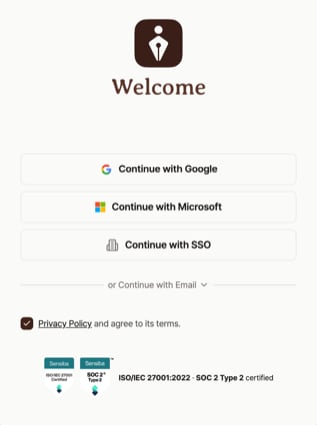
The Tiro sign-in screen
How do I sign up with email?
Anyone can sign up with email, with no organization domain registration needed. Sign up on the web at tiro.ooo; afterwards you can sign in with the same email and password on the desktop and mobile apps too. For the step-by-step flow, from agreeing to the terms through email verification and setting your password and nickname, and how it differs from social sign-up, see Sign up for Tiro.I forgot my password. How do I reset it?
If you sign in with email and password, you can reset it right from the sign-in window. Expand the email section, press [Forgot your password?], then enter the 6-digit verification code sent to your email and a new password (8 or more characters including letters, numbers, and special characters). If the verification email doesn’t arrive, check your spam or promotions folder. Resetting your password signs you out of all existing Tiro sessions. An organization admin can send you a password reset email from your member details. Open the link in the email to set your new password. The admin cannot change your password for you or receive a temporary password. Accounts created with Google, Microsoft, Apple, or SSO never have a Tiro password unless an email-and-password sign-in method was later added to the same account, so there’s nothing to reset. Just sign in again with the social button you used to sign up. If you can’t remember which one, try [Continue with Google] and [Continue with Microsoft] with the same email in turn.What does “Continue with SSO” on the sign-in screen do?
It’s an enterprise-only option for companies that have set up SSO (single sign-on). Enter your work email, and you sign in to Tiro through your company’s identity provider. If your individual or team account doesn’t use SSO, you can ignore it. For details, see Organization security settings.Can I sign in to the desktop or web app with my Apple ID?
Apple ID sign-in works only in the iPhone and iPad app. The Android app and the web and desktop app don’t have a [Continue with Apple] button. To use the same account on desktop or web, link Google or Microsoft sign-in from the iPhone or iPad app.1
Open login methods in the iPhone or iPad app
Go to [My page] → [Login methods] in the profile area → [Add login
method]. If you don’t see that screen, update the app to the latest
version and open it again.
2
Link Google or Microsoft
Pick [Google] or [Microsoft], then sign in with that account to link
it right away.
3
Sign in on desktop or web
Sign in to the desktop app or web with the Google or Microsoft account you
linked. Your existing notes and subscription appear as before.
Can several people use one account at the same time?
You can open the same note on several devices at once. Recording, though, runs on one device at a time, and starting a new recording on another device pauses the one already in progress. For details, see Using Tiro on multiple devices.Merging accounts (linking an extra sign-in method)
If the email you want to link does not have a Tiro account yet, just add it as a sign-in method in Settings. If both email addresses already have Tiro accounts, you can ask support to merge them. Merging doesn’t combine or move data, it only moves one account’s sign-in method to the other, so if you have data to keep in both accounts (notes, a subscription, credits, a workspace, and so on), check the alternatives below first.Link an email that doesn’t have a Tiro account yet
This does not merge two accounts. It links a new sign-in method directly to your current account, so your notes, subscription, credits, and workspace access do not change. On the web or desktop app, open Settings, go to [Profile] → [Login methods], press [Add login method], then choose [Continue with Google] or [Continue with Microsoft] and sign in with that account. On the mobile app, you can add it right inside the app. Go to [My page] → [Login methods] in the profile area → [Add login method], then pick [Google] or [Microsoft]. If you don’t see that screen, update the app to the latest version and open it again. Once it’s linked, either sign-in method opens the same notes and subscription. For the full flow, see sign-in method management in the account management guide.If you already use both accounts
This applies when both emails already have Tiro accounts, or when you can’t reach the login methods screen from either the app or the web and desktop app. If you no longer need one of the accounts, ask support to merge them. If you have data to keep in both accounts, use the methods below instead of merging.What changes when you merge?
A merge moves one account’s sign-in method to the other account. The two accounts’ data is not combined or moved. You can keep using the data in the account you keep, but you can no longer sign in to the other account, so its notes, subscription, credits, and workspaces become unavailable. The data is not deleted. If the account you’re giving up has a subscription on auto-renewal, cancel it before the merge. A merge moves only the sign-in method and leaves the subscription as is, so afterwards you can’t sign in to that account to cancel it and billing continues. If you can’t cancel it yourself, let us know through support.What if both accounts have data I want to keep?
You can keep your data with the methods below. Support does not offer to move notes from one account to another.- Notes you own: Sharing as an editor works best. Sign in to the account that holds the notes and invite the account you’ll keep using as an editor on each note. Note that ownership doesn’t transfer, and from the invited account you can’t move the note into your own personal or workspace folders, invite other people, change permissions, or delete it.
- Notes shared with you: Editors and viewers cannot invite other people. Ask the original owner to invite the account you’ll keep using.
- Subscriptions: There’s no way to move a subscription between accounts. Cancel the subscription on the account you’re retiring, and once that subscription’s billing period ends, start a new one from the account you’ll keep using. Starting a new subscription right away overlaps the paid periods on both accounts and charges you twice. Where you cancel depends on the billing channel (web/desktop payment or in-app payment).
- Workspaces: If both accounts are in the same workspace, just keep using each one as is. If you’re an Admin, you can invite the other account yourself; if you’re a Member, ask a workspace Admin to invite it. On a paid team workspace, you need an empty seat to invite someone. Without one, an Admin has to add seats first in [Settings] → [People] → [Manage seats].
- Credits: There’s no way to move credits between accounts. Keep using them from the account that has them.
- Account basics: Profile information, personal word lists, personal templates, meeting attendees, and integrations (calendar, Slack, and so on) are not shared between accounts. Set anything you still need up again in the account you’ll keep using.
How do I request a merge?
1
Send the merge request
Contact support from inside the app or on the web, and tell us your existing
account’s email, the email you want to link, and which account to keep. A
merge is hard to undo, so we confirm you own both accounts before we
process it. Contacting support confirms the account you’re signed into
automatically, but the other account still needs proof of ownership, like
a receipt for a payment made on it. If you email us at
hello@theplato.io instead, we’ll need that kind of proof for both accounts.
If your Apple ID uses “Hide My Email,” send the address shown on the
profile screen in the app.
2
Sign back in after the merge
We’ll let you know once the merge is done. Sign out on every device, then
sign back in with the new method. The data from the account you chose to keep
will appear.
Related pages: Account management guide · Using Tiro on multiple devices