

Connect from your browser
On claude.ai, you find Tiro in Claude’s connector directory and connect it.1
Find Tiro in Claude's connectors
Open the Claude connectors screen in your browser. Type 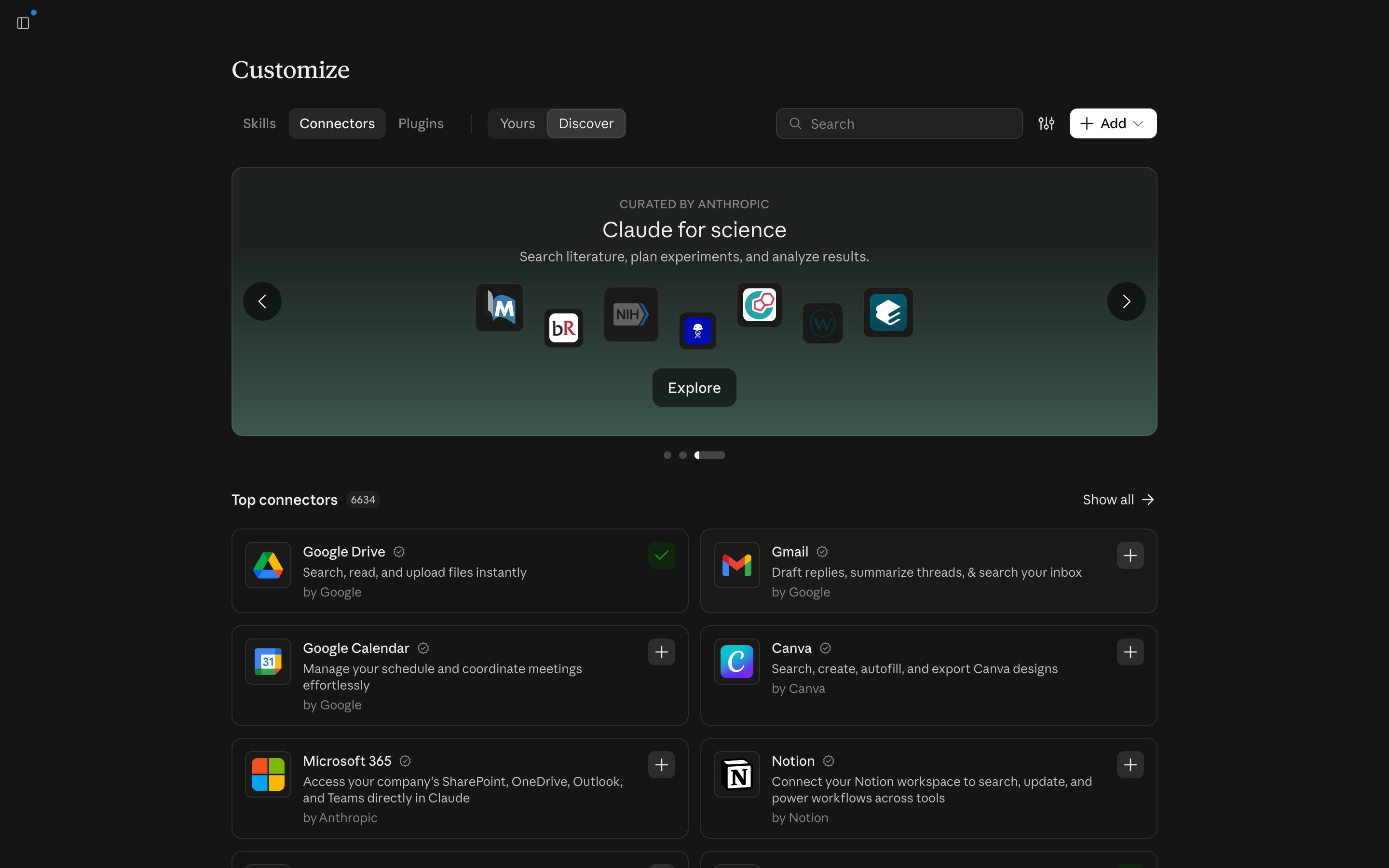
Tiro in the search box of the connector directory and the Tiro (ThePlato Inc.) card appears. If search doesn’t find it, go straight to the Tiro connector page.2
Connect your Tiro account
Click the connect button on the Tiro card. Sign in to Tiro in the new window, then click [Allow selected access] on the Tiro permission screen to finish.Once connected, Claude asks for approval each time it uses a Tiro tool. To stop the prompts, set each tool to always allow in the connector settings. On organization accounts this option may be unavailable depending on your org settings.
3
Turn on Tiro in a chat
In a new chat, click the [+] button at the lower left of the message box and turn on Tiro in the [Connectors] menu. Adding the connector to your account and turning it on in a chat are separate steps.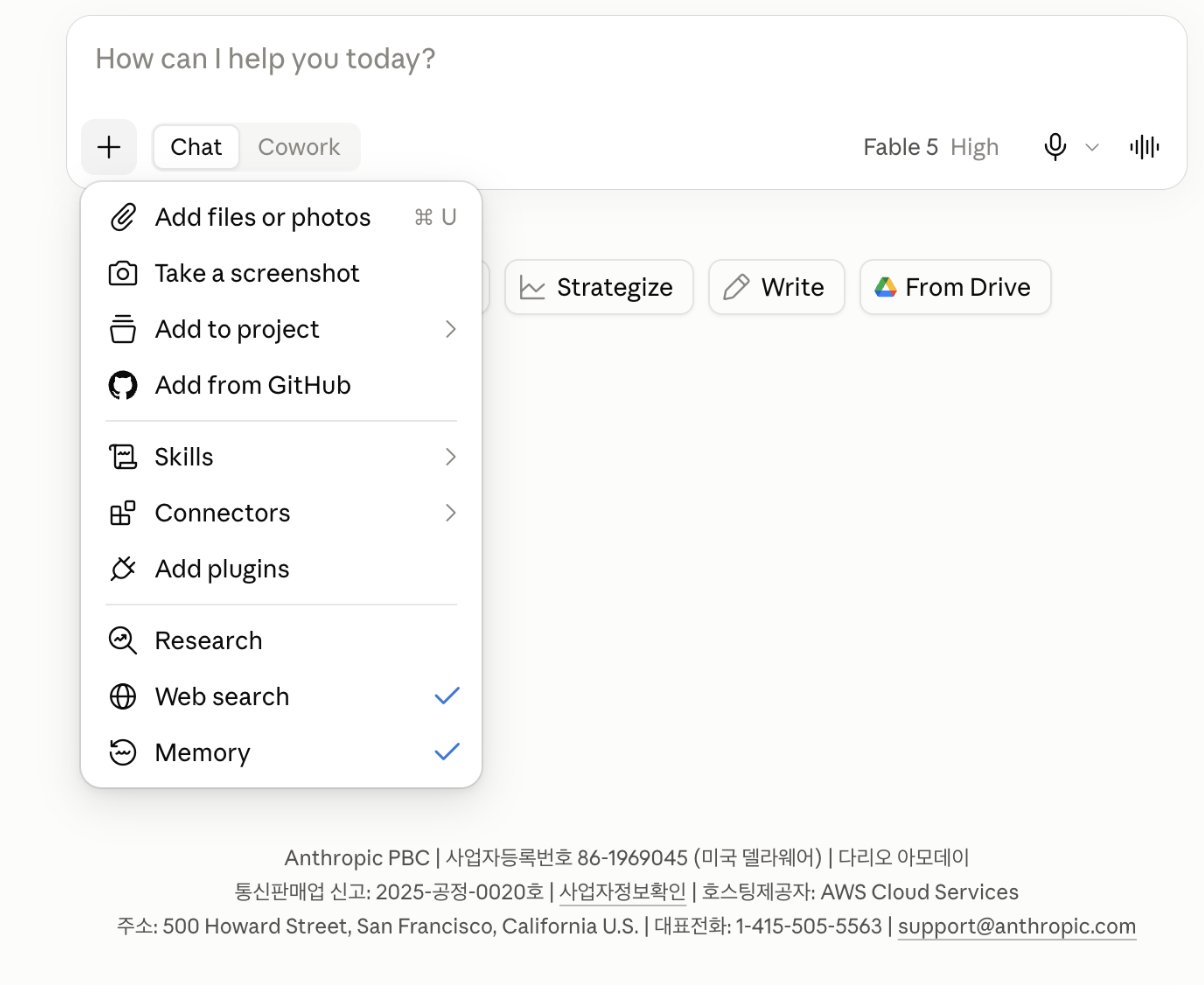
4
Check the connection
Ask Claude:
Find my recent notes in Tiro and tell me their titles. If Claude uses a Tiro tool and shows note titles, you are connected.If the Tiro card is missing or the connection is blocked on a Team or Enterprise organization account, an org admin may need to allow the connector first. If you can’t use the directory, add a custom connector with the server address
https://mcp.tiro.ooo/mcp. This is the only official address.Connect from the Claude desktop app
The Claude app installed on your PC uses the connectors from your claude.ai account. You don’t edit any settings file or install anything extra.1
Connect the connector
Follow Connect from your browser first. The connectors screen in the app is the same as in the browser, so you can also connect from the app in the same order.
2
Check in the app
When Tiro appears in the app’s connector list, you’re ready. If the app and browser are signed in to the same Claude account and organization, Tiro shows up in both no matter where you connected it. If you use both a personal account and a company organization, check which one the app is in right now.
3
Check the connection
Ask Claude:
Find my recent notes in Tiro and tell me their titles. If Claude uses a Tiro tool and shows note titles, you are connected.Related pages: Connect Tiro to Claude Code · Connect Tiro to AI